Advanced Settings
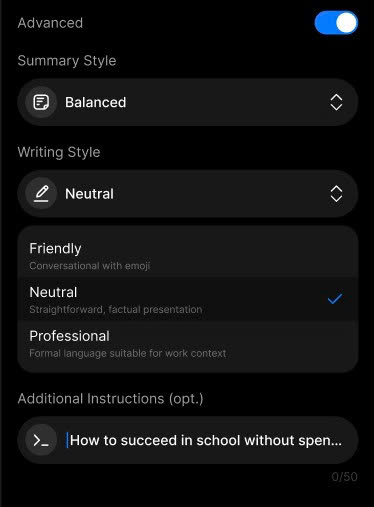
UI specification advanced settings screen
Enable Advanced to customize how your recordings are processed and summarized. These options help tailor results to your preferences and context.
1. Summary Style
Select how the system summarizes your recording:
| Option | Description | Best for... |
|---|---|---|
| Short | Quick summary with only key points. | When you need a fast glance. |
| Balanced ✅ | Key ideas with brief context. | When you want clarity without detail. |
| Comprehensive | Full summary with supporting details. | When you want in-depth understanding. |
📌 Examples:
- Short: “Q2 growth is strong, focus on Japanese market.”
- Balanced: “Instructor explained niche markets with Apple as an example.”
- Comprehensive: “The session covered niche market strategy, included real-world examples like Apple, and concluded that focusing on a specific audience helps clarify product positioning.”
2. Writing Style
Adjust the tone of how the content is presented:
| Option | Style Description | Best for... |
|---|---|---|
| Friendly | Conversational tone, may include emojis 😊 | Personal use, casual sharing. |
| Neutral ✅ | Clear and factual | General use, personal or work. |
| Professional | Formal and structured | Business reports, academic use. |
📌 Examples:
- Friendly: “Just picked up some awesome focus tips today 🎯! Super easy to follow!”
- Neutral: “The session introduced Pomodoro technique and distractions management.”
- Professional: “The workshop introduced time management strategies, highlighting Pomodoro as an effective method to improve productivity.”
3. Additional Instructions (Optional)
You can add short custom instructions to personalize how your summary is generated (max 50 characters):
- “Focus on the conclusion”
- “Skip the introduction”
- “Summarize in bullet points”
- “Use beginner-friendly language”
⏳ Optional field. Can be left blank.