Input text
The Text Input feature allows users to manually type or paste written content so the system can analyze, summarize, transform writing style, and generate intelligent notes using AI.
This feature is especially useful when you already have written content such as:
- Personal notes
- Excerpts from emails or documents
- Content from meetings, lectures, or workshops
- Social media posts
Key Benefits:
- Quickly summarize and generate notes from available text
- Supports up to 10,000 characters per input
- Customize summary style and writing tone
- Simple, user-friendly interface
1. UI/UX Specification
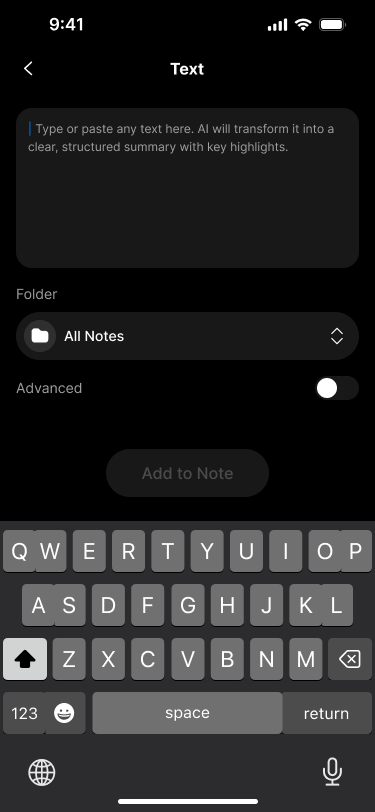
UI specification create text screen
How to access the Text Input interface
From the main screen, select Text to open the text input interface.
Interface components
| Component | Type | Description |
|---|---|---|
| Text input field | Text Input | Enter or paste the content to be processed |
| Character counter | Indicator | Displays the number of characters used (max 10,000) |
| Character limit warning | System Message | Displayed when the content exceeds the allowed character limit |
| Folder | Dropdown | Choose the folder to save the note |
| Summary Language | Dropdown | Select the content's language for accurate processing |
| Advanced (Toggle) | Switch | Enable to configure advanced options: Summary Style, Writing Style, etc. |
| Summary Style | Dropdown | Choose the summary type: Short / Balanced / Detailed |
| Writing Style | Dropdown | Choose writing tone: Friendly / Neutral / Professional |
| Additional Instructions | Text Input | (Optional) Add specific instructions (e.g., “Summarize in 5 bullet points”) |
| Add to Note button | Button | Submit the content to generate notes |
2. How to Use
Step 1: Open the Text Input feature
From the main screen, tap Text to open the input area.
Step 2: Enter or paste your content
- You can type directly or paste from clipboard
- The interface shows the character count in real-time
Character limit:
10,000
⚠️ If the limit is exceeded, the system will display:
"You have reached the character limit. Please shorten your content or remove some text to proceed."
Step 3: Configure basic settings
- Folder: Choose where to save the note
- Summary Language: Select the language of your content
Step 4: Enable advanced settings (optional)
Toggle Advanced to customize how AI handles your content:
- Summary Style: Short / Balanced / Detailed
- Writing Style: Neutral / Friendly / Professional
- Additional Instructions: Examples:
"Summarize only the action points""Keep original section titles"
Step 5: Process your content
Tap Add to Note to submit your input.
The system will analyze it and generate a summary or note.
3. Notes & Tips
- For long content, consider splitting it into smaller chunks for better control
- Use Additional Instructions to help AI understand your specific goals
- Always check the character count to avoid processing errors
- Great for transforming raw text into clean, shareable formats
4. FAQ
What's the maximum character limit?
The limit is 10,000 characters. If exceeded, a warning will prompt you to reduce the length.
Can I input multiple paragraphs at once?
Yes, as long as the total does not exceed 10,000 characters.
How is Text Input different from Upload Document?
- Text Input is best for typed or pasted content, ideal for editing
- Upload Document is for existing files like
.pdf,.doc, etc., stored on your device
Can I combine it with other summary styles?
Yes. You can customize the summary style and writing tone by enabling Advanced settings.
Does Text Input support markdown?
Currently, markdown formatting is not rendered visually in the input box, but markdown text is processed as plain content.