Upload Image
The Upload Image feature allows users to upload images containing written content such as whiteboards, slides, handwritten notes, or document screenshots. The system will automatically recognize text in the images using OCR, then summarize, extract, and generate intelligent notes using AI.
Key Benefits:
- Automatically recognizes and extracts text from images
- Supports up to 10 images per upload, with popular file formats
- Customize summary style and writing tone
- Create smart notes, highlights, or summaries from images
- Simple, intuitive interface for quick interaction
1. UI/UX Specification
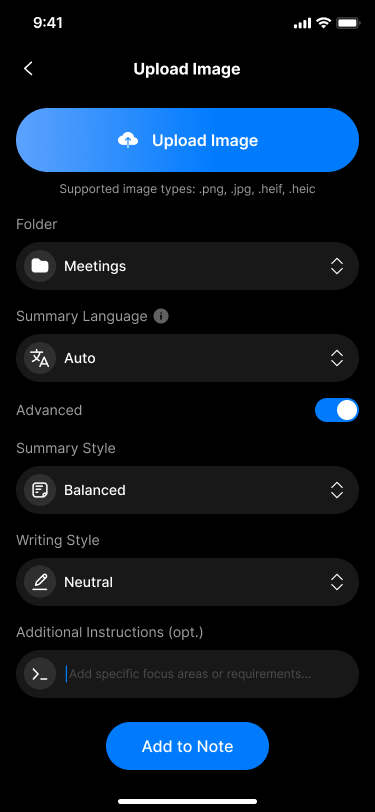
UI specification create upload image screen
Key interface elements:
| Element | Type | Description |
|---|---|---|
| Image picker | Image Picker | Select images from library or capture new ones (up to 10 images) |
| Selected image list | Thumbnail Grid | Preview selected images, remove or reorder them |
| Format support info | Text | Supported formats: .png, .jpg, .jpeg, .heic, .heif |
| Folder | Dropdown | Choose where to save the note after processing |
| Summary Language | Dropdown | Select the language in the image for accurate OCR |
| Advanced | Toggle | Enable advanced customization |
| Summary Style | Dropdown | Choose summary style: Short / Balanced / Detailed |
| Writing Style | Dropdown | Choose tone: Friendly / Neutral / Professional |
| Additional Instructions | Text Input | (Optional) Specific guidance to AI (e.g., “Summarize in bullet points”) |
| Add to Note | Button | Start processing and generate note |
2. How to Use
Step 1: Open Upload Image
From the home screen, select Image to access the image upload feature.
Step 2: Upload your images
- Tap the “+” button to choose images from your device or take new photos
- You can upload up to 10 images at once
- Thumbnails will appear in a horizontal list once selected
⚠️ If more than 10 images are selected, the system will display an error:
"You can upload up to 10 images only."
Step 3: Preview and reorder
- Tap ❌ to remove an image
- Tap on an image to view it fullscreen
- Drag images to reorder if needed
Step 4: Configure options
- Folder: Select the note folder to save the result
- Summary Language: Match the text language for more accurate OCR
🧠 Enable Advanced for additional customization:
- Summary Style: Short / Balanced / Detailed
- Writing Style: Friendly / Neutral / Professional
- Additional Instructions: (optional) e.g.,
"Convert to markdown","Summarize only titles"
Step 5: Process and create note
Tap Add to Note to let the system extract and process your image content.
3. Notes & Tips
- Use clear, non-blurry images
- Handwriting should be neat and legible
.gifor animated formats are not supported- Recommended image size: < 5MB/image for optimal processing speed
- OCR supports many languages, including English, Vietnamese, French, and more
4. FAQ
What image formats are supported?
.png, .jpg, .jpeg, .heic, .heif – .gif is not supported.
How many images can I upload at once?
Up to 10 images per upload. To process more, split them into separate uploads.
Can it recognize handwriting?
Yes – as long as the handwriting is clear and legible. Poor lighting or messy text may reduce accuracy.
Do I have to select a language?
Not required, but selecting the correct language improves OCR accuracy.
Can I reorder the image sequence?
Yes – you can drag to reorder the images during fullscreen view.
Does it support markdown or bullet extraction?
Yes – simply specify this in Additional Instructions (e.g., “Summarize in bullet points”, “Convert to markdown”).
Why wasn’t my image processed?
Common reasons:
- Image is blurry, overexposed, or too dark
- File size exceeds system limits
- Image contains no readable text (e.g., illustration or photo only)