Web Link
The Web Link feature allows users to paste URLs from popular platforms such as YouTube, news websites, TikTok, Instagram, Facebook, and more. The system will automatically extract and process the content, including AI-powered summarization, transcript generation (for videos), and note creation.
This feature saves time and is ideal for quickly digesting important information from online content.
Key Benefits:
- Instant content analysis and extraction from any valid public URL
- Summarize or generate notes from videos, articles, or social media posts
- Customizable summary and writing styles, tailored to different use cases
- Supports a wide range of platforms, with future expansion planned
1. UI/UX Specification
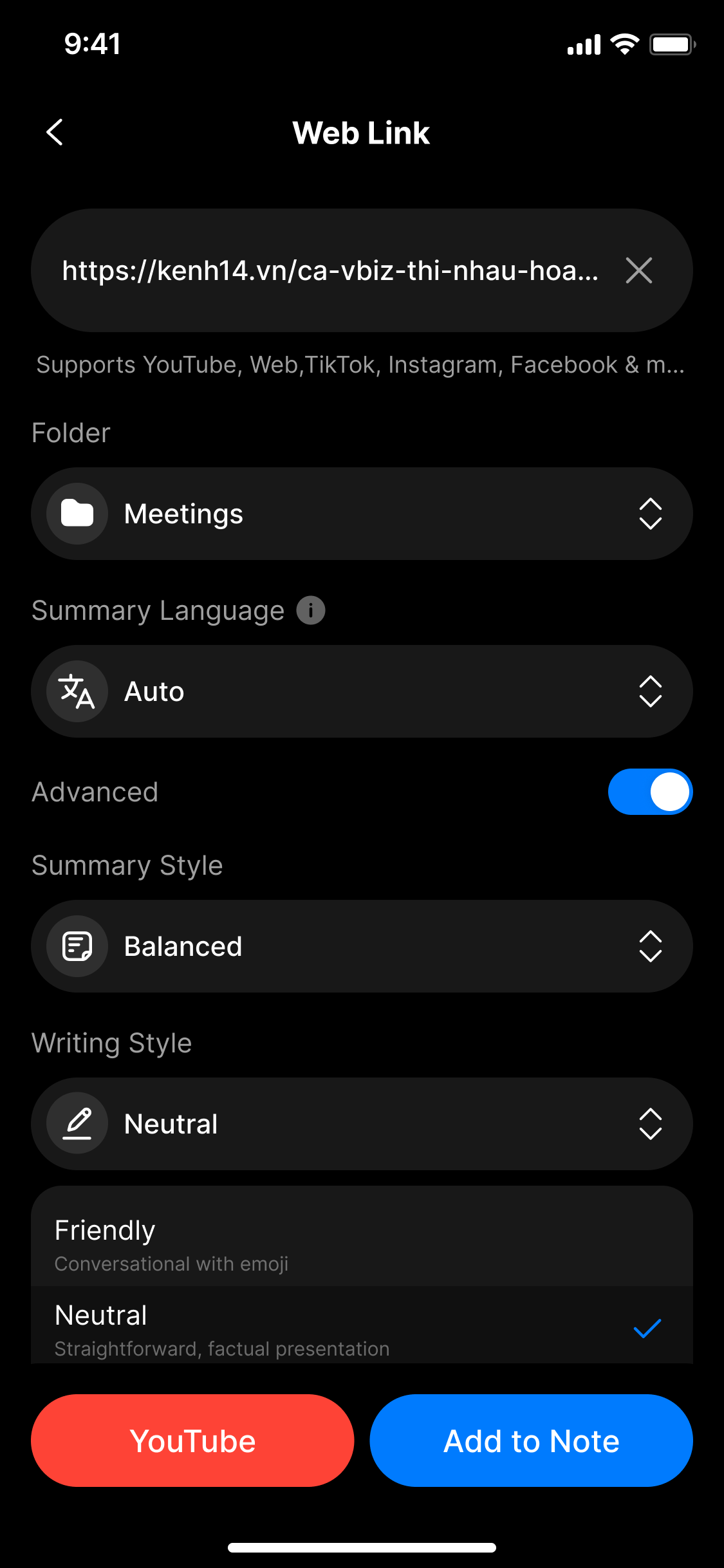
UI specification create web link screen
How to access the Web Link interface
From the main screen, tap Web Link to open the URL input panel.
UI Components
| Component | Type | Description |
|---|---|---|
| URL Input Field | Text Input | Paste links from YouTube, TikTok, Facebook, news sites, etc. |
| Folder | Dropdown | Choose a folder to save the generated note |
| Summary Language | Dropdown | Choose language (mandatory for YouTube) |
| Advanced | Toggle | Enable advanced AI configuration options |
| Summary Style | Dropdown | Choose summary style: Short / Balanced / Comprehensive |
| Writing Style | Dropdown | Choose tone: Friendly / Neutral / Professional |
| Additional Instructions | Text Input | (Optional) Add extra processing instructions (e.g., “Summarize only the ending”) |
| Add to Note Button | Button | Start processing the link and generate the note |
| Open YouTube Button | Button | Quick link to the original YouTube page (if applicable) |
2. How to Use
Step 1: Open the Web Link interface
From the home screen, go to Web Link.
Step 2: Paste the URL
Paste a valid link from supported platforms like YouTube, news websites, TikTok, etc.
The system will automatically detect the content type (video, article, social media post...).
📌 Only public content is supported – private or paywalled links won’t work.
Step 3: Configure basic options
- Folder: Select the folder where the note will be saved
- Summary Language:
- Required for YouTube: Select the language spoken in the video
- Optional for other platforms: You may leave it on "Auto"
Step 4: Configure advanced settings (optional)
Toggle Advanced to customize:
- Summary Style: Short / Balanced / Comprehensive
- Writing Style: Friendly / Neutral / Professional
- Additional Instructions: Optional custom instructions such as:
"Only summarize the conclusion""Format the output as bullet points"
Step 5: Generate your note
Tap Add to Note to start processing.
The system will analyze the content and generate a summary or note.
3. Notes & Tips
- Only public URLs are supported. Links requiring login or with restricted access won’t work.
- For YouTube, you must select the correct spoken language for accurate transcript generation.
- Processing time may vary depending on content length and complexity.
- Invalid or inaccessible links will be rejected with an error prompt.
4. FAQ
What types of links are supported?
- YouTube, TikTok, Instagram, Facebook (public only)
- News articles and media outlets
- Public social media posts
- Some popular blogs or forums
Why is YouTube language selection required?
The system needs to know the spoken language in the video to accurately generate transcripts and summaries.
Can I use private or internal links?
No. Only publicly accessible content is currently supported.
Can I process multiple links at once?
Not yet. The system currently supports one link at a time to ensure optimal performance and accuracy.
I got an error: “Unable to extract content.” What does it mean?
The link might be expired, private, or from an unsupported platform.
Try verifying the URL or using one from a more commonly supported source.
Are YouTube livestream videos supported?
Currently, YouTube livestreams are not supported. Only completed, publicly available videos can be processed.