Apple Share Extension
The Apple Share Extension lets you share links (URLs) and files from any compatible app (e.g., Safari, YouTube, Files...) directly to the NoteX AI app.
Shared content is automatically pre-filled in NoteX and can be processed by AI to create structured, smart notes quickly.
1. How to Use the Share-to-NoteX Feature
📱 Steps:
- ✅ Open an app that supports sharing links or files (e.g., Safari, YouTube, Files...).
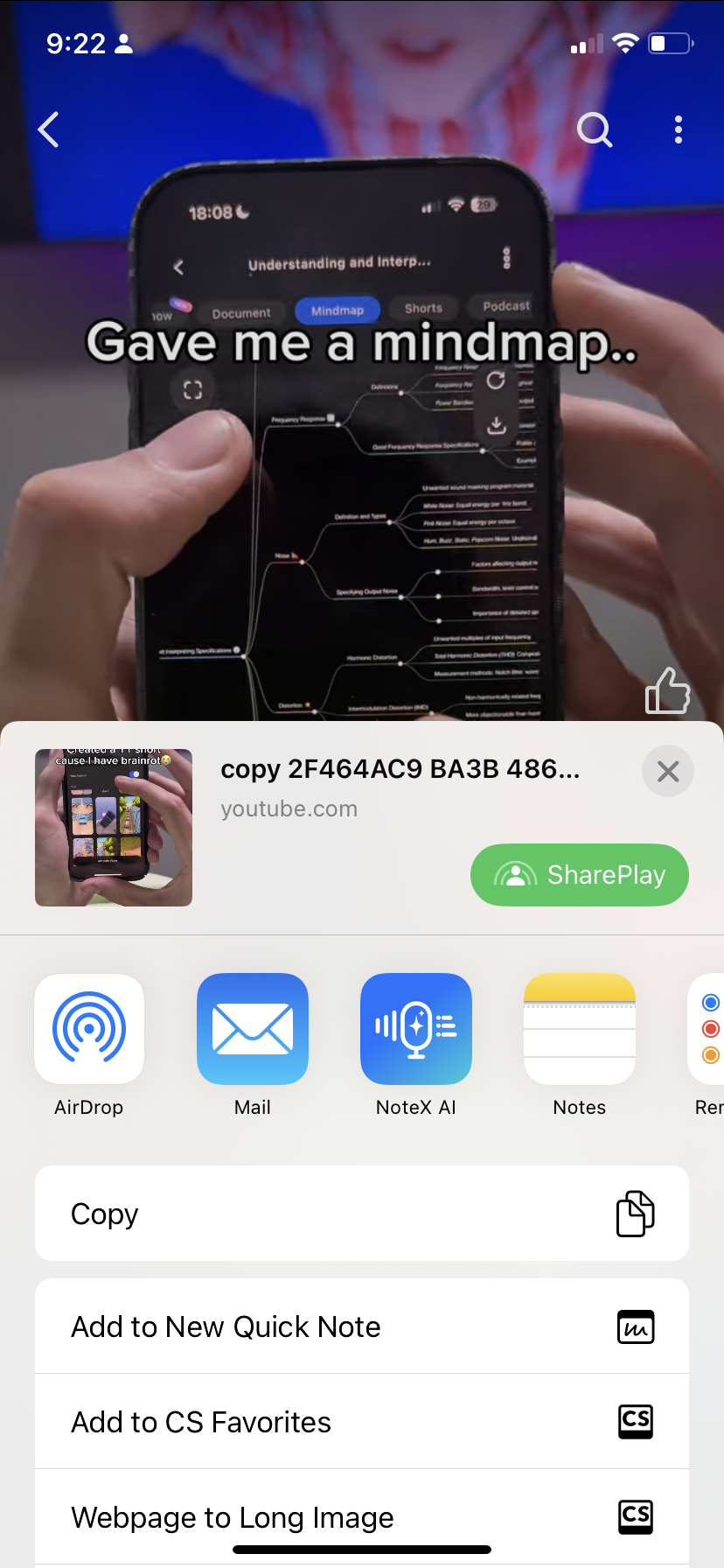
Apple share with NoteX AI – screen 1
- 🔗 Tap the Share button (square with an arrow pointing upward).
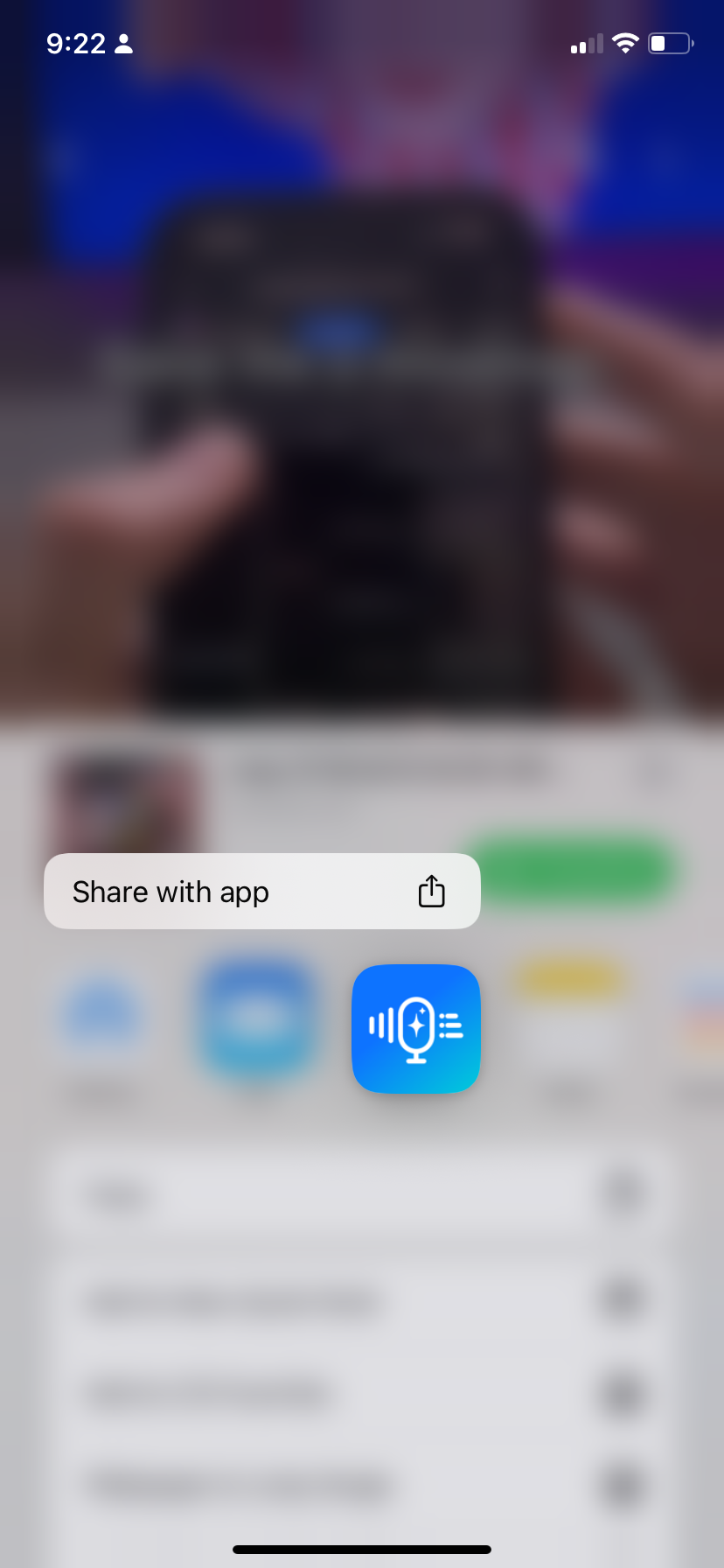
Apple share with NoteX AI – screen 2
-
📤 From the share sheet, select NoteX AI.
If NoteX AI doesn’t appear:
- Scroll down → tap Edit Actions → enable NoteX AI → tap Done.
2. What Happens After Selecting NoteX
After choosing NoteX AI from the share menu, the NoteX app will open automatically and:
| Shared Content Type | Behavior |
|---|---|
| 🔗 Link (URL) | Redirects to the Create Web Link screen with the link field pre-filled. |
| 📄 File | Redirects to the Import File screen with the file already attached. |
📝 To finalize your note:
- Optionally add a title or description.
- ✅ Tap Add Note to save the content as a new note.
3. After Sharing
- 📌 Your note will appear in the Home or Recent Notes section of NoteX AI.
- 🚀 You can reopen the note later to edit, move it to folders, or apply AI features like summarization or blog generation.
4. Important Notes
-
Currently supported types:
- ✅ Links (URLs)
- ✅ Files: PDF, DOCX, PPTX, TXT, and other standard formats.
-
Users must tap "Add Note" to complete the note creation once NoteX is opened.
5. FAQ
I don't see NoteX AI in the share sheet – what should I do?
- Scroll to the bottom of the share sheet → tap Edit Actions
- Enable NoteX AI → tap Done
- Now it will appear in the app list when sharing.
Can I share images or videos to NoteX?
- 📌 Currently, only links (URLs) and document files (PDF, DOCX, etc.) are supported.
- Media support may be added in future versions.
Do I need an internet connection to share content?
- ✅ You can send content without internet, but AI processing features (e.g., summarization) require a connection.
Where can I find the note after sharing?
- After tapping Add Note, the note will be saved to:
- The Home tab
- Or under Recent Notes
Is AI applied automatically after sharing?
- No. After you tap Add Note, you can choose to manually apply AI actions (e.g., summary, blog, LinkedIn post) on the new note.
✅ Summary
The Share to NoteX feature lets you:
- Share links or files into NoteX AI from any app.
- Auto-fill note content and organize instantly.
- Use AI tools to enhance notes with minimal effort.
🎯 Try sharing a YouTube link or a PDF to experience it now!