NoteX Home Screen - All Notes Tab Documentation
Overview
The All Notes tab is your main dashboard where you can see and manage all your notes in one convenient place. Think of it as your personal note library that keeps everything organized and easy to find. Here's what makes it awesome:
- Everything in One Place: See all your notes together, no matter what type they are
- Smart Organization: Your notes automatically show what kind of content they contain (voice recordings, videos, documents, etc.)
- Quick Actions: Do what you need with just a tap - share, organize, or export your notes
- Bulk Management: Select multiple notes at once to organize them faster
- Live Updates: Watch your notes appear as you create them
1. UI/UX Specification
Getting There
- How to Access: The "All Notes" tab is your home base - it's already selected when you open the app
- Where to Find It: Look for it at the top of your screen next to "Folders" and "Shared"
What You'll See
- Welcome Message: A friendly greeting at the top with your profile picture
- Special Offers: Cool promotions and referral bonuses in colorful banners
- Your Notes: All your notes displayed as easy-to-read cards
- Creation Tools: Handy buttons at the bottom to add new content quickly
- Record Button: The big blue microphone button - your shortcut to voice notes
How It Works
- Refresh: Pull down to update your note list
- Quick Select: Press and hold any note to start selecting multiple ones
- Easy Actions: Tap the three dots on any note for more options
- Smooth Navigation: Everything responds instantly to your touches
2. How to Use
Browsing Your Notes
- Open NoteX - you'll automatically see your "All Notes" collection
- Scroll up and down to browse through everything you've created
- Each note shows you:
- The title and a sneak peek of what's inside
- When you created it and how long it is
- What type of content it contains (like "Record" or "YouTube")
- Which folder it belongs to (if any)
Adding New Notes
- Voice Notes: Tap that big blue microphone button to start recording
- Other Stuff: Use the icons at the bottom:
- Link: Save interesting web pages
- Audio: Add music or sound files
- PDF: Import documents
- Other: Anything else you want to save
Working with Individual Notes
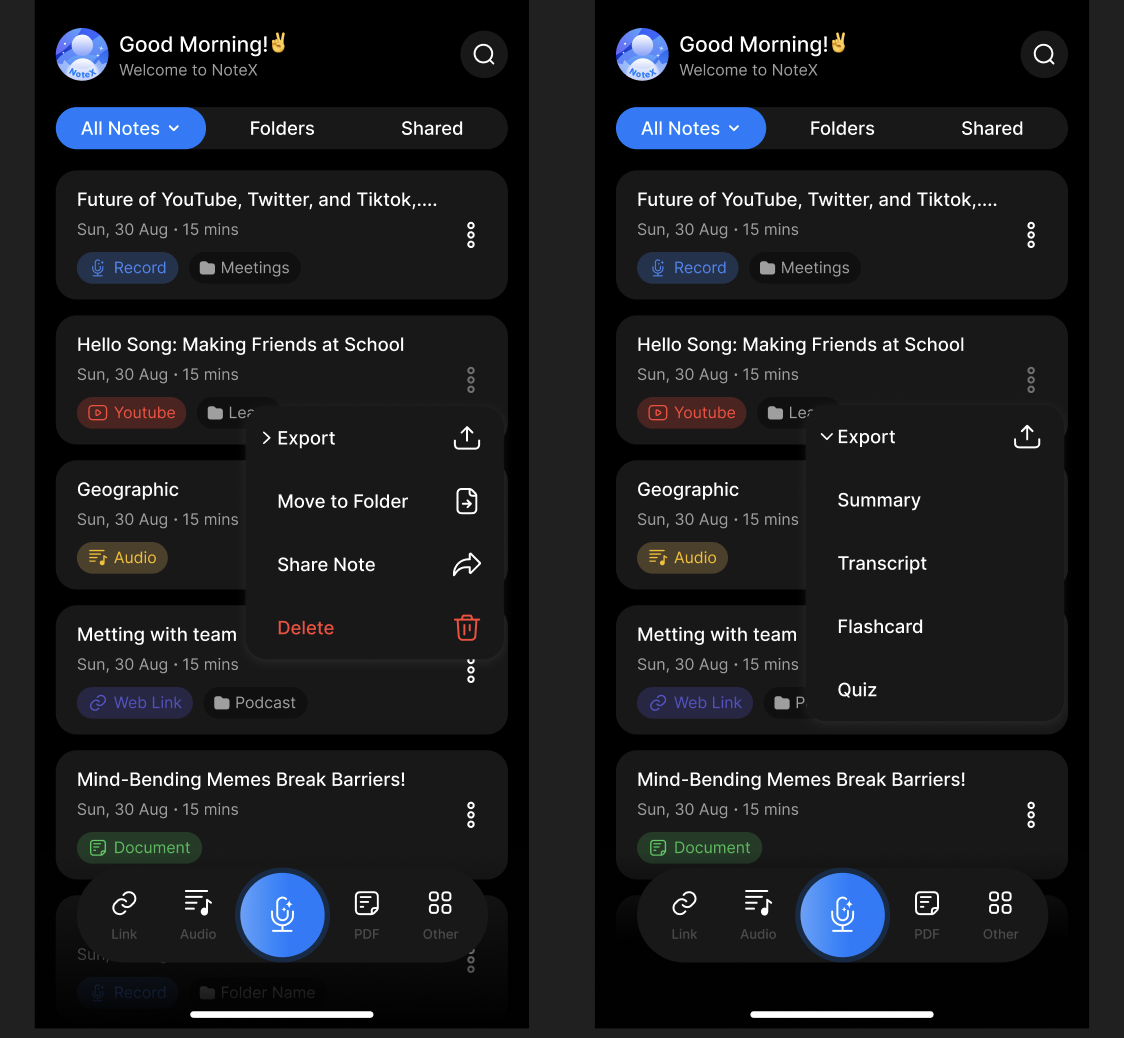
- More Options: Tap the three dots (⋮) next to any note
- What You Can Do:
- Export: Send your note somewhere else → [Check out our Export Guide]
- Move to Folder: Put it in the right place → [Learn about Folders]
- Share Note: Let others see or edit it → [Sharing Made Easy]
- Delete: Remove it completely (be careful - this can't be undone!)
Selecting Multiple Notes
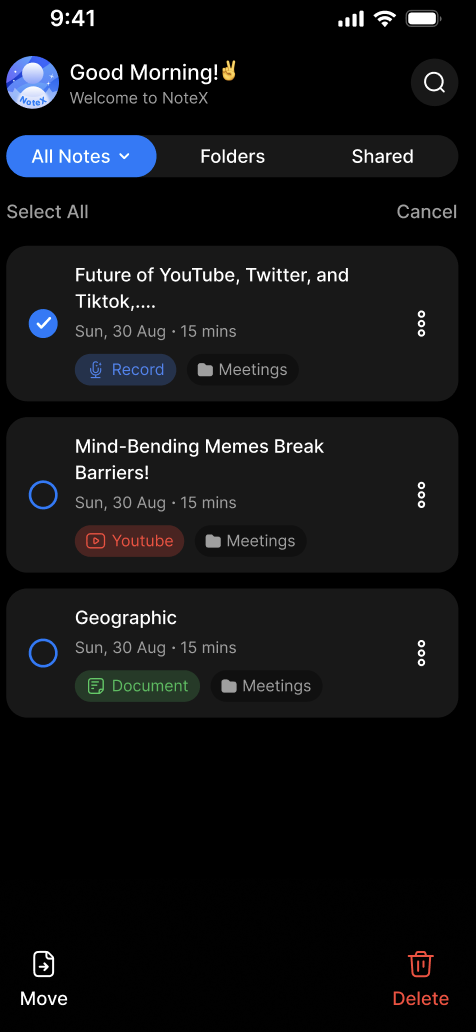
- Start Selecting: Press and hold any note, or tap "Select All" at the top
- Pick Your Notes: Tap the circles next to the ones you want
- Do Something with Them: Use the buttons at the bottom:
- Move: Put them all in a folder
- Delete: Remove them all at once
- When You're Done: Tap "Cancel" to go back to normal browsing
3. Different Views You'll See
When You're Just Starting Out
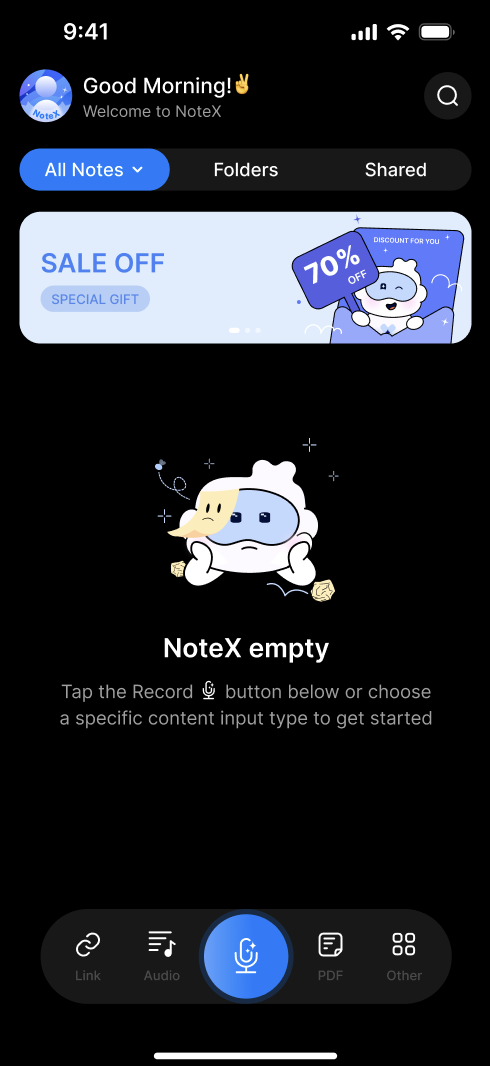
- What It Looks Like: A cute character with sparkles welcoming you
- The Message: "NoteX empty - Tap the Record button below or choose a specific content input type to get started"
- Why It's There: To help you create your very first note!
Your Normal View
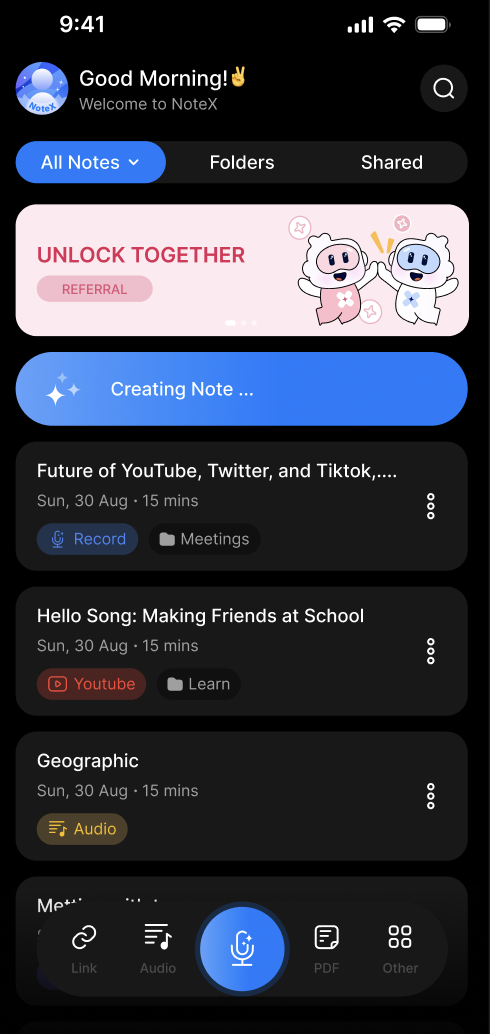
- What It Looks Like: A nice list of all your notes with previews
- What You Can Do: Everything! Browse, create, organize, share - it's all available
- How It's Organized: Your newest notes appear at the top
While Creating Something New
- What It Looks Like: A blue progress bar saying "Creating Note..."
- When This Happens: Usually when you're recording audio or uploading files
- How Long It Takes: Just a moment - depends on how big your file is and your internet speed
When Selecting Multiple Notes
- What It Looks Like: Little checkboxes appear next to each note
- Special Controls: "Select All" and "Cancel" buttons at the top
- What You Can Do: Move or delete multiple notes at once
- How to Tell: Selected notes have blue checkmarks
4. Frequently Asked Questions
Q: How do I keep my notes organized? A: Great question! Tap the three dots next to any note and choose "Move to Folder." You can also select multiple notes at once to organize them faster.
Q: Oops, I deleted a note by mistake! Can I get it back? A: Unfortunately, deleted notes are gone for good. Here's a tip: instead of deleting, try moving notes to a folder called "Archive" - that way you can always find them later!
Q: What's the difference between "Export" and "Share Note"? A: Think of Export as "send a copy somewhere else" (like saving to Google Drive), while Share Note means "let my friends work on this with me" - it's for real-time collaboration.
Q: My note has been saying "Creating Note..." forever. What's going on? A: This usually happens with longer voice recordings or bigger files. It's just taking time to process everything. Grab a coffee - it'll be ready soon! If you have a slow internet connection, it might take a bit longer.
Q: How do I find a specific note when I have tons of them? A: Easy! Tap the magnifying glass (🔍) at the top of your screen. You can search by the note's title, what's inside it, or any tags you've added.
Q: I accidentally turned on that selection mode with all the checkboxes. How do I get out? A: No worries! Just tap "Cancel" at the top right of your screen and you'll be back to normal browsing mode.