AI Meeting Bot
Overview
The AI Meeting Bot feature automatically captures key points from your meetings, so you don’t have to take notes manually. Once connected to your Google Calendar, the Bot can join meetings, listen, and generate a structured summary with key takeaways.
It’s designed to save time, boost productivity, and make post-meeting follow-ups easier than ever.
Powered by AI, the Bot that can listen in 50 languages and delivers a clean, sharable summary once the meeting ends.
Key Benefits
- Automatically extracts key takeaways from live meetings
- Supports multiple languages for accurate transcription
- Summaries are editable, translatable, and mindmap-ready
How to Use
Step-by-Step Setup
Step 1: Sign in to your NoteX AI Pro+ account
Step 2: Connect your Google Calendar
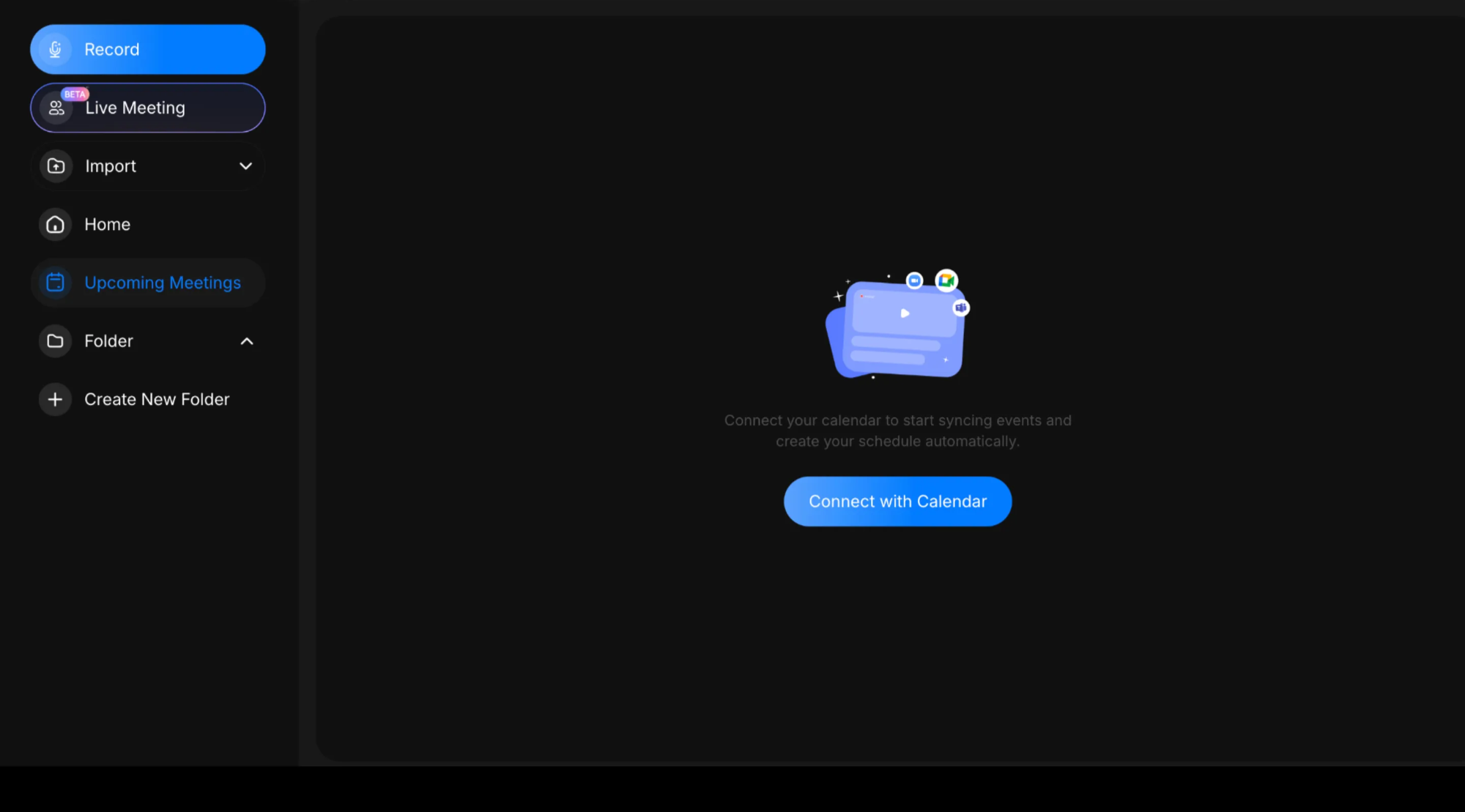
Connect your NoteX account with Google Calendar
Step 3: Schedule your meeting via Google Calendar as usual
Step 4: Go back to the Meeting Bot settings
👉 https://notexapp.com/app/meetings
Choose your Bot Mode:
| Mode | Description |
|---|---|
| Meeting Bot | The Bot joins only when you join the meeting. You must manually create and activate it by clicking “Online Meeting” button. |
| Auto-Join Meeting Bot | The Bot automatically joins based on your meeting schedule. Activate Auto-Join by turning on “Auto-join” function. |
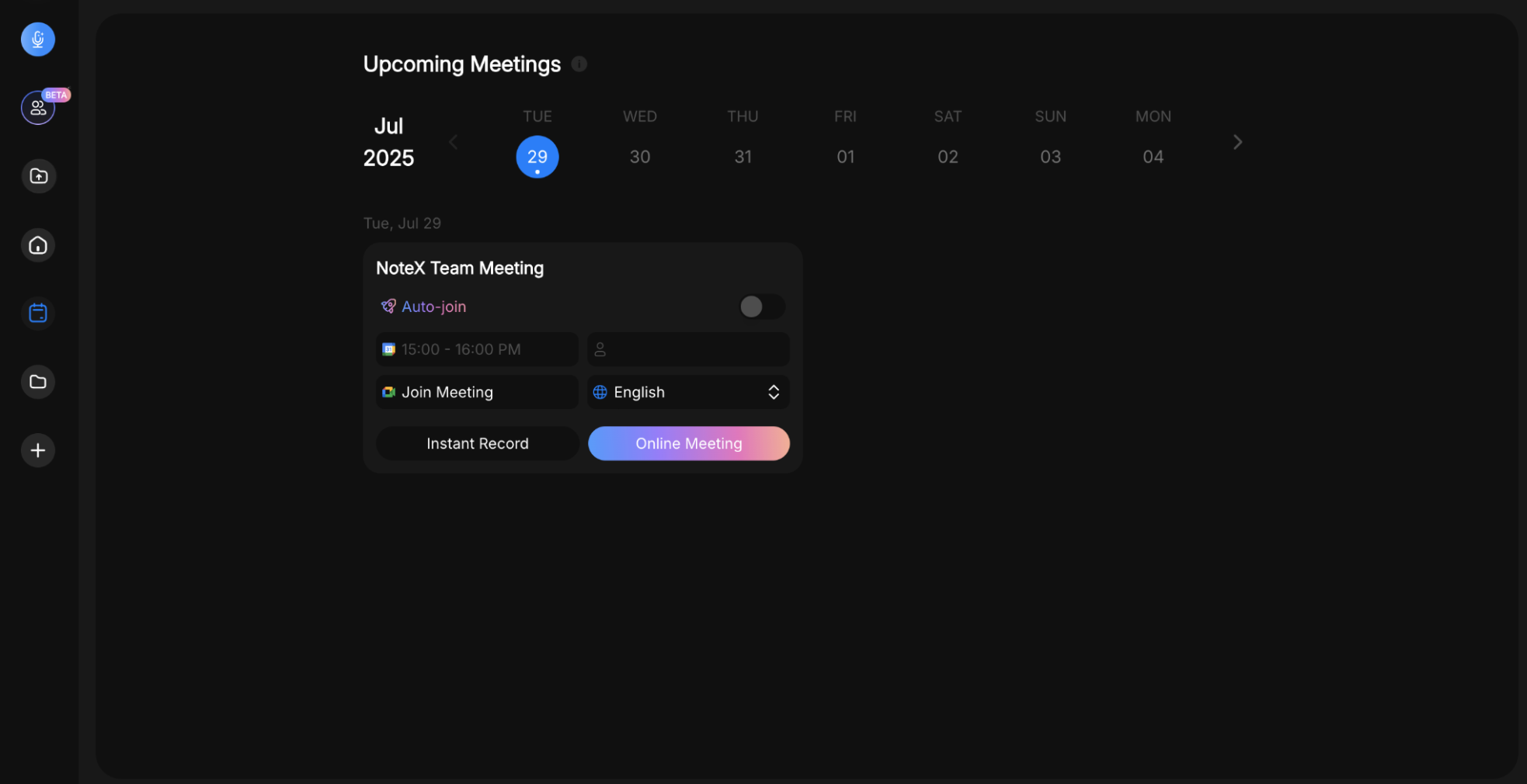
Create and activate Meeting Bot by clicking “Online Meeting”
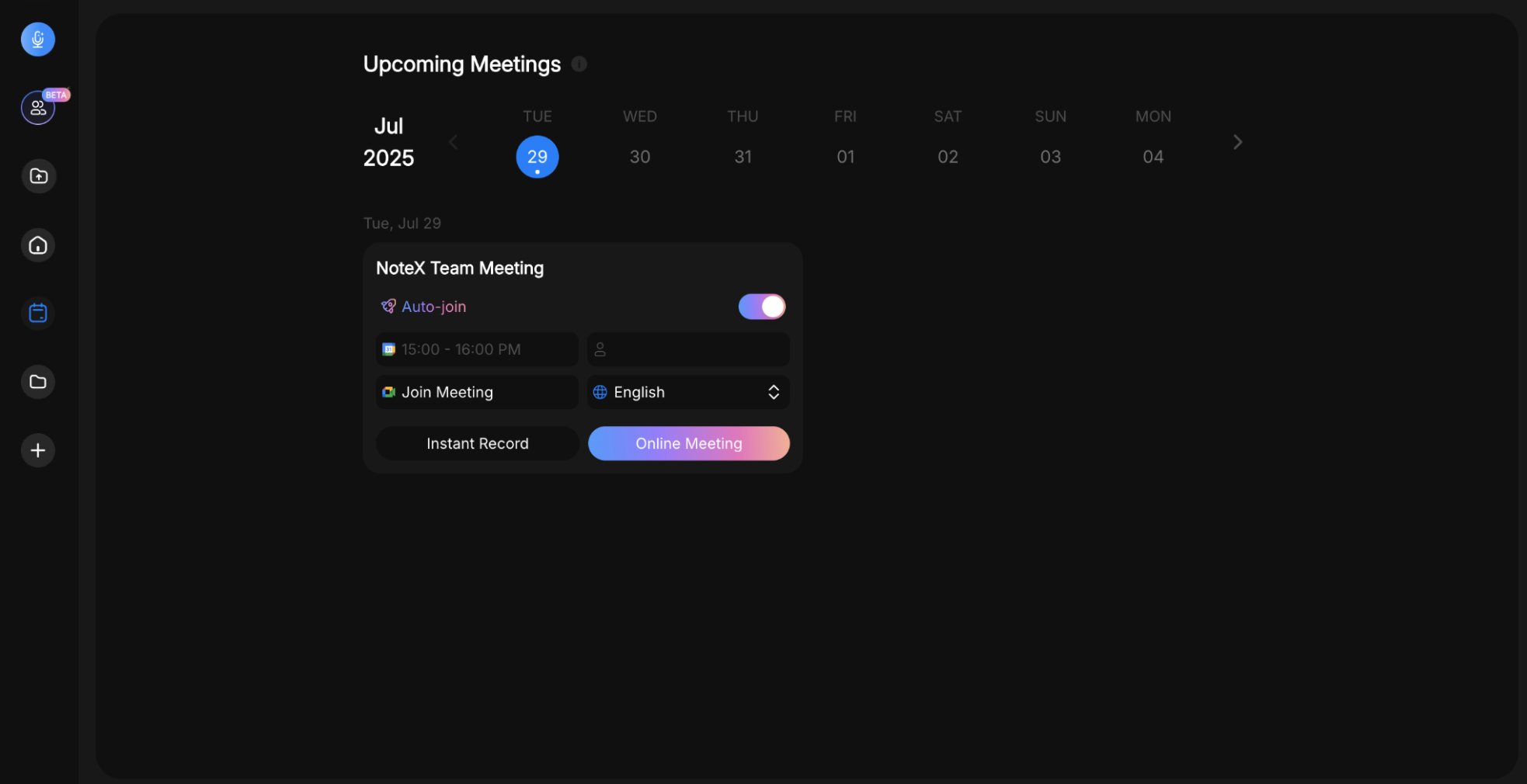
Activate Auto-Join Meeting Bot by turning on “Auto-join” function.
Step 5: Select the language used in the meeting
This ensures the Bot transcribes and summarizes the content accurately.
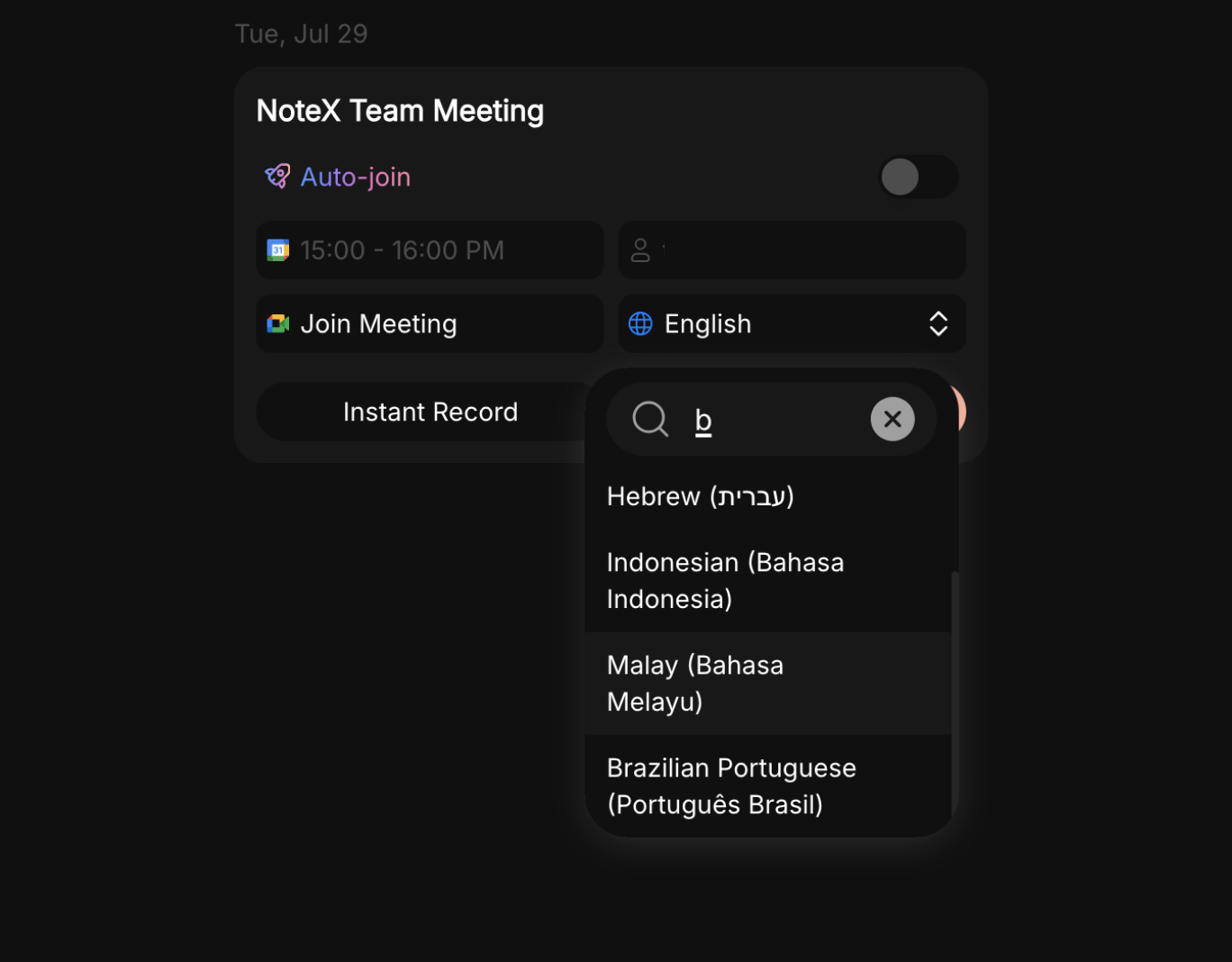
The AI Bot that can listen in 50 languages
4. After the Meeting
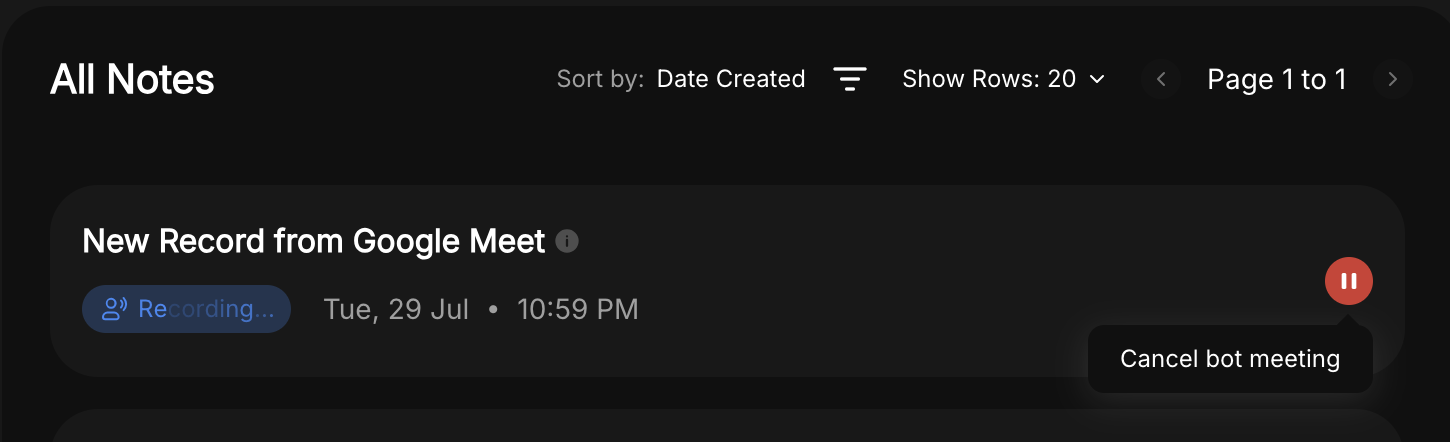
After your meeting ends, visit https://notexapp.com/app and choose “Cancel Bot Meeting” so that AI Bot completes generating Meeting Summary.
All summaries are editable. Make any adjustments to better suit your communication needs.
5. Notes
- The AI Meeting Bot appears as an invited participant and requires approval to join.
- Summaries will only be generated for meetings that meet a minimum length and content threshold.
- You can switch between Bot modes anytime in settings.
- The Bot respects language settings—make sure the selected language matches what’s spoken in the meeting.
❓ FAQ
Q1: Why isn’t the Bot joining my meeting?
A: Ensure it’s invited through Google Calendar and that you’ve allowed it to join. Also check the Bot mode and connection status.
Q2: How do I invite the Bot to my meeting?
A: When scheduling the meeting in Google Calendar, simply invite the Bot email provided in your NoteX dashboard, or enable Auto-Join mode.
Q3: What happens if I forget to configure the Bot before the meeting?
A: Without proper configuration, the Bot won’t be able to join or generate a summary. Set it up in advance to avoid missing important notes.
Q4: Can I edit the meeting summary?
A: Yes! You can edit the generated summary anytime. This is useful for adding personal notes or refining the tone.
Q5: Can I use the Meeting Bot in different languages?
A: Absolutely. Just choose your preferred meeting language during setup, and the Bot will transcribe accordingly.
Q6: Where can I see all past meeting summaries?
A: All your past summaries are available at
Let me know if you’d like to expand this into a visual help article, PDF, or onboarding slide deck!