Folder Detail
Overview
The Folder Detail screen is your main workspace for managing everything inside a folder. Here you can see all your subfolders and notes in one organized view, making it easy to find and manage your content.
Key Benefits:
- Organized Layout: See your subfolders and notes in neat, expandable sections
- Bulk Actions: Select and move multiple items at once to save time
- Easy Note Organization: Add your existing notes to folders with simple filtering
- Simple Management: Move, rename, delete, and organize items with easy taps and gestures
1. UI/UX Specification
Screen Components
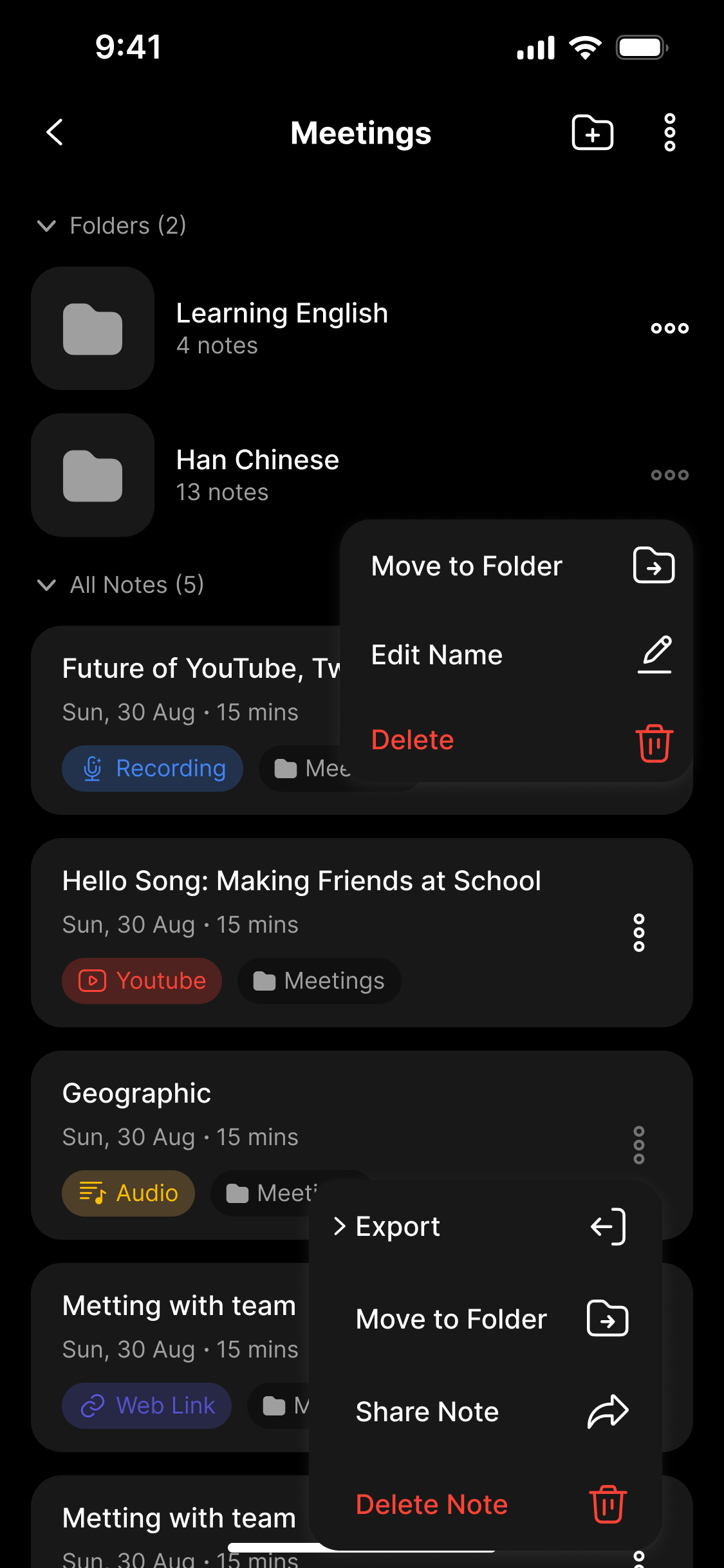
Top Bar:
- Current folder name
- Add new subfolder button (+)
- More options menu (three dots) for folder settings
Main Content:
- Folders Section: Expandable list showing subfolders and how many notes each contains
- All Notes Section: Expandable list showing all notes with dates and types
Interactive Elements:
- Arrow buttons to expand/collapse sections
- More options menus on each item (different choices for folders vs notes)
- Colored tags showing note types (Audio, Recording, YouTube, Document, Web Link)
- Long-press to select multiple items
Pop-up Panel:
- Note type filters to find specific content
- Recently used notes for quick access
- Add button to include notes in the folder
How to Navigate
Getting Here:
- Go to your My Folders screen
- Tap on any folder
- You'll see the Folder Detail screen
How to Interact:
- Single Tap: Open a note or go into a subfolder
- Long Press: Start selecting multiple items
- Three-dot Menu: See available actions (different for folders vs notes)
- Arrow Tap: Show/hide sections
2. How to Use
Working with Individual Items
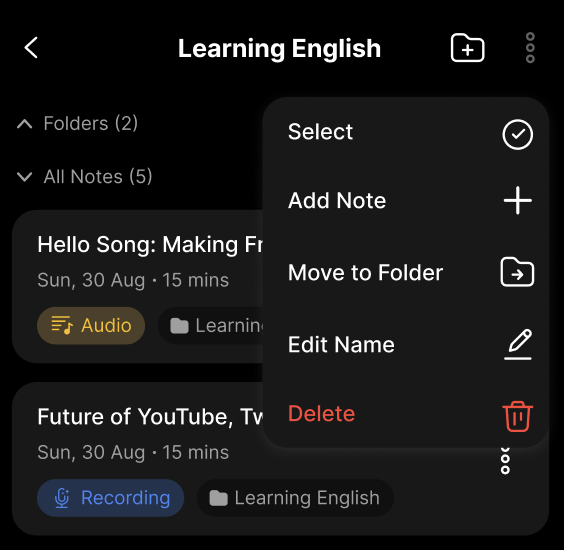
Access Item Actions You have different options depending on what you're working with:
For Folders:
- Tap the three-dot menu (⋯) next to any folder
- Choose what you want to do:
- Select: Pick this folder for bulk actions
- Add Note: Put existing notes into this folder
- Move to Folder: Move this folder somewhere else
- Edit Name: Change the folder name
- Delete: Remove this folder
For Notes:
- Tap the three-dot menu (⋯) next to any note
- Choose what you want to do:
- Export: Save the note outside the app
- Move to Folder: Put the note in a different folder
- Share Note: Send the note to other apps or people
- Delete Note: Remove this note
Selecting Multiple Items
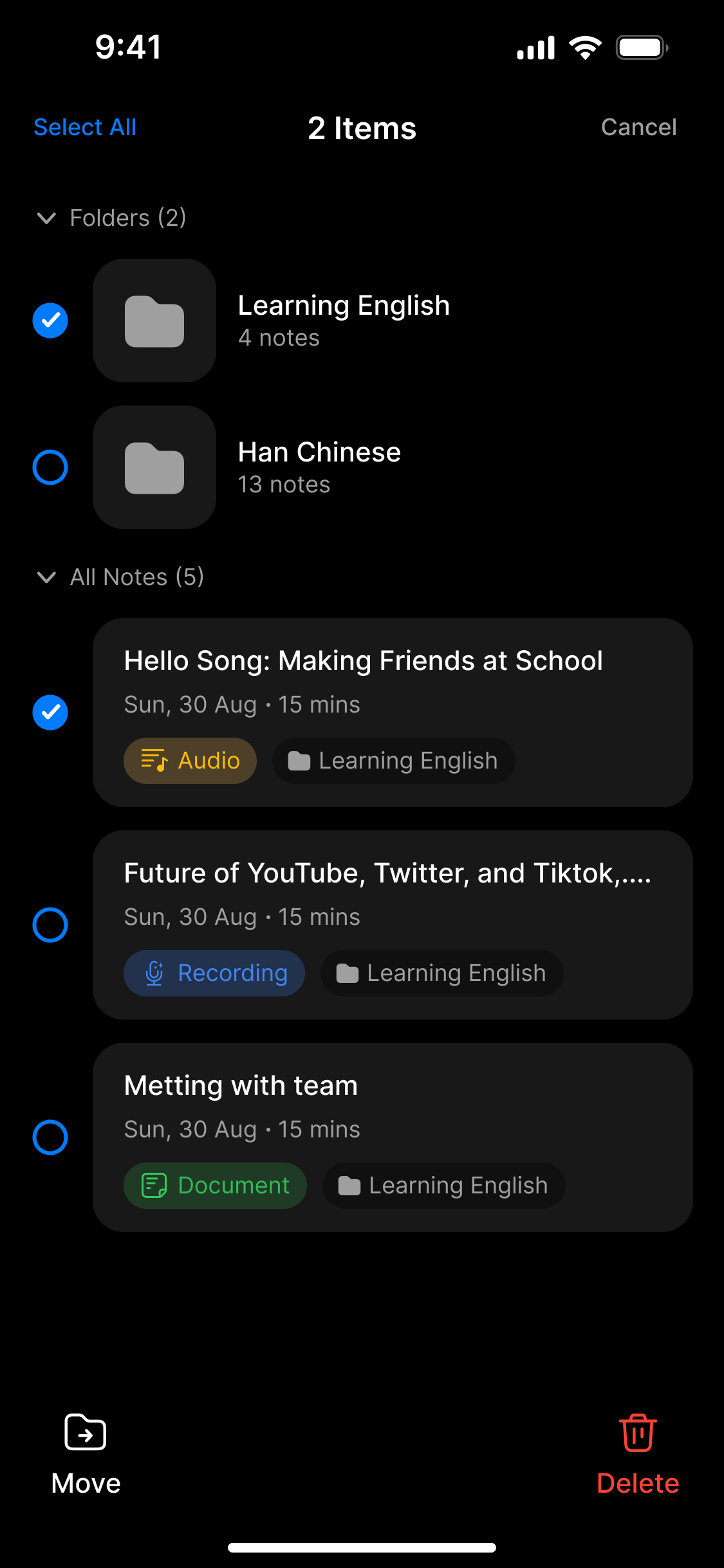
Choose Multiple Items
- Press and hold any item (folder or note)
- You'll see checkboxes appear next to everything
- Tap other items to select them too
- Use "Select All" to choose everything you can see
Do Things with Selected Items
- Check the boxes next to items you want to work with
- Choose what to do from the bottom buttons:
- Move: Put selected items in another folder
- Delete: Remove selected items
- Tap "Cancel" to stop selecting and go back to normal view
Adding Notes to Folders
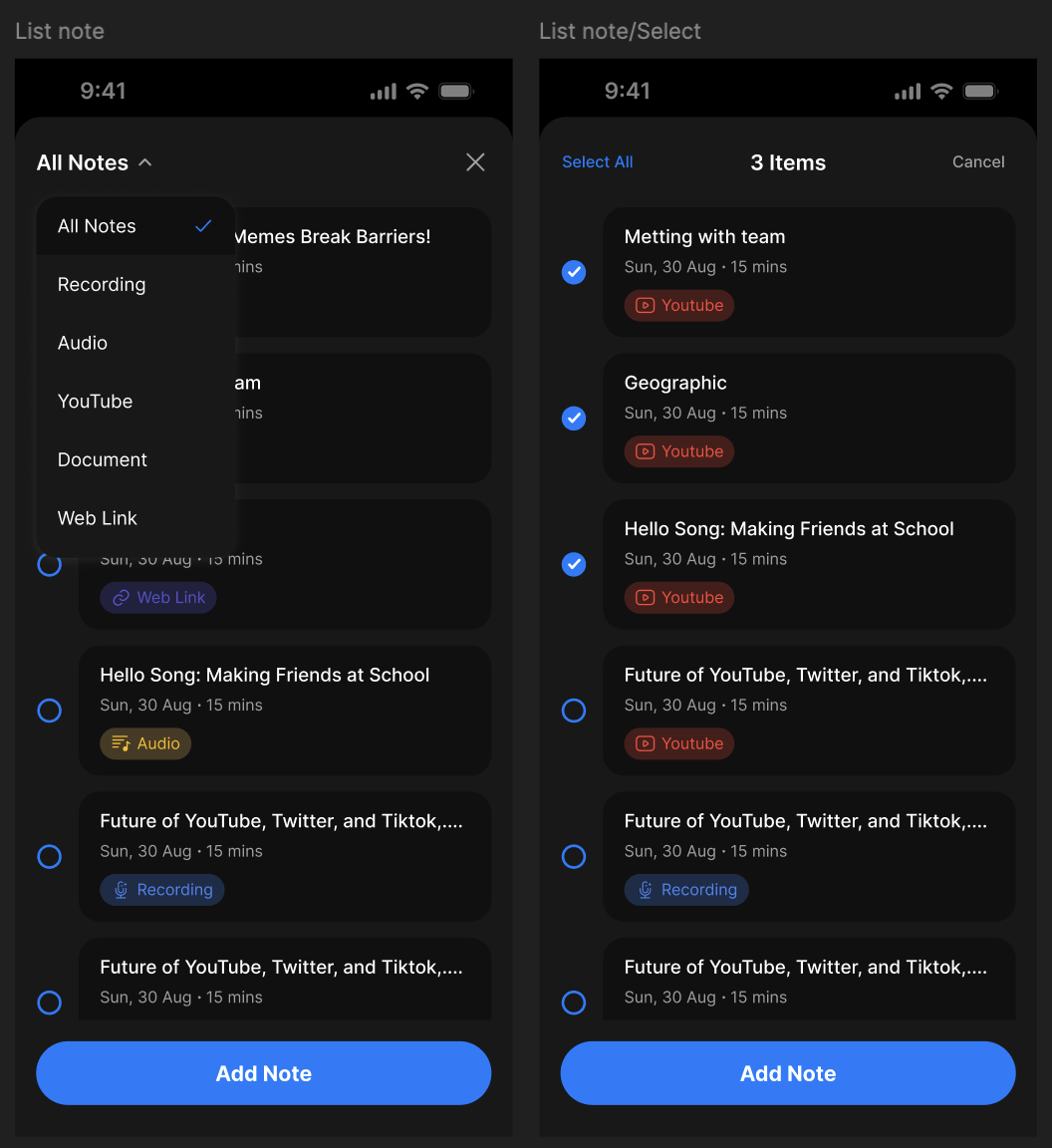
Step 6: Put Notes in This Folder
- Tap the three-dot menu on a folder
- Choose "Add Note"
- Filter by note type to find what you want:
- All Notes, Recording, Audio, YouTube, Document, Web Link
- Select the notes you want to add to this folder
- Or pick from recently used notes for faster access
Creating New Subfolders
Step 7: Make a New Subfolder
- Tap the "+" button at the top
- Type in your new folder name
- The new folder will appear inside your current folder
4. FAQ
How do I move several notes to another folder at once?
Press and hold any note to start selecting, check the boxes for all notes you want to move, then tap "Move" and pick where you want them to go.
What's the difference between creating a new note and adding a note?
"Add Note" lets you take notes you already have and put them in this folder. To create brand new notes, you'd use the main note creation feature elsewhere in the app.
What's the difference between the Folders section and All Notes section?
The Folders section shows other folders inside this one, while All Notes shows individual notes. You can hide either section if you don't need to see it.
How do I make a new folder inside this one?
Tap the "+" button at the top and type in what you want to call your new folder.
Can I rename my folders and notes here?
Yes! Tap the three-dot menu next to any item and choose "Edit Name" to change what it's called.
What happens if I delete a folder that has notes in it?
The app will ask if you want to keep the notes (and move them somewhere else) or delete everything together.
How do I stop selecting multiple items?
Tap the "Cancel" button at the top right, or use the back button to return to normal viewing.
Why do folders and notes have different menu options?
Each type of item has actions that make sense for it. Folders can have notes added to them, while individual notes can be exported or shared.
Can I filter notes by type when adding them?
Yes! When you choose "Add Note," you can filter by types like Recording, Audio, YouTube, Document, or Web Link to find exactly what you're looking for.