Search
The Search feature allows users to quickly locate notes by entering keywords, titles, tags, or content types (YouTube, Audio, Document, etc.). It is designed for real-time, efficient searching, even with large libraries.
Key Benefits
- Instantly retrieve notes without manual browsing.
- Apply filters to narrow down results by type.
- Supports partial keyword matching.
- Displays live results as you type.
1. UI/UX Specification
| Component | Type | Description |
|---|---|---|
| Search Icon | Button/Icon | Located at the top-right corner of the Home screen. |
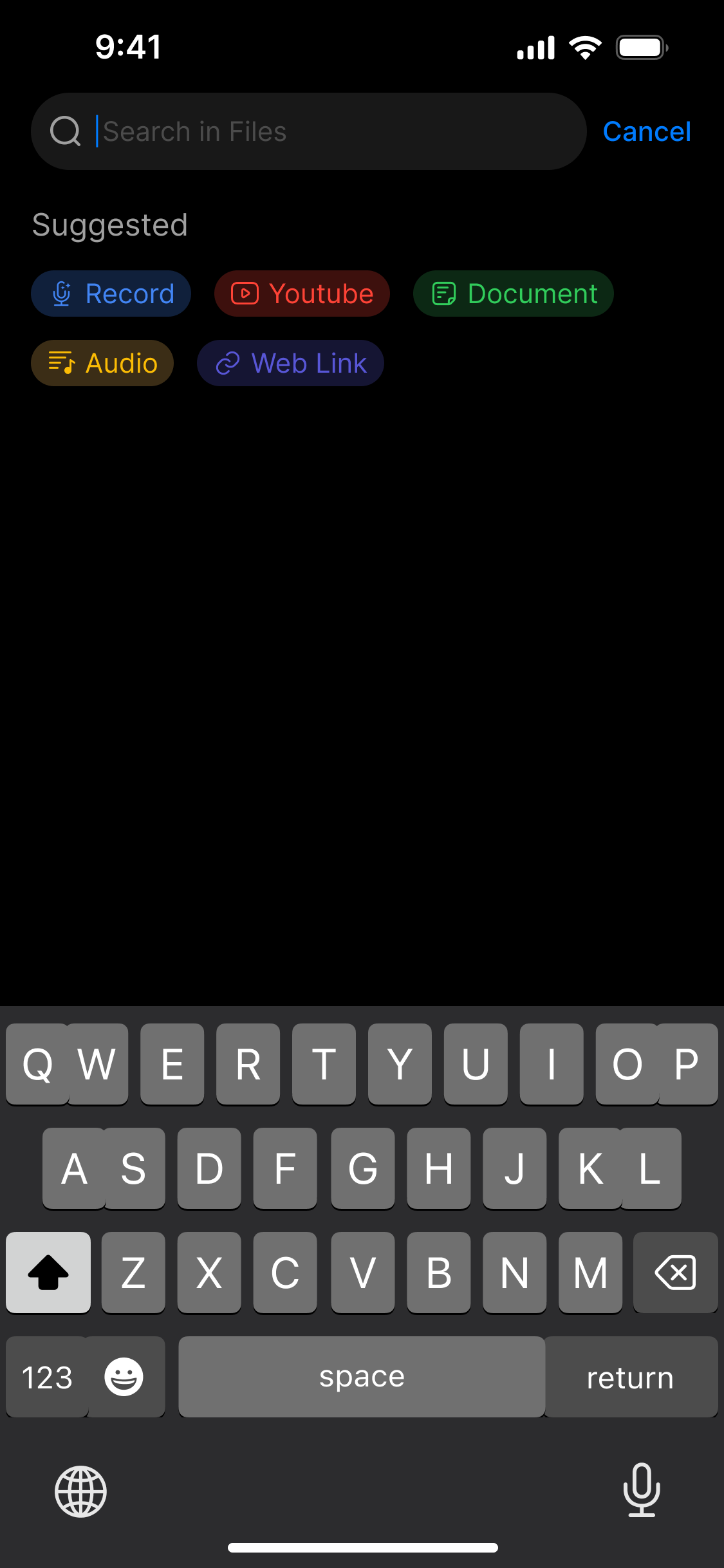
| Search Bar | Input Field | Where users type queries (label: Search in Files). |
| Filter Chips | Button Group | Quick filters like YouTube, Document, Audio, etc. to prioritize result types. |
| Search Results List | Auto-Updated List | Dynamically shows matching notes as user types. |
| Cancel Button | Button | Located at top-right of the search view; exits search mode. |
| Empty State Message | Text | Appears if no matches are found: “No results found.” |
Tap the search icon on the Home screen to start searching
2. How to Use
Step 1: Open Search
From the Home screen, tap the Search icon located at the top-right corner to open the full-screen search interface. The keyboard appears automatically.
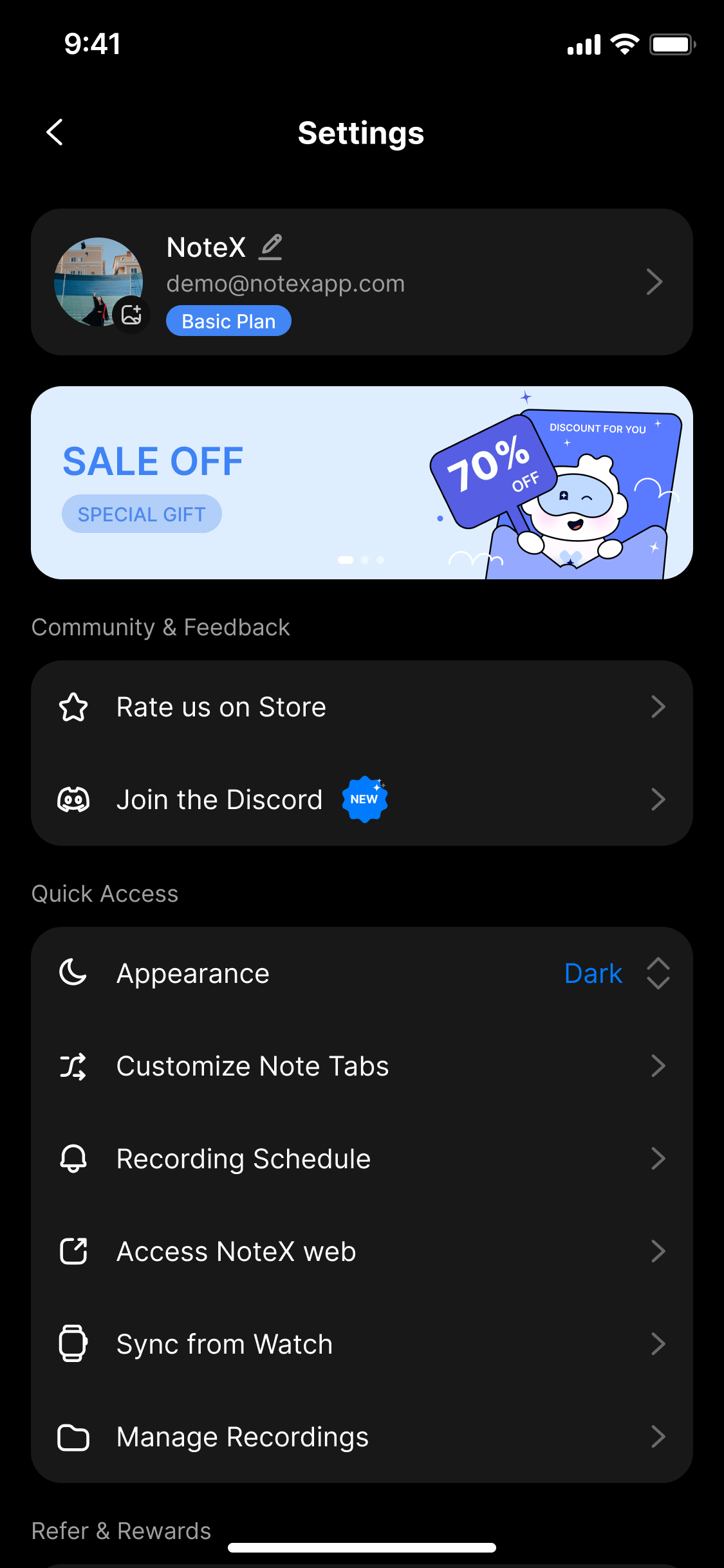
Tap the search icon on the Home screen to start searching
Step 2: Use Suggested Filters (Optional)
To narrow your search, tap one of the suggested filter chips:
- YouTube
- Record
- Document
- Audio
- Web Link
These filters prioritize notes by content type.
Tap a filter chip to show results for a specific type of note
Step 3: Type to Search
In the search bar labeled Search in Files, begin typing your query. The system will perform a real-time, global search across all notes.
Behavior
- If matches are found: Results appear under a categorized or recent list.
- If no matches are found: A “No results found” message is displayed, showing the searched keyword.
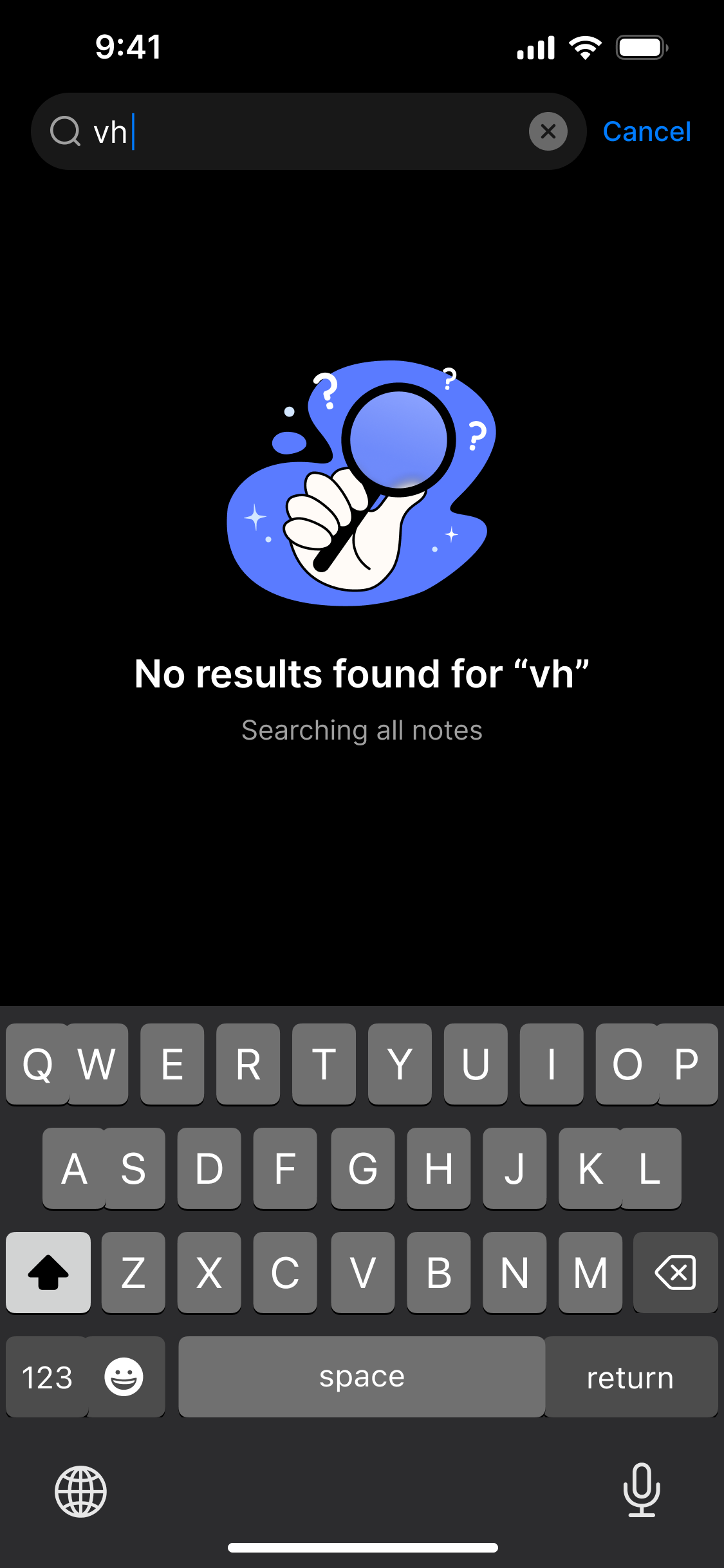
No results found for your search term
Step 4: Interact with Results
- Tap any result to open the note.
- Tap the Cancel button (top-right) to exit search mode and return to the home screen.
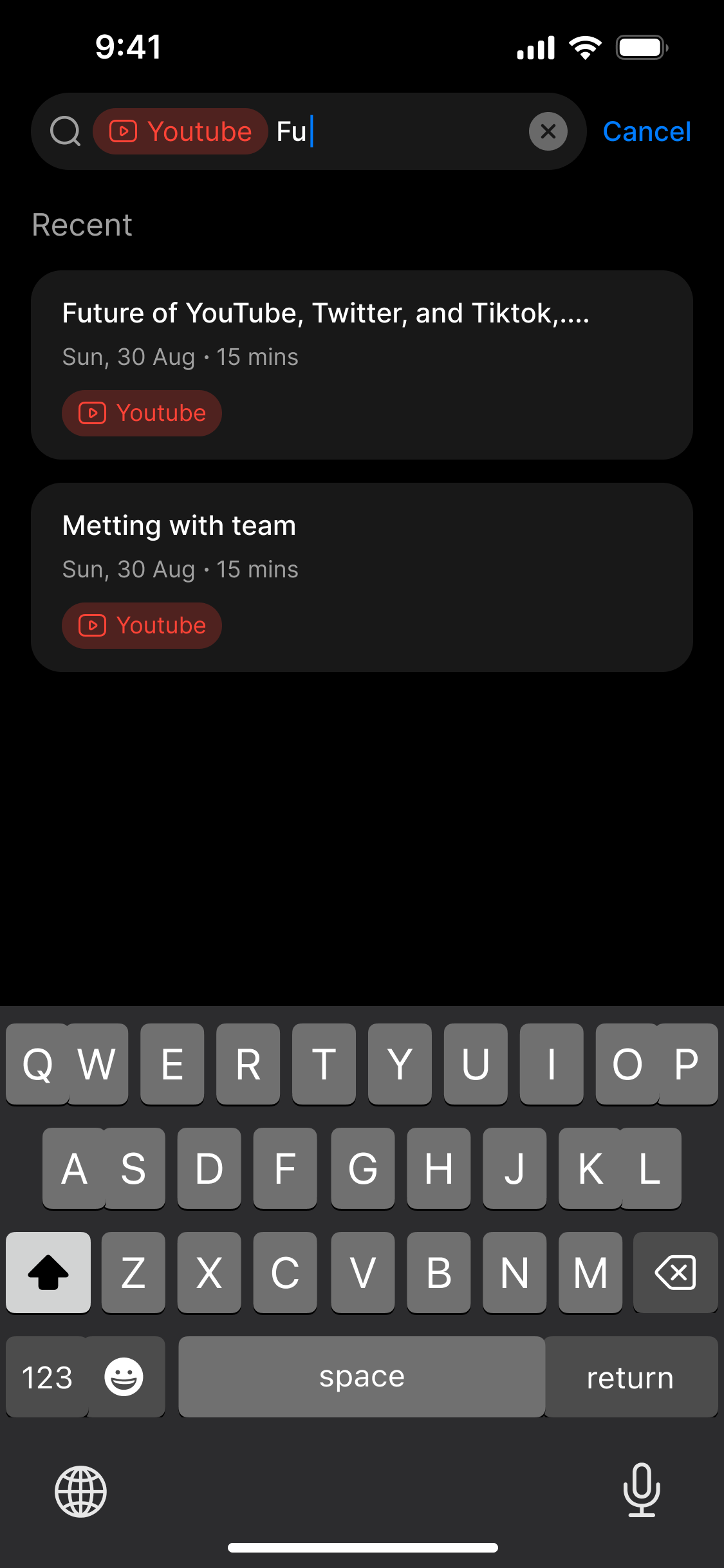
Tap a result to view the note, or Cancel to exit search
3. Tips & Notes
- Partial search supported: You can search with incomplete words.
- Case-insensitive: No need to match capitalization.
- Search is performed across all notes and content types.
- Filter chips help refine but do not limit results strictly.
4. FAQ
Why do I get no results when searching?
Search troubleshooting tips:
- Check for typos in your search query
- Try partial matches (e.g., type "Fut" instead of "Future")
- Ensure the note exists in your saved notes
- Use broader keywords to increase result chances
Can I search by content type or tag?
Search filtering options:
- Use filter chips to narrow down results
- Enter keywords like "Audio" or "Document" in the search bar
- Tags and content types are searchable for quick access
- Combine keywords for more specific results
Does it search inside transcripts or note content?
Search scope details:
- Searches include both note titles and content
- Transcripts of audio notes are fully searchable
- All text within notes is indexed for search
- No separate transcript-only search is required
Can I use voice input to search?
Voice input support:
- Currently, only typed input is supported
- Voice input is not available for search
- Use keyboard or on-screen input for queries
- Future updates may include voice search
Is the search case-sensitive?
Case sensitivity in searches:
- Searches are not case-sensitive
- Use any capitalization for queries
- Results remain consistent regardless of case
- No need to match exact capitalization
Are results sorted by date or relevance?
Search result sorting:
- Results are sorted by relevance and recency
- Filtered results may appear prioritized at the top
- Most relevant matches are ranked higher
- Recent notes may also influence ranking
Can I search within a specific folder or notebook only?
Search scope limitations:
- Search applies globally across all saved notes
- No option to limit search to specific folders
- All notes are included in search results
- Use tags or keywords to narrow focus
Why do unrelated results appear even after applying a filter?
Filter behavior explained:
- Filters act as priority hints, not strict constraints
- Additional relevant results may still appear
- Filters prioritize but don’t exclude other matches
- Refine keywords for more precise results