Move to Folder
Overview
The Move to Folder screen is a convenient bottom sheet that lets you relocate your notes and folders anywhere in your app. It shows your complete folder structure in one view, making it easy to find the perfect spot for your content.
Key Benefits:
- Complete Folder View: See your entire folder structure at a glance
- Quick Organization: Move items with just a few taps
- Create on the Go: Make new folders right when you need them
- Smart Navigation: Expand and collapse folders to find exactly where you want to go
1. UI/UX Specification
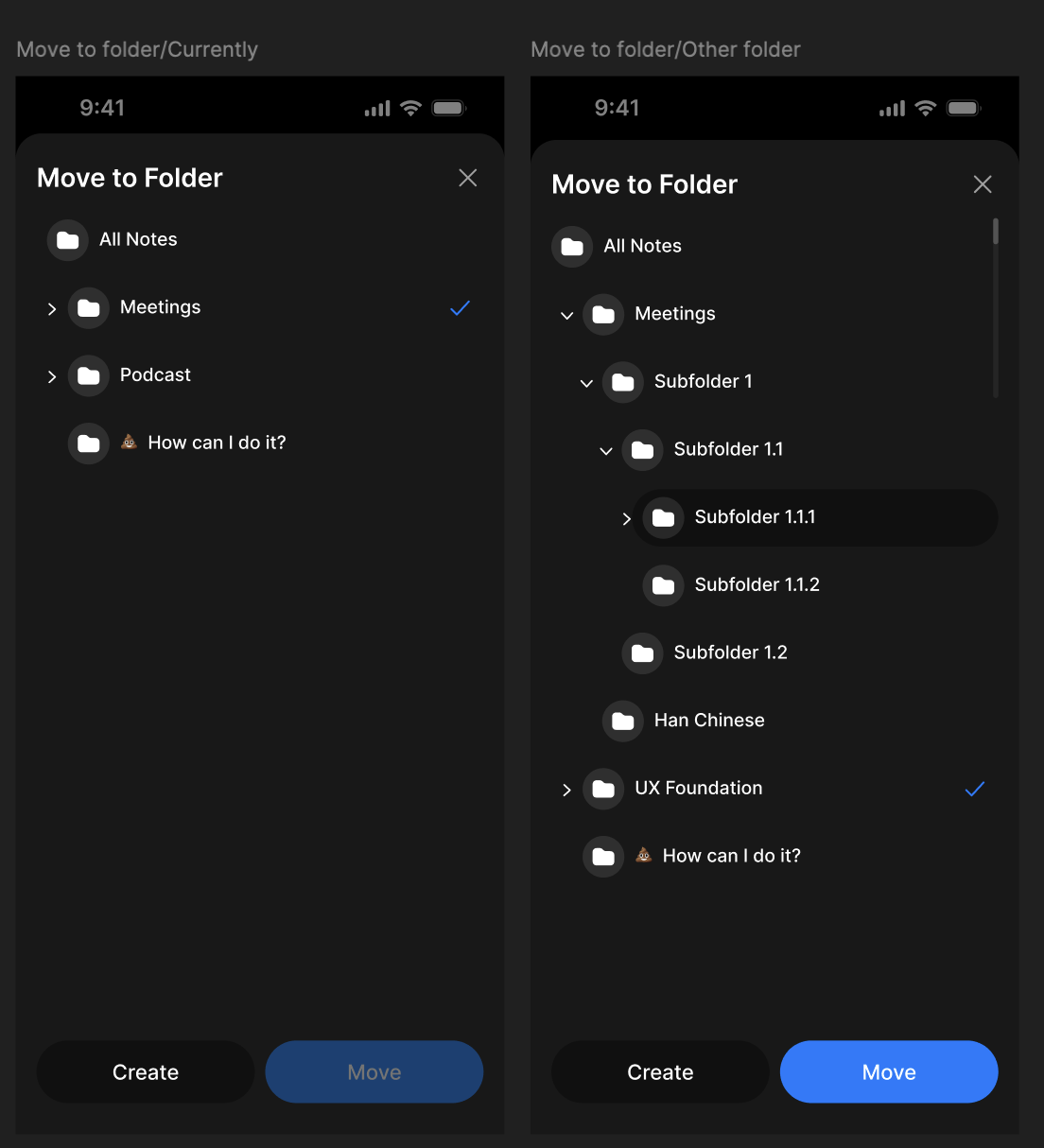
How to Get Here
- Tap "Move to Folder" from any item's three-dot menu
- Select multiple items and choose "Move" from the action bar
- Access through bulk selection mode
Screen Components
Header Section:
- "Move to Folder" title
- Close button (X) to cancel the action
Folder Tree:
- All Notes: Top-level container showing all your content
- Expandable Folders: Folders with arrow buttons (>) to show subfolders
- Current Location: Highlighted with a blue checkmark
- Nested Structure: Indented subfolders showing hierarchy levels
Bottom Actions:
- Create: Make a new folder at any level
- Move: Confirm moving items to the selected location
Interactive Elements:
- Arrow buttons to expand/collapse folders
- Folder names that can be tapped to select as destination
- Visual indicators showing current selection
User Experience Flow
Navigation Pattern:
- Start from any screen with moveable content
- Choose "Move to Folder" option
- Browse and select destination
- Confirm or create new folder if needed
2. How to Use
Moving Items to Existing Folders
Step 1: Open Move to Folder
- Find the item(s) you want to move
- Tap the three-dot menu and select "Move to Folder"
- Or select multiple items and tap "Move" from the bottom bar
Step 2: Navigate the Folder Tree
- You'll see your current location marked with a blue checkmark
- Tap the arrow (>) next to any folder to see what's inside
- Browse through your folder structure to find where you want to move your items
Step 3: Select Your Destination
- Tap on the folder name where you want to move your items
- The folder will be highlighted to show it's selected
- Tap "Move" to confirm and relocate your items
Creating New Folders
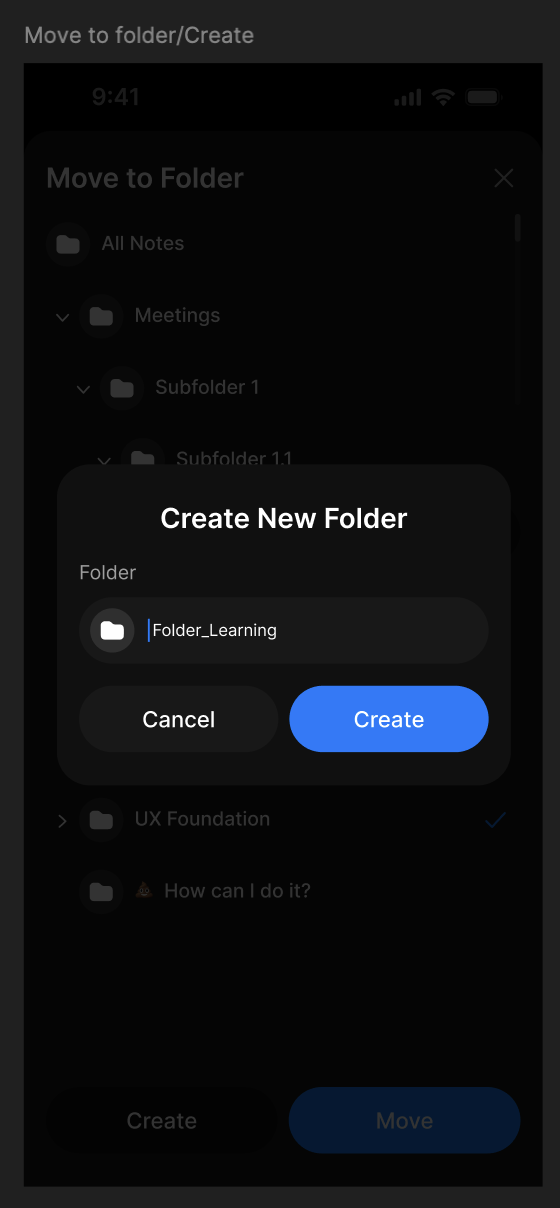
Step 4: Make a New Folder
- While in the Move to Folder screen, tap "Create" at the bottom
- Type in your new folder name
- Tap "Create" to make the folder
Note: The location of your new folder depends on what you have selected:
- If "All Notes" is selected, your new folder will be created as a root folder at the top level
- If any specific folder is selected, your new folder will be created as a subfolder inside that selected folder
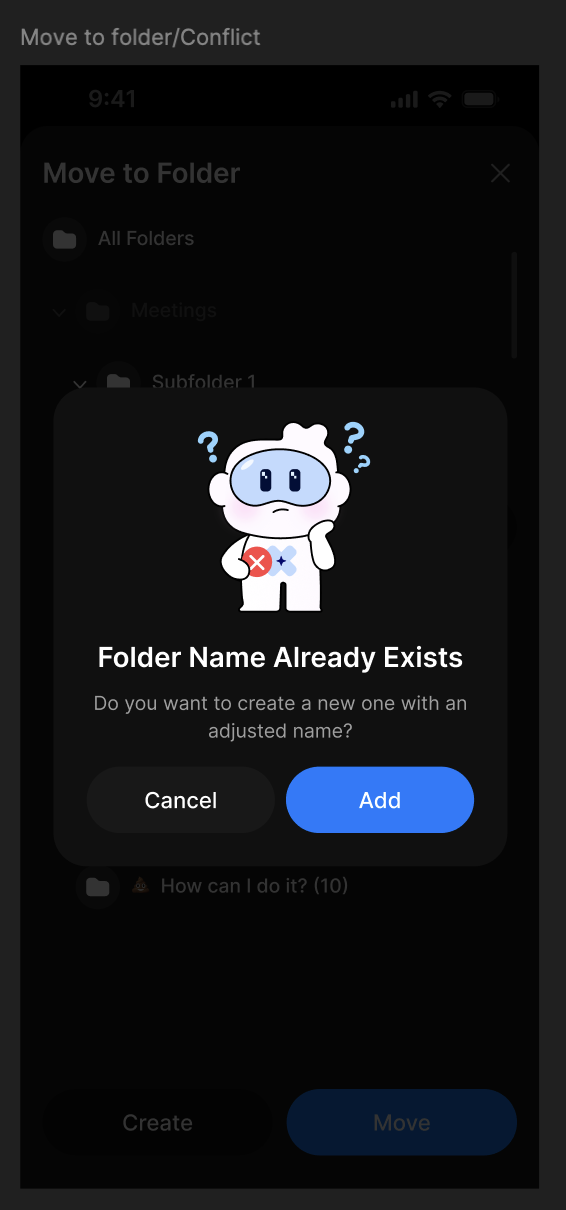
Step 5: Handle Name Conflicts If you try to create a folder with a name that already exists:
- You'll see a friendly message asking if you want to create one with a different name
- Tap "Add" to create the folder with an adjusted name (like "Folder_Learning (1)")
- Or tap "Cancel" to try a different name
Completing Your Move
Step 6: Finish Moving
- Once you've selected your destination (existing or newly created folder)
- Tap the blue "Move" button
- Your items will be moved to the new location
- The screen will close and you'll return to your previous view
4. FAQ
How do I know where my items currently are?
Your current location is marked with a blue checkmark. This shows you where your items are right now.
Can I create folders at any level?
Yes! You can create new folders anywhere in your structure. The new folder will be created at the level you're currently viewing.
What happens if I try to create a folder with a name that already exists?
The app will ask if you want to create a new folder with an adjusted name (like adding a number). You can choose to do this or cancel and pick a different name.
Can I move multiple items at once?
Absolutely! Select multiple items first, then choose "Move" to relocate them all to the same destination.
How do I cancel if I change my mind?
Just tap the "X" button at the top right or tap outside the bottom sheet to cancel without moving anything.
Can I see what's inside folders before moving items there?
Yes! Tap the arrow (>) next to any folder to expand it and see its subfolders.
What's the difference between "All Notes" and other folders?
"All Notes" is your main container that holds everything. Other folders are organized spaces within it where you can sort your content.
Can I move folders into other folders?
Yes! You can move entire folders (and everything inside them) to different locations in your folder structure.
Will I lose my items if something goes wrong during the move?
No, your items are safely moved to the new location. If there's any issue, your content remains in its original location.