My Folder
Overview
My Folder is a comprehensive folder management system that allows users to organize their notes and documents in a hierarchical structure. This feature provides a clean, intuitive interface for creating, managing, and organizing folders to keep your content well-structured and easily accessible.
Key Benefits:
- Better Organization: Create nested folder structures to categorize your notes
- Easy Navigation: Quick access to all your root folders and subfolders
- Flexible Management: Move, rename, and delete folders with simple actions
- Clean Interface: Minimalist design with clear visual hierarchy
- Safe Deletion: Choose whether to delete folder contents or preserve notes
1. UI/UX Specifications
Main Interface Elements:
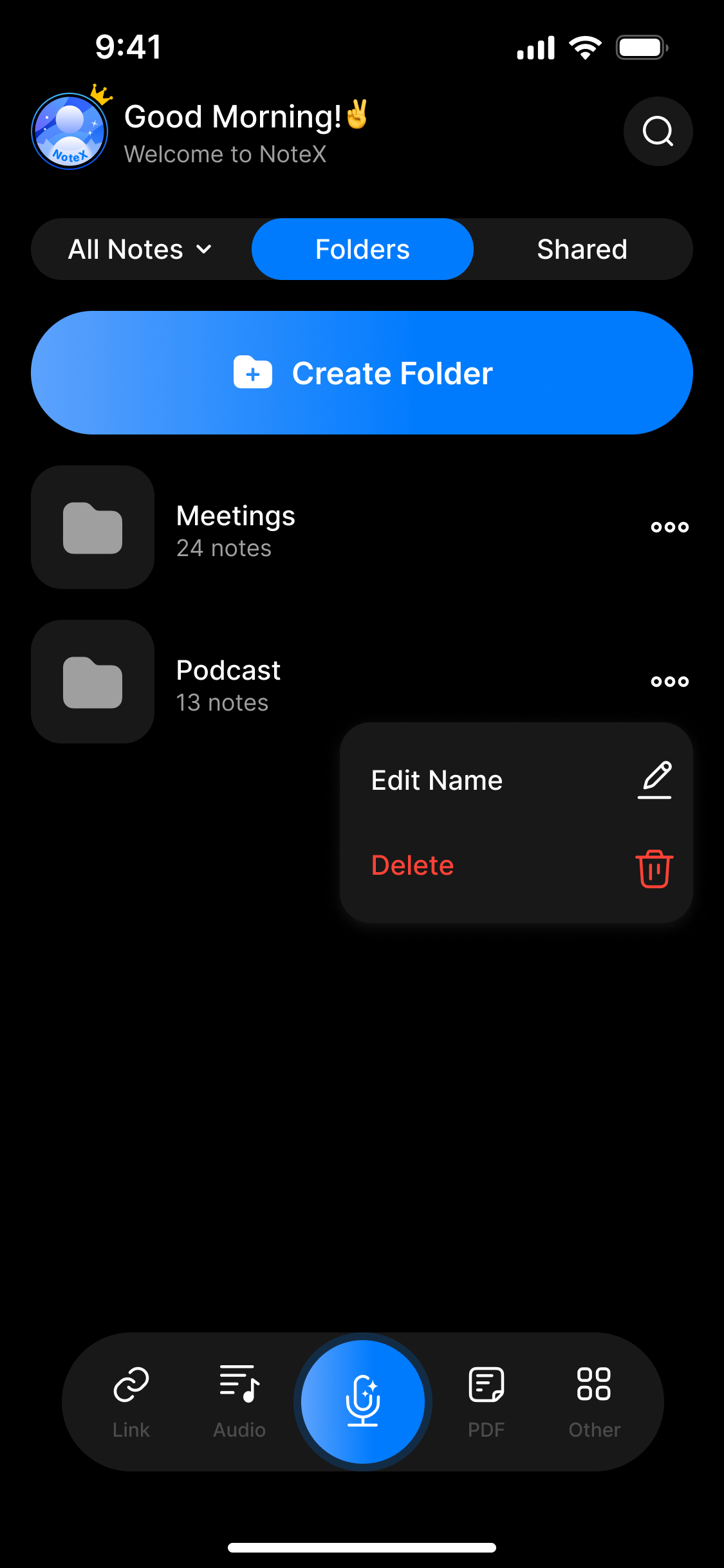
- Header Section: "Good Morning!" greeting with search functionality
- Navigation Tabs: All Notes, Folder (active), Shared
- Create Button: Prominent blue "Create Folder" button for new folder creation
- Folder List: Clean list view showing folder icons and names
- Action Menu: Three-dot menu (⋯) for folder-specific actions
2. How to Use
Step-by-Step Guide:
- Access My Folder
- Navigate to the Folder tab from the main interface
- View all your existing root folders in the list
- Create New Folder
- Tap the blue "Create Folder" button
- Enter your desired folder name
- Confirm creation
- Manage Existing Folders
- Locate the folder you want to manage
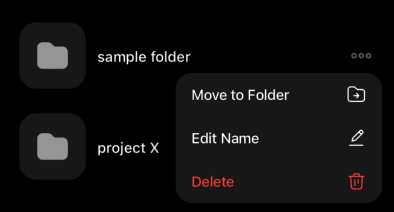
- Tap the three-dot menu (⋯) on the right side of the folder
- Available Actions:
- Move to Folder: Relocate the folder to another parent folder
- Edit Name: Rename the folder with a new title
- Delete: Remove the folder with flexible deletion options
- Delete Folder Process:
- Select "Delete" from the folder options menu
- Review the confirmation dialog
- Choose deletion type:
- Folder Only: Remove the folder structure but preserve all notes
- Folder + Contents: Check "Delete notes in this folder tree" to remove everything
- Confirm by tapping "Delete" or cancel the operation

Delete folder confirmation dialog showing options to preserve or delete notes
- Navigate Folders
- Tap on any folder to open and view its contents
- Access subfolders and nested content easily
3. FAQ
Here's the FAQ formatted with questions, line breaks, and separators without numbers:
Can I create subfolders within folders?
Yes, you can create nested folder structures to organize your content hierarchically.
What happens when I delete a folder?
You have two options when deleting a folder:
- Folder Only: The folder structure is removed, but all notes inside are preserved and moved to the parent location
- Folder + Contents: Both the folder and all notes within the entire folder tree are permanently deleted
Can I recover deleted folders or notes?
Currently, deletion operations are permanent. Always review your selection carefully before confirming deletion.
What does "Delete notes in this folder tree" mean?
This option will delete all notes and subfolders within the selected folder. If unchecked, only the folder structure is removed while preserving all content.
Can I move folders between different parent folders?
Yes, use the "Move to Folder" option from the three-dot menu to relocate folders within your organizational structure.
How do I organize my folders effectively?
Consider creating a logical hierarchy based on projects, topics, or time periods. Use clear, descriptive names for easy identification.
Can I undo folder operations?
Currently, folder operations like deletion are permanent. The confirmation dialog helps prevent accidental deletions by clearly showing what will be removed.