Copy
1. Overview
The Copy feature allows you to quickly copy content from a Transcript, Summary, or any section of text with just one click. It's a convenient tool that helps you easily share, save, or reuse content in reports, documents, emails, or other platforms.
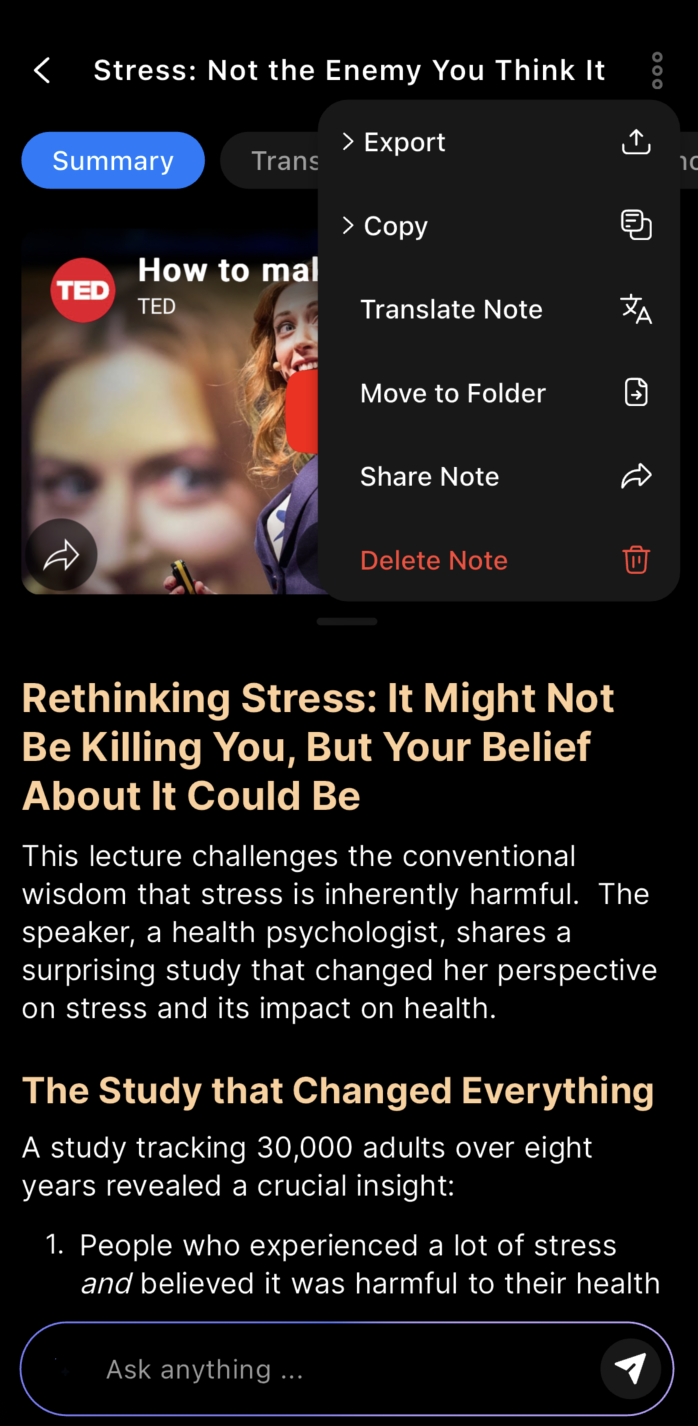
Button Copy to copy Summary, Transcript
2. How to Use
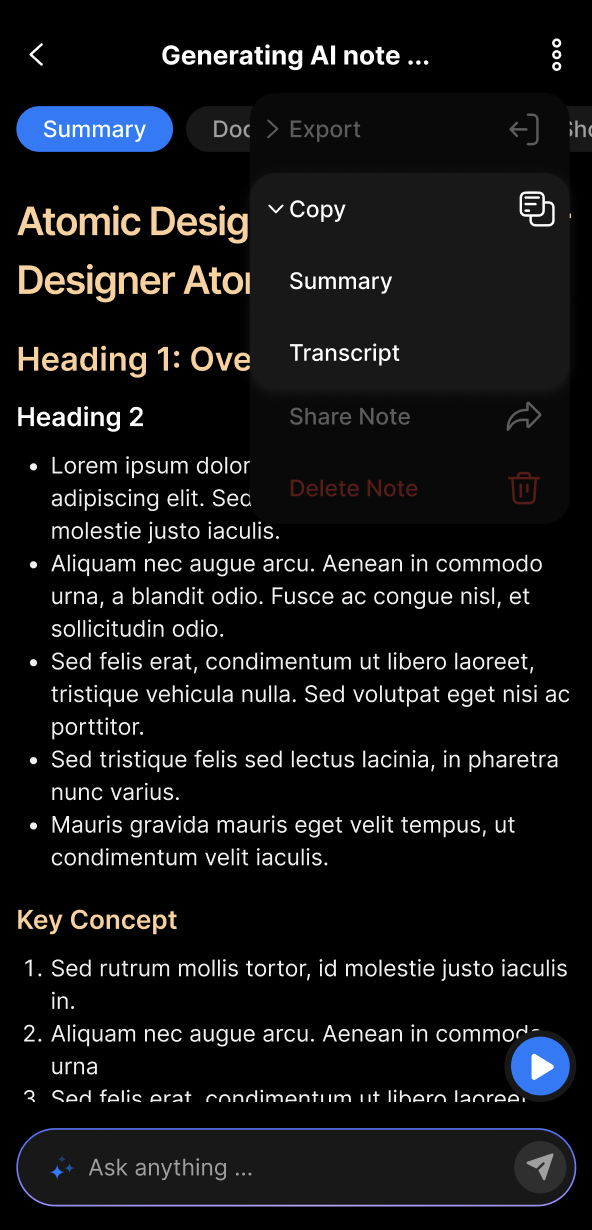
The Copy feature allows you to quickly copy content from the Summary or Transcript section
- Identify the content to copy: Click on the note detail you want to copy.
- Click the
Morebutton located at the top-right corner of the title. - Click the
Copybutton: A copy dialog will appear. - Click on
SummaryorTranscript: A “Copied!” message will appear after the operation is successful. - Paste the content: Use
Ctrl + Vto paste the copied content wherever you need it.
3. Benefits
- Fast: No need to manually select each section of text.
- Convenient: Ideal for quoting or sharing instantly.
- Clean formatting: Copied text keeps a neat structure without HTML tags or strange characters.
4. FAQ
What can I copy using the Copy feature?
You can quickly copy content from the Transcript, Summary, or any text section within a note.
How do I copy content?
Open the note detail, click the More button (top-right corner), then select Copy. Choose either Summary or Transcript to copy the content to your clipboard.
Will the copied text keep its formatting?
Yes, the copied content maintains clean and neat formatting without unwanted HTML tags or special characters.
Can I copy multiple sections at once?
The Copy feature copies either the entire Summary or the entire Transcript section at once, not multiple different sections simultaneously.
Is there a limit to how much content I can copy?
There is no specific limit mentioned, but very large notes may take slightly longer to copy.
What happens after I click Copy?
A confirmation message “Copied!” will appear indicating the content is successfully copied to your clipboard.
Can I paste the copied content anywhere?
Yes, you can paste it into emails, documents, reports, chat apps, or any text input area.
Does copying affect the original note?
No, copying only duplicates the content to your clipboard and does not alter the original note.
Can I use keyboard shortcuts for copying?
Currently, copying is done via the Copy button in the interface. You can use standard shortcuts like Ctrl + V to paste.
What if the Copy button does not work?
Try refreshing the page or reopening the note. If the problem persists, contact support for assistance.