Share Note
The Share Note feature allows users to share a note via a public link.
The recipient can view selected content such as Summary, Transcript, Document, Mindmap, Slideshow, Flashcards, or Quizzes.
You can also set a password for added privacy—only users with the correct password can access the shared note.
Key Benefits:
- Share notes instantly via a single link.
- Choose specific content to share: Summary, Document, Mindmap, Flashcards, etc.
- Optionally protect the shared note with a password.
- Cross-platform access—viewable from any web browser.
1. UI/UX Specification
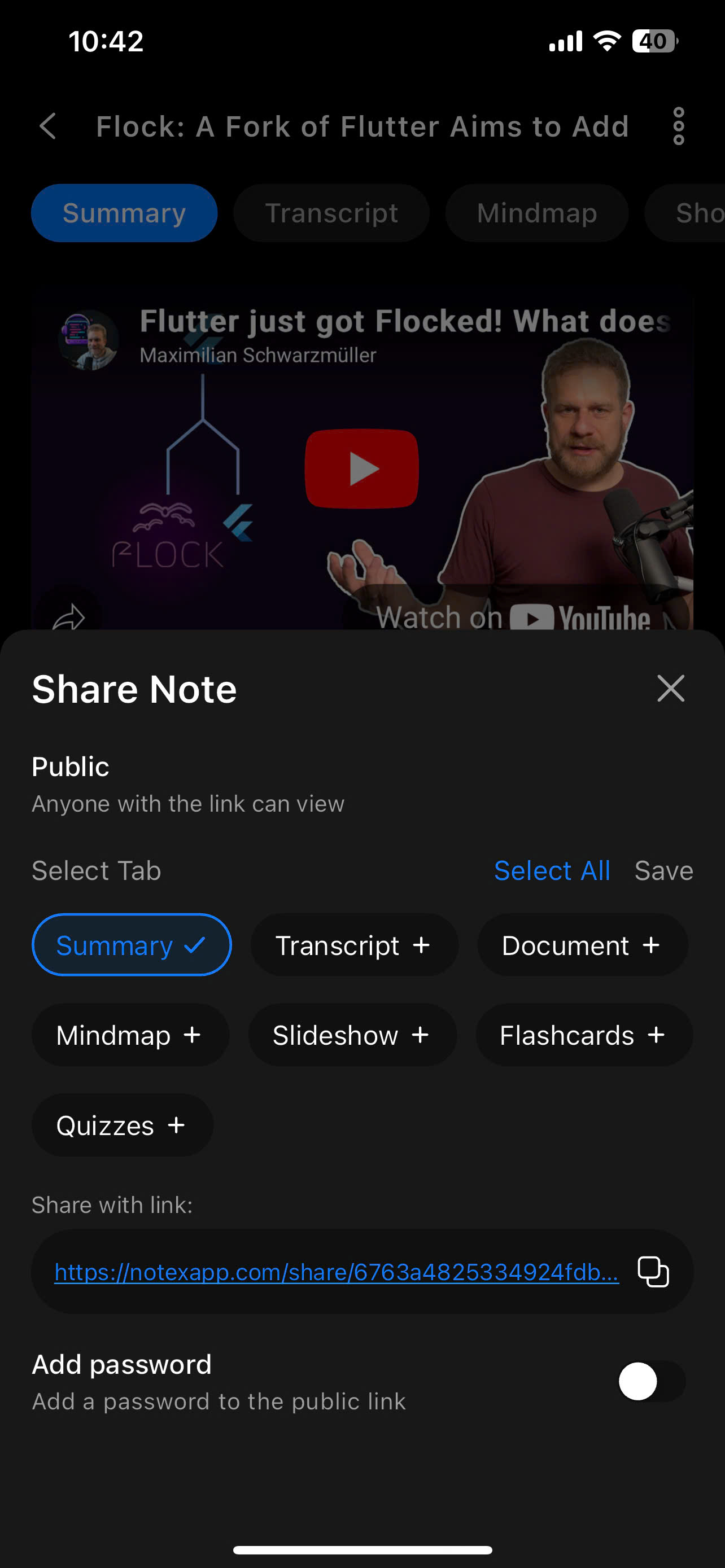
Share Note
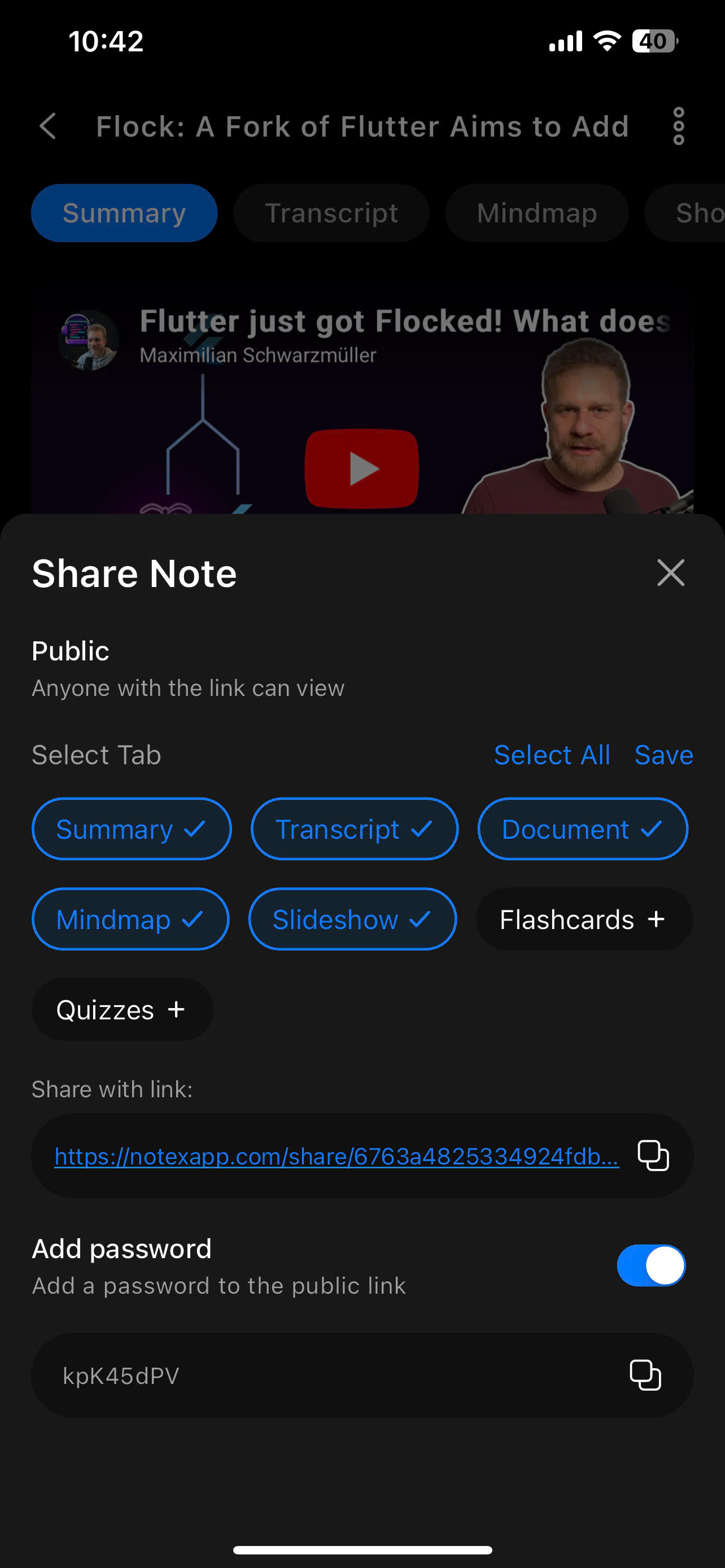
Share Note With Password
2. How to Use
Steps to Share a Note:
-
Open the note you want to share
Go to the note detail page and tap the three-dot menu (⋮) in the top-right corner. -
Select 'Share Note'
Choose the 'Share Note' option. A Share Note bottom sheet will appear. -
Select the content tabs to share
- You can choose from: Summary, Transcript, Document, Mindmap, Slideshow, Flashcards, Quizzes.
- Tap on each tab to include or exclude it. Tabs with a green checkmark will be visible in the shared link.
- You can use 'Select All' or 'Deselect' for bulk actions.
- Copy the shareable link
- After selecting your content tabs, a shareable link will appear under "Share with link".
- Tap the copy icon to copy the link to clipboard.
- (Optional) Add a password
- Toggle the Add password switch.
- A system-generated password will appear.
- Share the password along with the link. Only those with the password can access the content.
- Send the link to others
- Recipients can open the link in a browser and view only the selected content.
- If a password is set, they'll need to enter it to view the note.
3. Notes & Tips
- Only selected tabs will be visible in the shared link. Unchecked tabs remain private.
- Passwords are auto-generated. Be sure to save and share the password with the recipient.
- You can update your selection anytime by revisiting the Share Note screen.
- The link is public, but content is secured if a password is set.
- Tap Save to apply any changes to content tabs or password.
4. FAQ
If I don't set a password, can anyone view the shared note?
Yes. Anyone with the link can view it unless a password is enabled.
Can I select multiple tabs at once?
Yes. You can select all or only the tabs you wish to share.
If I change selected tabs or update the password, will the link change?
No. The link stays the same, but the displayed content updates to reflect your latest settings.
Does the recipient need a NoteX account to view the note?
No. They only need the link and password (if set) to view the content.
Is there a limit to how many people can access the link?
No. There is currently no limit on access to public share links.