Export Note
The Export Note feature allows you to export a note in multiple formats, making it easy to share, store, or reuse the content for study or work. You can export your note as a Summary, full Transcript, a set of Flashcards, or a Quiz.
Key Benefits:
- Easily store and share learning or meeting content.
- Multiple export options: Summary, Transcript, Flashcards, Quiz.
- Export each format independently for different use cases.
1. UI/UX Specification
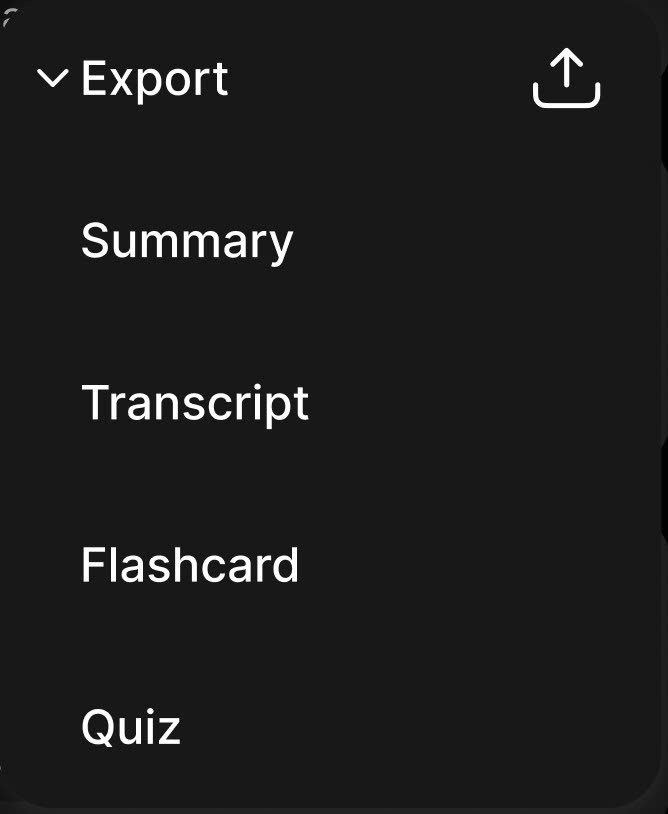
Options for exporting
2. How to Use
Step 1: Open the note you want to export
- Go to the Notes section and open the note you want to export.
Step 2: Open the action menu
- Tap the three-dot icon (⋮) at the top-right corner of the screen.
Step 3: Select Export
- From the dropdown menu, select the Export option.
Step 4: Choose an export format
- A list of available export formats will appear:
- Summary: Export the summarized content.
- Transcript: Export the full transcript.
- Flashcards: Export as a flashcard set.
- Quiz: Export as a multiple-choice quiz.
- Select the format that fits your need.
Step 5: Complete the export process
- Follow the on-screen instructions to complete the export.
Depending on the platform, the file will either be downloaded or shared via another app.
3. Notes & Tips
-
Flashcards and Quiz options will only appear in the Export menu if your note contains exactly one flashcard or quiz set.
If you don’t see these options, check whether the note includes a valid set and that there is only one. -
Formatting tips:
- Flashcards should be clearly structured in question–answer pairs.
- Quiz sets should include questions and multiple-choice options.
-
Supported file formats:
- Summary, Flashcards, Quiz: exportable as PDF or DOCX.
- Transcript: can also be exported as SubRip (.srt), suitable for subtitles.
-
Use the "Share Note" feature to send exported content quickly via chat or email.
-
For large notes, exporting may take a few seconds. Please wait while processing completes.
-
Currently, exporting is done one note at a time. Repeat the steps to export multiple notes.
4. FAQ
Why don't I see the Flashcards or Quiz export options?
A1: These options are only visible if the note contains exactly one flashcard or quiz set.
Please double-check your note and ensure it includes only one set properly formatted.
Can I export notes to other apps?
Yes. After exporting, you can share the file via email, messaging apps, Google Drive, or other storage platforms.
Is there a limit on how much content I can export?
You can generally export the full content of a note.
For larger notes, the export may take more time to complete.
Can I export multiple notes at once?
Currently, exporting is only available for one note at a time.
To export multiple notes, repeat the export process for each one individually.