Slideshow
1. Overview
The Slideshow feature allows you to present Transcript or Summary content as individual slides, making it easier to follow and more professional for presentations. This tool is ideal for showcasing meeting content, lectures, or reports.
2. How to Use
- Select the content you want to present: Open the note that contains a Summary or Transcript.
- Switch to the
Slideshowtab. - Click the
Create Slideshowbutton.
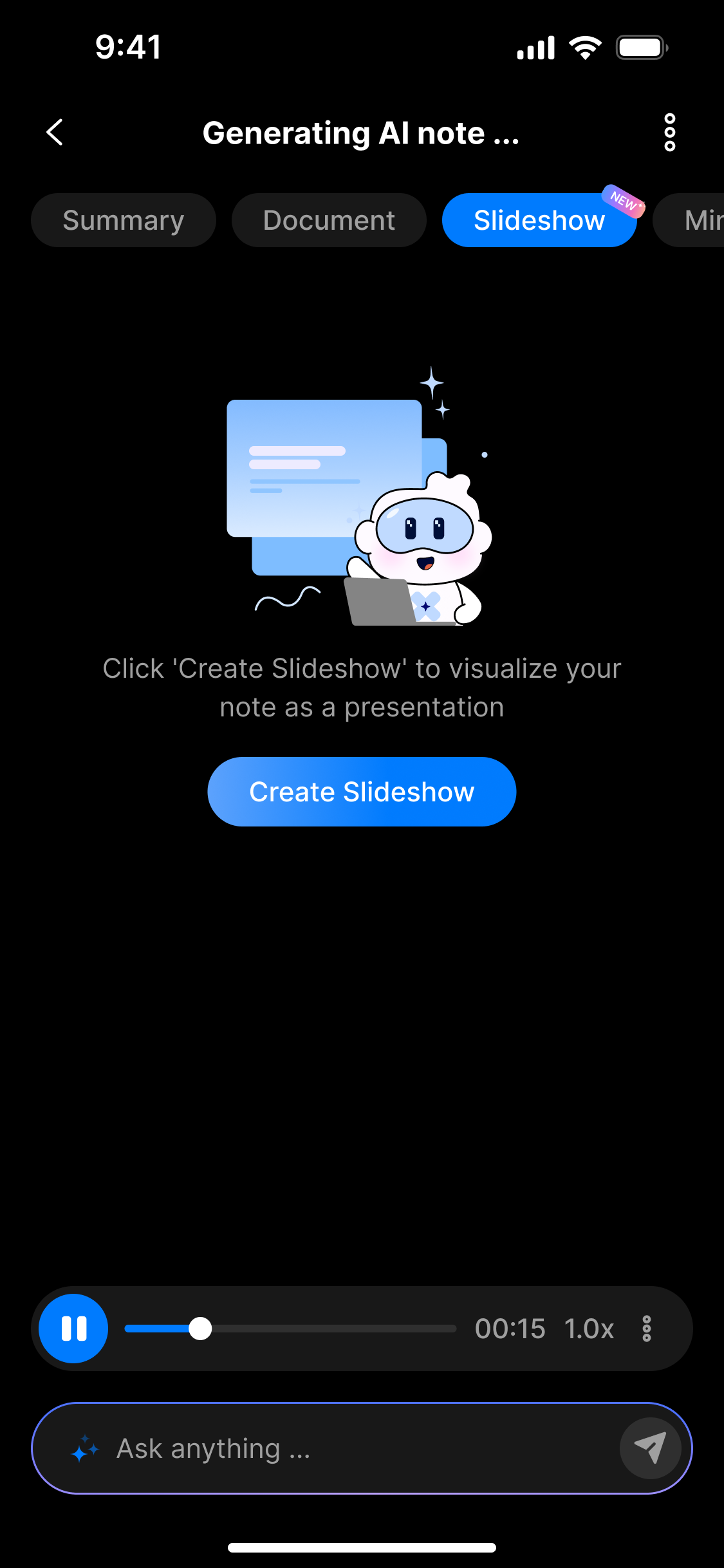
Click the Create button to generate a slideshow
- Choose the Slide Range and Template.
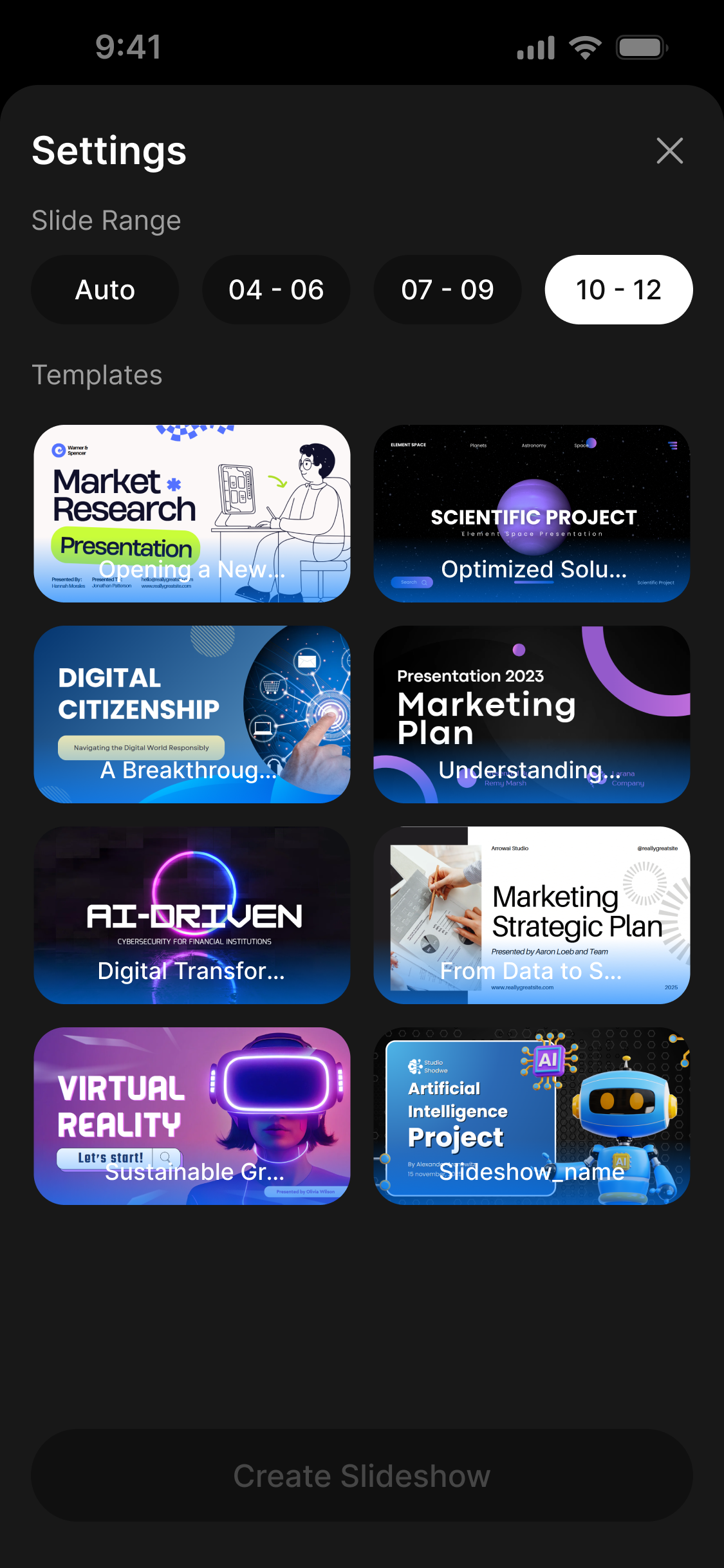
Customize slideshow settings to fit your style
- Click
Create Slideshowagain to generate the slides. - Presentation mode will display each section of content as a slide. Each slide represents a condensed or selected portion from the note.
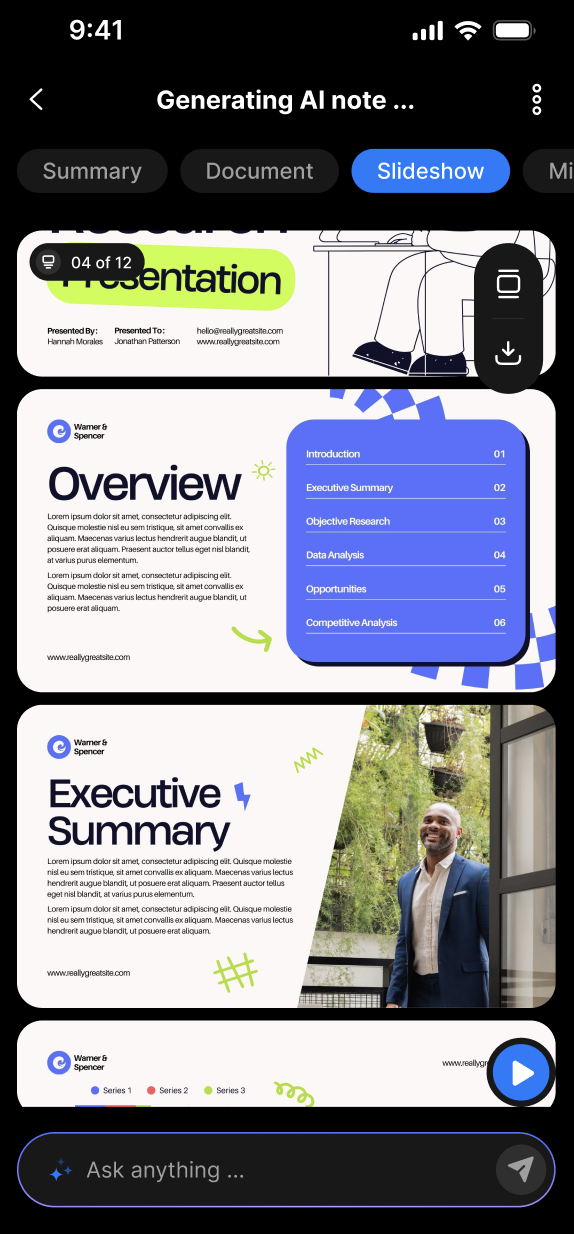
Done!Your slideshow is ready to view and share
3. Benefits
- Visual clarity: Presents each content section clearly and accessibly.
- Professional: Suitable for meetings, teaching, or idea sharing.
- Convenient: No need to manually create slides—the system automatically converts the content.
4. Notes
- Make sure the note contains enough content for the system to split it effectively into slides.
- Summary content is often more suitable for slideshows as it is already concise and structured.
❓ FAQ – Slideshow Feature
1. What content can I use to create a slideshow?
You can create slideshows from either the Summary or Transcript content of a note.
2. How do I create a slideshow?
Open a note, go to the Slideshow tab, click Create Slideshow, customize slide range and template if needed, then click Create Slideshow again.
3. Can I customize the slide range and style?
Yes, before final creation, you can select which sections to include and choose a template that fits your presentation style.
4. Is the slideshow editable after creation?
Currently, the slideshow reflects the selected content at creation time. To change it, you need to create a new slideshow with different settings.
5. Can I share the slideshow with others?
Yes, once created, you can view and share the slideshow as needed.
6. What if the note content is too short for a slideshow?
The system may not create effective slides if content is too brief. Using a well-structured Summary usually produces the best results.
7. Does the slideshow include all transcript details?
Slideshow content is usually condensed; summaries tend to work better as slides are concise and organized.
8. Is there a limit to how many slides can be generated?
There is no fixed limit, but very long content may produce many slides, which can affect presentation flow.
9. Can I use slideshow for live presentations?
The slideshow is designed for easy viewing and sharing but does not currently support live presenter notes or annotations.
10. What if the slideshow doesn’t generate?
Make sure your note has a sufficient amount of content, and try again. If issues persist, contact support.