Summary
1. Overview
The Summary feature automatically generates short and easy-to-understand summaries from various sources, such as audio recordings, meetings, lectures, web links, YouTube videos, documents, or voice notes.
It helps save time by providing key takeaways instead of requiring you to listen to or read the entire content.
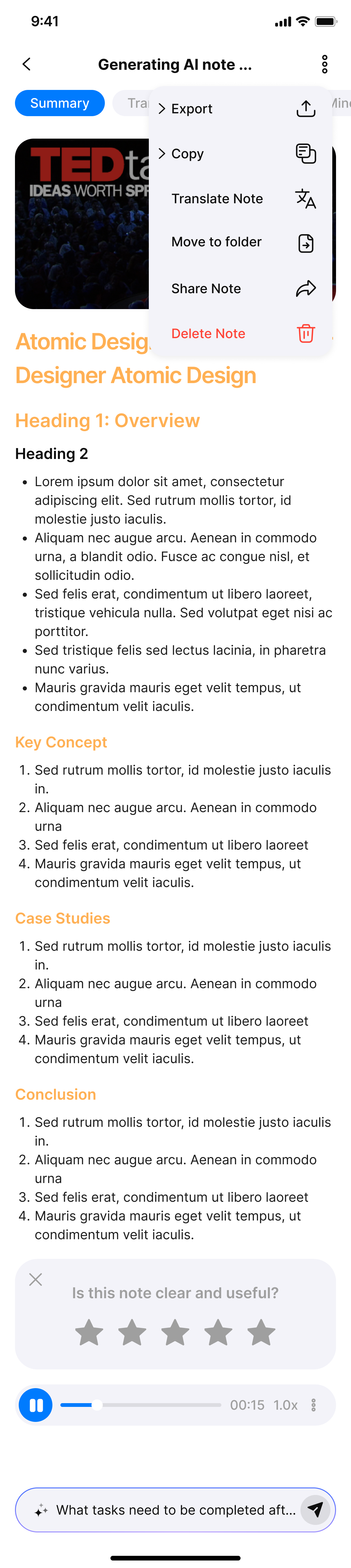
Overview Summary Screen
2. Key Benefits
- Automatically condenses long conversations into short bullet points.
- Saves time when reviewing meetings, lectures, or voice memos.
- Fully compatible with both audio recordings and transcripts.
- Powered by AI, optimized for clarity, structure, and relevance.
3. How to Use
Step 1: Open any note detail.
Step 2: The Summary tab appears right on the main screen.
You can:
- Copy the summary for use in reports, emails, etc.
- Edit the summary content if needed.
- Rate the usefulness of the summary to help improve the feature.
4. Notes
- If the content is too short or vague, the system may not generate a summary.
- The summary is generated automatically, but you can always edit it manually to better suit your use case.
⭐ Rating in Summary – User Guide
1. Overview
The Rating in Summary feature allows you to rate the quality of a summary after it is generated by the system.
Your ratings help improve the accuracy and relevance of future summaries.
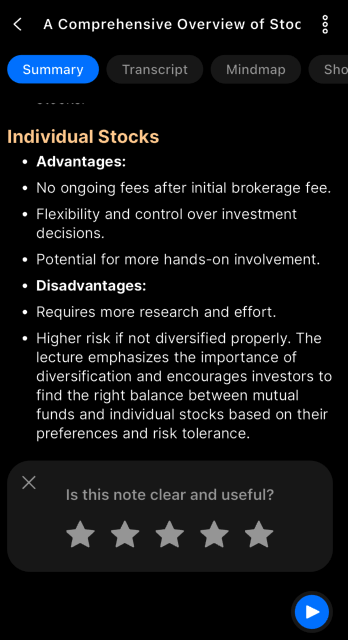
Rating in Summary
2. Display Location
| Element | Description |
|---|---|
| Rating area | Just below the generated summary |
| Icon | ⭐⭐⭐⭐⭐ (1 to 5 stars) |
📌 Ratings only appear after a summary has been successfully created.
3. How to Use
Step 1: Generate or open a summary
Once the transcript is processed, go to the Summary tab to view the content.
Step 2: Rate the summary
Below the summary, you’ll see a star rating interface ⭐.
Tap the number of stars that reflects your feedback:
- 1–2 stars: Poor quality, off-topic
- 3 stars: Acceptable, but needs improvement
- 4–5 stars: Very good, accurate and clear
Step 3 (Optional): Submit detailed feedback
After rating, you can add a comment to clarify your reasoning.
Examples:
- “Missing the conclusion.”
- “Didn’t include the key points of the meeting.”
4. Notes
- Each summary can only be rated once.
- Your feedback is used to improve the system and is not public.
- If you manually edit the summary, the rating still applies to the original AI-generated version.
Technical Behavior:
-
Vote 1–3 stars:
- If you don’t want to provide feedback, click ‘X’ to skip — the rating will still be saved.
- If you select the “others” option in feedback issues, a text field will appear for comments. If not selected, just pick issues and submit.
-
Vote 4–5 stars:
- After voting 5 stars, a “Thank you…” message will appear, followed by an In-App Review prompt.
Conditions to show the Rating in Summary:
- The note is not yet submitted
- The note is not a Community Note
- Feedback hasn't been submitted more than 2 times
- Feedback hasn’t been closed more than 2 times
- Note title is not “No Speech Detected”
- Note duration is over 15 minutes
- A summary has been successfully generated
5. Benefits of Rating
- Helps improve summary quality for you and other users.
- Increases AI accuracy for topics and writing styles you frequently use.
- Contributes to a user-centered feedback system focused on transparency.
✍️ Edit Summary – User Guide
1. Overview
The Edit Summary feature allows you to directly modify the automatically generated summary.
This helps you personalize the content for specific uses such as reports, emails, or internal records.
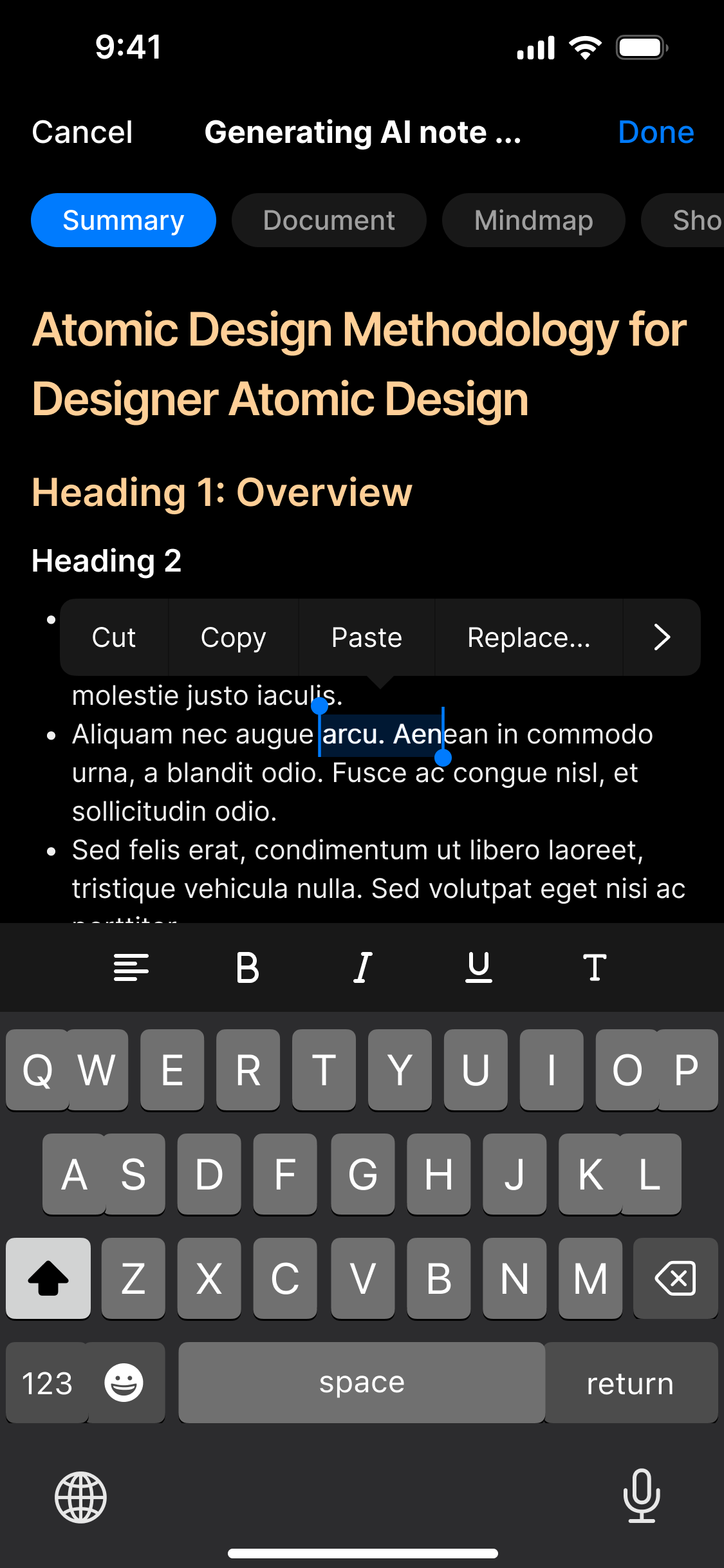
Edit Summary
2. When Should You Edit?
| Scenario | Suggested Action |
|---|---|
| Missing key points | Manually add them to the summary |
| Unclear phrasing | Rewrite sentences for better clarity |
| Different writing style | Adjust tone to match your objective |
| Personal notes/comments | Add them directly to the summary |
3. How to Use
Step 1: Open the note detail and select the Summary tab.
Step 2: Click on the summary text.
An edit icon will appear either in the corner or below the summary.
Click it to enter edit mode.
Step 3: Modify the content as desired.
You may use basic formatting (if supported), like bold, italic, or numbered lists.
Step 4: Click Save to confirm your changes.
The system will update the summary to reflect your new version.
4. After Editing
- The edited summary will replace the original version.
- You can still Copy, Rate, or use it in Slideshow as usual.
- You may return and edit it again anytime.
5. Notes
- Edits are not auto-saved – make sure to click Save before exiting.
- There is no undo – if you want to keep the original, copy it before editing.
- Edits are applied only to your account and won’t affect system data.
❓ FAQ – Summary, Rating, and Edit Summary Features
1. What types of content can be summarized?
The Summary feature works with audio recordings, meeting transcripts, lectures, web links, YouTube videos, documents, and voice notes.
2. Can I edit the summary generated by the system?
Yes! You can edit the summary anytime via the Edit Summary feature to better suit your needs.
3. How accurate are the summaries?
Summaries are generated by AI and optimized for clarity and relevance. However, the quality depends on the source content. You can help improve it by rating and providing feedback.
4. How do I rate a summary?
After a summary is generated, a star rating interface appears below it. Simply click 1 to 5 stars to provide your rating. Optionally, you can submit detailed feedback.
5. Can I rate a summary multiple times?
No. Each summary can be rated only once.
6. What happens after I rate a summary?
Your feedback is confidential and used to improve the AI’s future summaries. For 5-star ratings, you may be prompted for an in-app review.
7. Will my edits to the summary affect the AI or other users?
No. Your edits only affect your personal view. The original AI-generated summary remains unchanged for the system and other users.
8. Is my edited summary saved automatically?
No, you need to click Save after editing. If you leave without saving, changes will be lost.
9. Can I undo changes after editing a summary?
No, there is no undo feature. It’s recommended to copy the original summary before editing if you want to keep a backup.
10. Why didn’t a summary generate for my content?
If the content is too short, vague, or unclear, the system may not generate a summary.