Edit Username
The Edit Username feature allows users to modify their display name within the application, providing personalized identity representation and updated profile information. This functionality enables users to establish their preferred professional or personal identity across all app interactions.
Key Benefits
- Personalized identity management: Establish and maintain your preferred name representation
- Profile information accuracy: Keep display information current and relevant
- Enhanced recognition: Facilitate better identification in collaborative features and interactions
- Instant synchronization: Real-time name updates across all logged-in devices
- Flexible customization: Support for various character types and international naming conventions
1. UI/UX Specification
Screen Components
- Profile section: Username display area within Settings showing current name
- Edit dialog interface: Modal popup for name modification with input field
- Edit icon indicator: Visual cue for username editability (pencil/edit symbol)
- Character counter: Real-time feedback on name length requirements
- Action buttons: "Change" and "Cancel" options for confirmation or dismissal
- Success notification: Toast message confirming successful name update
User Experience Flow
- Profile access: Navigation through settings to profile information section
- Edit activation: Tap interaction on username or edit icon to open modification dialog
- Input interface: Text field with current name pre-populated for editing
- Validation feedback: Real-time character count and requirement checking
- Confirmation process: Clear action buttons for saving or canceling changes
- Immediate update: Instant reflection of changes throughout the application interface
Navigation Path
Home Screen → Avatar Icon ( Settings ) → Profile Section → Username/Edit Icon → Edit Dialog
2. How to Use
Step 1: Access Profile Settings
- Launch the application and navigate to the Home screen
- Tap the Avatar icon located in the top-left corner to open Settings
- Locate the Profile section within the settings interface
Step 2: Initiate Username Edit
- Identify your current username display in the Profile section
- Tap either:
- Directly on your displayed username text
- The edit icon (pencil symbol) adjacent to your username
- The "Edit Name" dialog will appear with your current name pre-filled
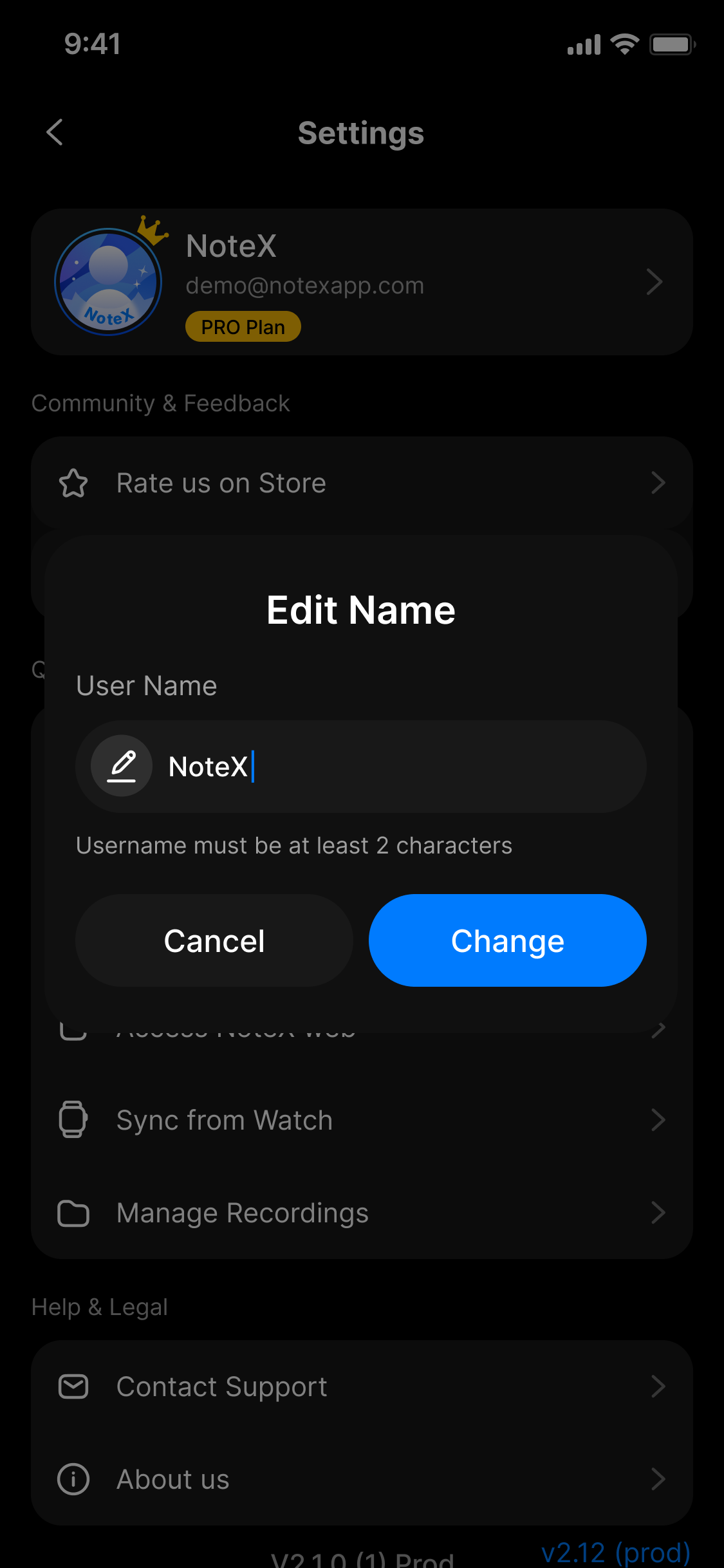
This dialog lets you edit your username
Step 3: Enter New Username
- Clear the existing text or modify as needed in the input field
- Type your desired new username
- Monitor the character count to ensure compliance with length requirements
- Verify the name appears as intended with proper formatting
Step 4: Confirm Changes
- Review your new username for accuracy and spelling
- Tap the Change button to save your modifications
- Alternatively, tap Cancel to discard changes and retain current name
- Wait for the confirmation dialog to process the update
Step 5: Verify Update
- Observe the "Name updated successfully" confirmation message
- Check that your new name appears in the Profile section
- Navigate through different app sections to confirm name synchronization
- Verify the update appears on other logged-in devices
3. Notes & Tips
Character Guidelines
- Minimum requirement: Username must contain at least 2 characters to be accepted
- Maximum allowance: Names can contain up to 50 characters including spaces and special characters
- International support: Unicode characters are supported for global naming conventions
- Case preservation: The application maintains exact capitalization as entered by the user
Display Considerations
- Truncation behavior: Names exceeding 20 characters display with ellipsis ("...") in compact interface elements
- Full name access: Complete names remain accessible in expanded profile views regardless of display truncation
- Formatting retention: Spaces, capitalization, and special characters are preserved exactly as entered
Technical Synchronization
- Firebase integration: Name changes sync through Firebase Authentication for cross-device consistency
- Real-time updates: Changes appear immediately throughout the application interface
- Offline capability: Name changes queue for synchronization when internet connectivity is restored
- Backup considerations: Previous usernames are not stored; each change overwrites the previous value
4. FAQ
Username Requirements & Validation
What characters are allowed in usernames?**
Usernames support a comprehensive character set including:
- Alphabetic characters (A-Z, a-z) in all supported languages
- Numeric characters (0-9)
- Spaces and common punctuation marks
- Special characters and symbols
- Unicode characters for international names
- Emojis and other Unicode symbols are generally supported
Why can't I save a username with only one character?**
The minimum length requirement of 2 characters ensures proper identification and prevents display issues in interface elements. Single characters may cause confusion in user recognition and system processing.
What happens if I exceed the 50-character limit?**
The input field prevents typing beyond 50 characters. If you attempt to paste text exceeding this limit, only the first 50 characters will be accepted, and you'll receive a warning about the character limit.
Can I use my email address as my username?**
Yes, email addresses are permitted as usernames since they typically fall within character limits and contain only supported characters.
Edit Process & Interface Issues
The edit dialog doesn't open when I tap my username.**
Try these troubleshooting steps:
- Ensure you're tapping directly on the username text or edit icon
- Check that you're logged into a valid account
- Restart the application and attempt again
- Verify you have internet connectivity for the edit interface to load
- Update the app if you're using an older version
I see "Name cannot be empty" error when trying to save.**
This error occurs when:
- The input field is completely blank
- Only spaces or invisible characters are entered
- The text was accidentally deleted before saving
- Solution: Enter at least 2 visible characters and ensure the field contains actual text content
My username change isn't saving and shows "Failed to update name."**
Common causes and solutions:
- Poor connectivity: Verify stable internet connection and retry
- Authentication issues: Log out and log back in, then attempt the change
- Server synchronization problems: Wait 2-3 minutes and retry the update
- Character encoding issues: Try using simpler characters without special symbols
- Account restrictions: Ensure your account has full editing privileges
The character counter shows incorrect numbers.**
Character counting discrepancies may occur with:
- Special Unicode characters that occupy multiple character spaces
- Emojis counting as multiple characters despite appearing as single symbols
- Copy-pasted text containing hidden formatting characters
- Solution: Type the username manually rather than copying from other sources
Synchronization & Display Issues
My new username appears on some screens but not others.**
Incomplete synchronization can occur due to:
- Cached data in certain app sections requiring refresh
- Background processes still updating various interface elements
- Solution: Force-close and restart the application, or pull down to refresh affected screens
My username looks different on different devices.**
Cross-device discrepancies may result from:
- Delayed synchronization between devices
- Different app versions displaying names differently
- Network connectivity issues during the update process
- Solution: Ensure all devices have internet connectivity and the latest app version
Long usernames are cut off with "..." - can I see the full name?**
Full usernames are accessible by:
- Tapping on the truncated name to view complete text
- Navigating to the Profile section in Settings for full display
- Using the edit dialog which always shows the complete name
- This truncation only affects compact display areas to maintain interface clarity
My username reverted to the previous name after updating.**
Name reversions typically indicate:
- Network interruption during the save process
- Authentication token expiration requiring re-login
- Server-side validation failure due to unsupported characters
- Solution: Verify connectivity, log out and back in, then retry with simpler characters
Character Set & International Support
Can I use non-English characters in my username?**
Yes, the application fully supports international character sets including:
- Latin script variations (accented characters)
- Cyrillic, Arabic, Chinese, Japanese, and Korean characters
- Regional symbols and diacritical marks
- Most Unicode character categories are supported
Do emojis count differently toward the character limit?**
Emojis may count as multiple characters toward the 50-character limit due to Unicode encoding. Complex emojis (combinations, skin tones) may consume 2-4 characters each.
Why do some special characters cause errors?**
Certain characters may be restricted due to:
- System security considerations
- Database compatibility requirements
- Interface rendering limitations
- Solution: Use standard punctuation and avoid system control characters
Account & Privacy Considerations
Is my username visible to other users?**
Username visibility depends on app features and privacy settings:
- Collaborative features may display usernames to other participants
- Shared content may include username attribution
- Check privacy settings to understand current visibility scope
Can I have the same username as another user?**
Yes, usernames are display names only and multiple users can have identical names. User identification relies on unique account identifiers rather than display names.
Does changing my username affect my account security?**
Username changes do not impact account security. Login credentials, authentication tokens, and account permissions remain unchanged when modifying display names.
Technical & Advanced Issues
Why does the app crash when I try to edit my username?**
App crashes during username editing may indicate:
- Insufficient device memory for dialog rendering
- Conflicts with device keyboard or input methods
- Corrupted app data requiring reinstallation
- Solution: Restart device, ensure adequate storage, and update to latest app version
Can I change my username while offline?**
Username changes require internet connectivity for immediate synchronization. Changes attempted offline will queue for processing when connectivity is restored.
Does username history get stored anywhere?**
The application does not maintain a history of previous usernames. Each change permanently overwrites the previous name with no recovery option for historical names.
Support & Escalation
Who should I contact if username issues persist?**
Contact support through:
- Email: hello@notexapp.com (24/7 response within 24 hours)
- In-app support: Settings → Contact Support (includes automatic diagnostic information)
- Live chat: Available during business hours for urgent account issues
What information should I provide when reporting username problems?**
Include:
- Current and desired username details
- Specific error messages or screenshots
- Device model and operating system version
- App version number
- Account email address (for verification purposes)
- Steps taken before encountering the issue