Login
The Login feature allows you to access your personal account in the NoteX app.
Secure login – sync your data across all devices.
Benefits of Logging In
- Secure access to your personal data
- Instant synchronization across all devices
- Multi-platform support (Google, Apple, Email)
- Automatic account creation on first login
- Personalized user experience with greeting and saved preferences
1. UI/UX Specification
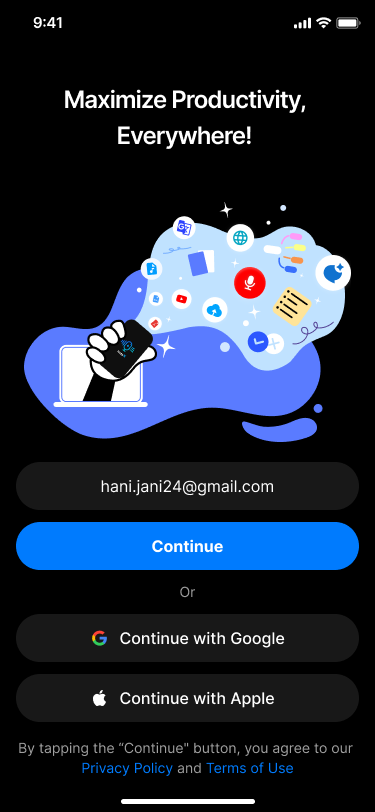
Choose a login method: Google, Apple, or Email
| Component | Type | Description |
|---|---|---|
| App Entry Screen | View | Default view when opening the app (Login or Continue screen) |
| Google Button | OAuth Button | Sign in via Google OAuth |
| Apple Button | OAuth Button | Sign in via Apple ID (iOS devices only) |
| Email Input Field | Text Field | Enter email for sign-in |
| Continue Button | Button | Proceed after entering email address |
| Loading Indicator | UI Element | Displays during authentication processing |
| Login Error Message | Alert/Text | Shown if login fails due to network or credential issues |
2. How to Use
Step 1: Open the Login Screen
When you open the app, you’ll see the Login interface with the following sign-in options:
Choose a login method: Google,Apple,or Email
- Continue with Google
- Continue with Apple
- Sign in with Email (enter your email in the input field)
These options help you log in quickly and securely using popular platforms.
Step 2: Perform Login
- Tap Google or Apple to authenticate instantly.
- If using email, enter your email address and tap Continue, then follow the verification steps (if applicable).
Step 3: Post-Login Navigation
- After a successful login, the app will automatically navigate you to the main screen of NoteX:
- A personalized greeting will appear (“Good Morning!”, “Welcome to NoteX”)
- The central UI includes tabs like: All Notes, Folders, Shared
- Tools such as: Record ,YouTube, Web link, Upload File, Other tools.
3. Notes & Tips
- Your account data will be synchronized across devices once you log in.
- If you don’t already have an account, one will be automatically created when you first sign in with Google or Apple.
- Make sure you have an active internet connection for the login process to work smoothly.
- Multi-device support ensures consistent access anywhere.
If you encounter login issues, check your internet connection or contact support via Settings > Help & Support after logging in.
4. FAQ
What login options are supported?
- Google: Uses your Google account to authenticate
- Apple: Available on iOS devices via Apple ID
- Email: Requires entering your email address and verifying identity
I don’t have an account — can I still log in?
Yes. If you use Google or Apple sign-in for the first time, NoteX will automatically create a new account for you.
I entered my email but nothing happens — what should I do?
- Ensure your internet connection is stable
- Check for typos in the email address
- Restart the app and try again
Can I use the same account on multiple devices?
Yes. Once logged in, your notes, settings, and preferences sync across all devices using the same account.
What happens if I uninstall the app?
- Your data is stored securely in the cloud
- Reinstall the app and log in again to restore all content
How do I fix login failures?
Try the following:
- Ensure a stable internet connection
- Update to the latest version of the app
- Restart your device
- Switch login methods (e.g., from Email to Google)
- Contact support via Settings > Contact Support (after logging in)
Is logging in required to use NoteX?
Yes. An account is required to:
- Access your notes
- Save and sync content
- Use premium features