Recording Schedule
The Recording Schedule feature enables users to create automated reminders for regular audio recording sessions. This functionality helps establish consistent recording habits by sending scheduled notifications at specified times and days throughout the week.
Key Benefits
- Consistent recording habits: Automated reminders encourage regular content creation and note-taking
- Flexible scheduling: Customizable time and day combinations to match personal routines
- Personalized notifications: Custom reminder titles and descriptions for different recording purposes
- Weekly recurring system: Set-and-forget scheduling with automatic weekly repetition
- Multiple reminder support: Create multiple schedules for different types of recordings or projects
1. UI/UX Specification
Screen Components
- Main toggle switch: Enable/disable notification permissions and recording schedule functionality
- Add reminder button: Circular plus icon to create new recording schedules
- Reminder cards: Visual representation of active schedules showing time, title, and selected days
- Day selection interface: Interactive weekday buttons (M, T, W, T, F, S, S) for scheduling
- Time picker: Scroll-based time selection interface for setting reminder times
- Edit dialog modal: Full-screen overlay for creating or modifying reminder details
User Experience Flow
- Permission management: Initial notification permission request and settings navigation
- Schedule overview: Clean list view of all active recording reminders
- Creation workflow: Guided process for setting time, days, and custom titles
- Visual feedback: Real-time updates showing selected days and configured times
- Management actions: Easy edit, delete, and toggle functionality through context menus
Navigation Path
Home Screen → Avatar Icon ( Settings ) → Recording Schedule
2. How to Use
Step 1: Access Recording Schedule
- Launch the application, then navigate to the Home screen.
- Tap the Avatar icon on the top-left corner to open Settings
- Tap Recording Schedule
Step 2: Enable Notifications (First-time Setup)
- If prompted, tap Allow when the system requests notification permissions
- For denied permissions, tap the settings icon to navigate to device settings
- Enable notifications for the app in your device's notification settings
- Return to the app to continue with schedule creation
Step 3: Create New Recording Reminder
- Tap the circular plus (+) icon next to "Recording Schedule"
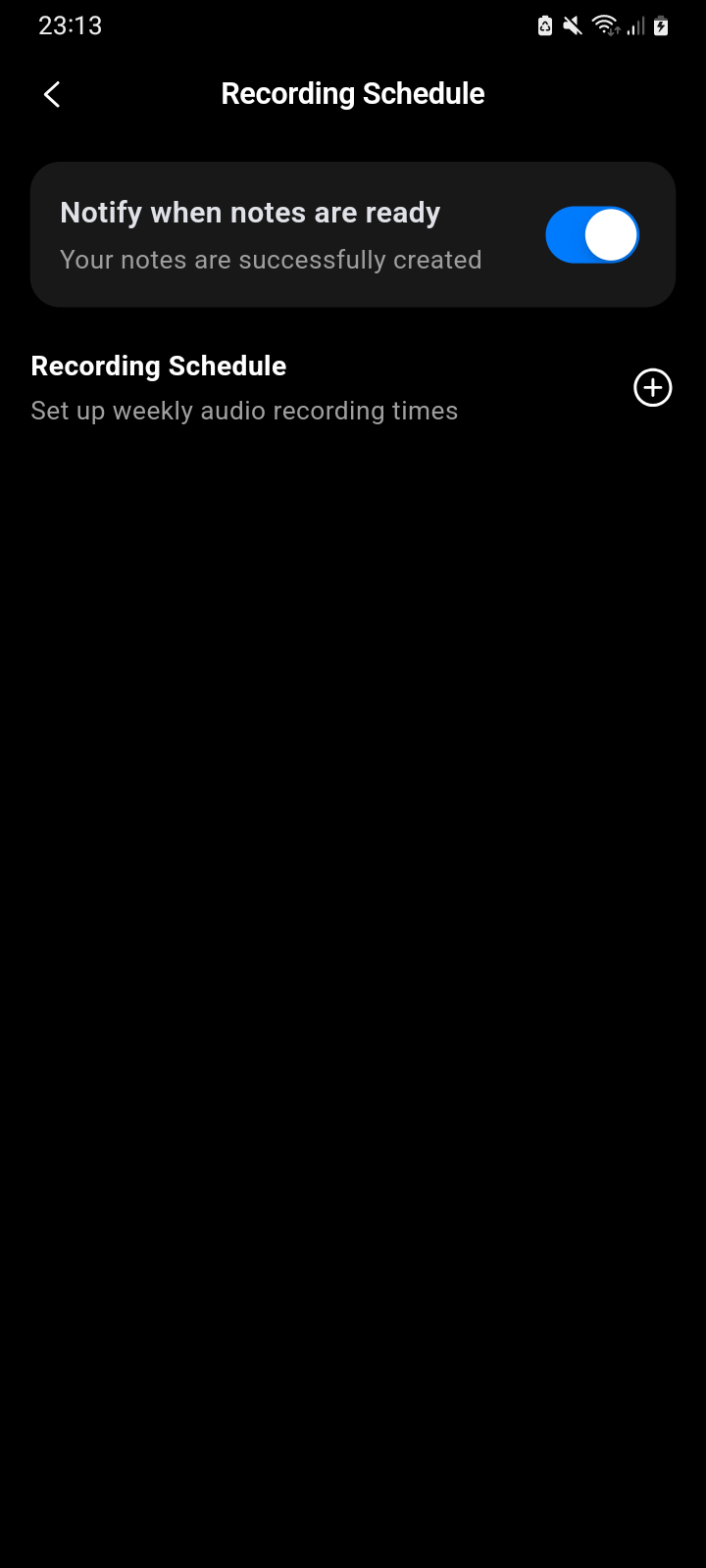
Recording Scheduled shows notification toggle and “+” to add recording times
- In the "Create Reminder" dialog, enter a custom title (2-50 characters)
- Use the time picker to select your preferred recording time
- Tap the day buttons (M, T, W, T, F, S, S) to select recording days
- Ensure at least one day is selected and title is properly filled
- Tap Create to save your recording schedule
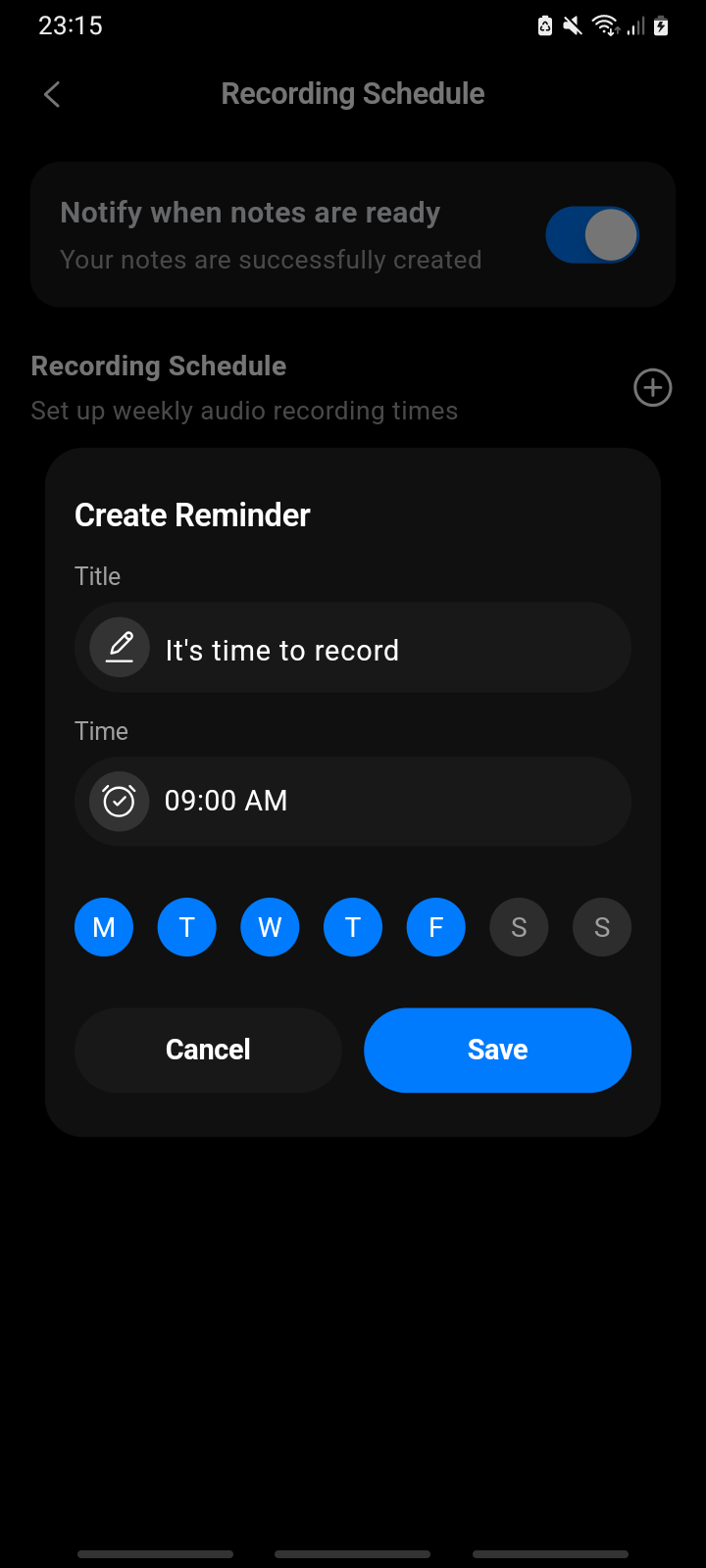
Create reminder dialog, enter title, select date & time
Step 4: Configure Multiple Schedules
- Repeat the creation process to add additional recording schedules
- Create different reminders for various recording types (meetings, lectures, personal notes)
- Set different times for different types of content (morning journaling, afternoon meetings)
- Use descriptive titles to distinguish between different recording purposes
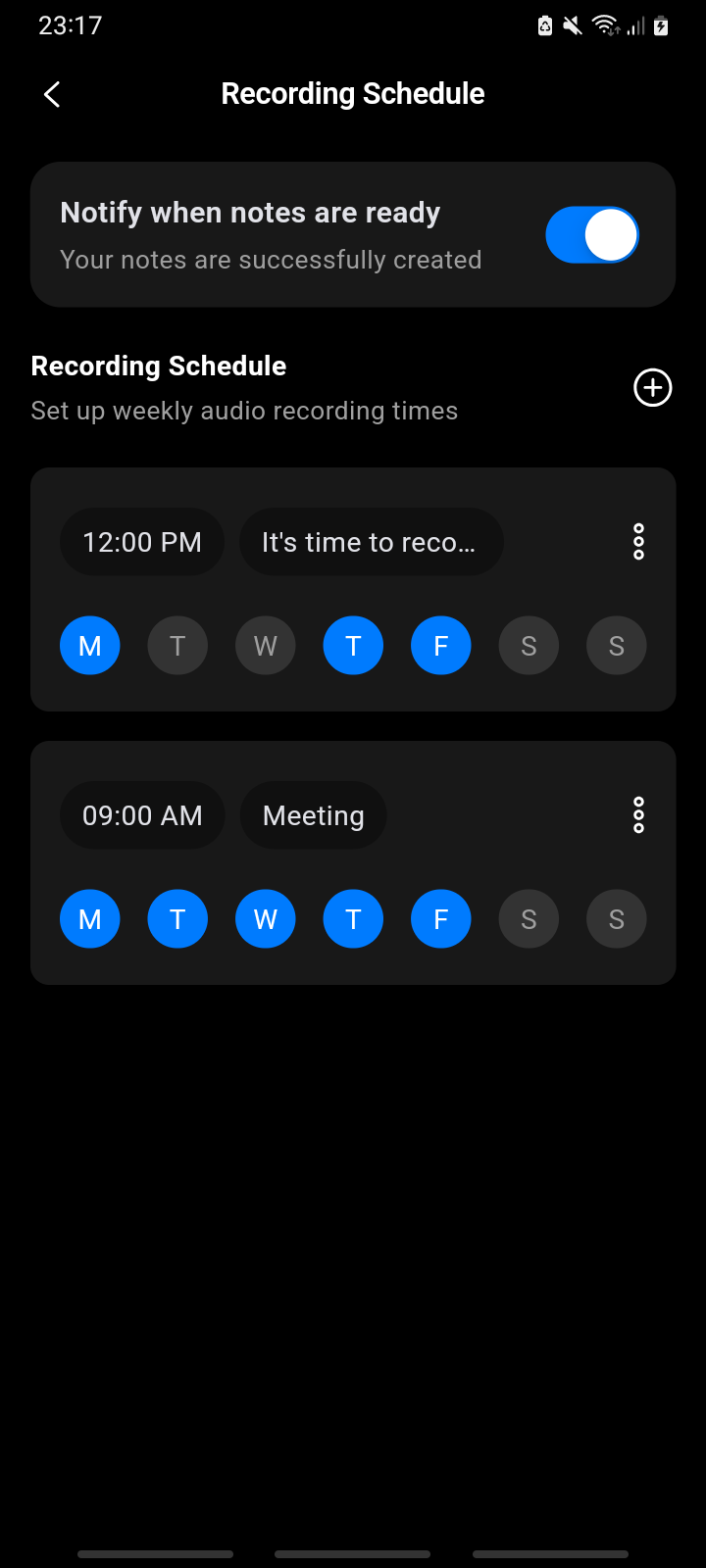
The reminder card lists each reminder showing the title, scheduled date/time
Step 5: Manage Existing Schedules
- Tap the three-dot menu on any reminder card for additional options
- Select Edit to modify time, days, or title of existing reminders
- Choose Delete to remove schedules no longer needed
- Changes take effect immediately and update notification scheduling
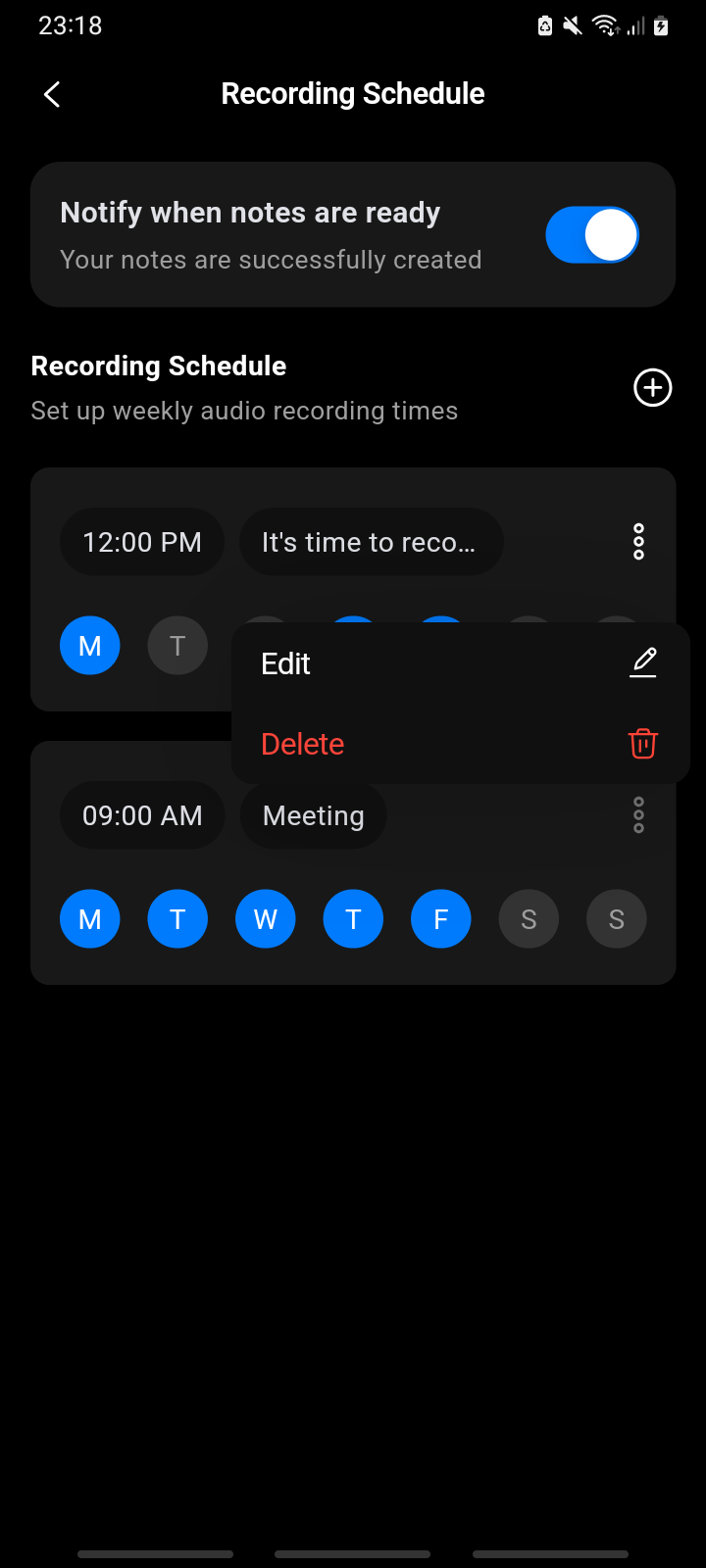
Reminder options menu with Edit title, and Delete actions
3. Notes & Tips
Scheduling Optimization
- Default settings: New reminders default to 9:00 AM on weekdays (Monday-Friday) for optimal productivity
- Time selection: Choose times when you're typically available and motivated to record
- Day combination strategies: Mix weekdays and weekends based on your recording routine and content type
- Multiple reminder coordination: Stagger different reminders by at least 30 minutes to avoid notification clustering
Title and Description Guidelines
- Character limits: Titles must be between 2-50 characters for proper display and notification formatting
- Descriptive naming: Use specific titles like "Morning Journal," "Meeting Notes," or "Study Session"
- Context inclusion: Include purpose or location information for better reminder context
- Avoid special characters: Standard text works best for cross-platform notification compatibility
Technical Considerations
- Weekly repetition: All schedules automatically repeat weekly on selected days
- Notification timing: Reminders trigger at the exact specified time with standard system notification sound
- Permission dependency: Recording Schedule requires notification permissions to function properly
- Background processing: Notifications work even when the app is closed or backgrounded
4. FAQ
Setup & Permission Issues
The Recording Schedule toggle is disabled or grayed out.**
This indicates notification permissions haven't been granted. To resolve:
- Go to device Settings → Apps → [App Name] → Notifications
- Enable "Allow notifications" for the app
- Return to the app and access Recording Schedule again
- The toggle should now be active and functional
I'm not receiving recording reminder notifications.**
Check these common issues:
- Permission status: Verify notifications are enabled in device settings
- Do Not Disturb: Ensure your device isn't in Do Not Disturb mode during scheduled times
- Background app refresh: Enable background app refresh for the application
- Battery optimization: Disable battery optimization for the app to ensure reliable notification delivery
- Time zone changes: Manually refresh reminders after traveling across time zones
The app crashes when I try to create a new reminder.**
This typically indicates:
- Insufficient device memory or storage space
- Outdated app version requiring update
- Conflicts with device notification system
- Solution: Restart device, update the app, and ensure adequate storage space
Creation & Editing Issues
I can't save my reminder - the Create button is disabled.**
The Create button requires all mandatory fields to be properly filled:
- Title validation: Must be 2-50 characters, cannot be empty or only spaces
- Day selection: At least one day of the week must be selected
- Time setting: Verify a specific time has been chosen (not default/blank)
- Character count: Check title length doesn't exceed 50 characters
Why can't I select a title with only one character?**
Single-character titles are restricted because:
- They provide insufficient context for effective reminders
- May cause display issues in notification interfaces
- Don't meet minimum descriptive requirements for meaningful reminders
My reminder title gets cut off in the reminder card.**
Title truncation occurs when:
- Titles exceed display space in compact card format
- Device screen size limitations affect text rendering
- Solution: Use concise but descriptive titles (under 20 characters for best display)
- Full titles remain visible in edit dialogs and notifications
I can't edit the time on an existing reminder.**
Editing restrictions may occur due to:
- Notification permission changes since creation
- App requiring restart after system updates
- Solution: Delete and recreate the reminder, or restart the app and try editing again
Scheduling & Timing Issues
Can I set reminders for specific dates instead of recurring weekly schedules?**
Currently, the Recording Schedule only supports weekly recurring patterns. For one-time reminders:
- Create a weekly reminder and delete it after the specific date
- Use device's built-in calendar or reminder apps for one-time events
- Consider creating temporary weekly reminders for short-term projects
What happens if I change time zones while traveling?**
Recording Schedule uses device local time, so:
- Reminders automatically adjust to new time zone
- Scheduled times remain consistent with device time
- No manual adjustment needed for time zone changes
- Notifications continue at the same local times in the new time zone
Can I set multiple reminders for the same day at different times?**
Yes, you can create multiple reminders with different times on the same days:
- Each reminder operates independently
- Use descriptive titles to distinguish purposes (e.g., "Morning Prep" vs "Evening Reflection")
- Recommended minimum 30-minute spacing between reminders
Why do some notifications arrive late or not at all?**
Notification delivery can be affected by:
- Battery optimization: Device power-saving features may delay notifications
- Background app restrictions: Ensure the app can run in background
- System notification limits: Device may throttle frequent notifications
- Network connectivity: Poor connection during scheduling can affect notification registration
Management & Organization
How many recording schedules can I create?**
There's no explicit limit mentioned in the app, but practical considerations include:
- Device notification system limitations
- User interface display constraints
- Recommendation: 5-10 reminders for optimal management and effectiveness
Can I temporarily disable a reminder without deleting it?**
Currently, individual reminders can't be disabled - they must be deleted. For temporary disabling:
- Use the main Recording Schedule toggle to disable all reminders
- Delete and recreate specific reminders when needed
- Consider editing reminder days to exclude unwanted notification days
Is there a way to see all my upcoming recording reminders in one view?**
The Recording Schedule screen shows all active reminders, but for upcoming schedule preview:
- Reminder cards display selected days and times
- Check device's notification history for recent recording reminders
- Use calendar apps to track recording sessions based on reminder schedules
Technical & Advanced Issues
Do reminders work when the app is closed or my phone is locked?**
Yes, recording reminders use system-level notifications that function:
- When the app is completely closed
- During device lock screen state
- In background or sleep mode
- Independent of app's active status
What happens to my reminders if I reinstall the app?**
Recording schedules are stored locally, so reinstalling the app will:
- Delete all existing reminder configurations
- Require recreation of all recording schedules
- Reset notification permissions (may need re-authorization)
- Recommendation: Note down current schedules before reinstalling
Can I export or backup my recording schedule settings?**
Currently, there's no built-in export feature for recording schedules:
- Settings are stored locally on the device
- Manual recreation required when switching devices
- Consider screenshots of current reminders for reference during device transfers
Support & Escalation
Who should I contact if Recording Schedule issues persist?**
Contact support through:
- Email: hello@notexapp.com (24/7 response within 24 hours)
- In-app support: Settings → Contact Support (includes automatic diagnostic information)
- Live chat: Available during business hours for urgent notification issues
What information should I provide when reporting Recording Schedule problems?**
Include:
- Device model and operating system version
- App version number and last update date
- Specific error messages or screenshots
- Current notification permission status
- List of affected reminders and their configurations
- Steps taken before encountering the issue