Change Plan
The Change Plan feature allows users to switch their current subscription plan to better suit their usage needs and desired features. This functionality integrates seamlessly with the platform’s native payment system.
Key Benefits
- Flexible management: Upgrade your plan as your needs evolve
- Cost optimization: Choose a plan that matches your usage patterns and budget
- Service continuity: Retain access to premium features throughout the transition
- Instant upgrade benefits: Gain access to enhanced features immediately upon upgrading
- Transparent billing: Clearly display price changes and billing cycles
1. UI/UX Specification
Screen Components
- Plan cards: Visual representations of available subscription tiers with pricing and feature highlights
- Current plan indicator: A “Your Plan” label marking the active subscription
- Feature comparison matrix: Detailed breakdown of capabilities per plan tier
- Change Plan button: Primary action element to execute the plan change (enabled only when a different plan is selected)
- Payment confirmation flow: Integration with the device’s native payment interface
User Experience Flow
- Entry points: Multiple access paths via the avatar menu (Settings)
- Plan visualization: Grid layout displaying all subscription options
- Selection feedback: Visual highlight on the chosen plan card
- Confirmation process: Clear “Change Plan” button with descriptive labeling
- Payment integration: Seamless handoff to the platform’s native payment flow
Navigation Path
Home Screen → Avatar Icon ( Settings ) → Account ( Plan Selection Screen )
2. How to Use
Step 1: Access Account Settings
- Open the app and go to the Home screen
- Tap the Avatar icon located in the top-left corner to open Settings
- Navigate to Account
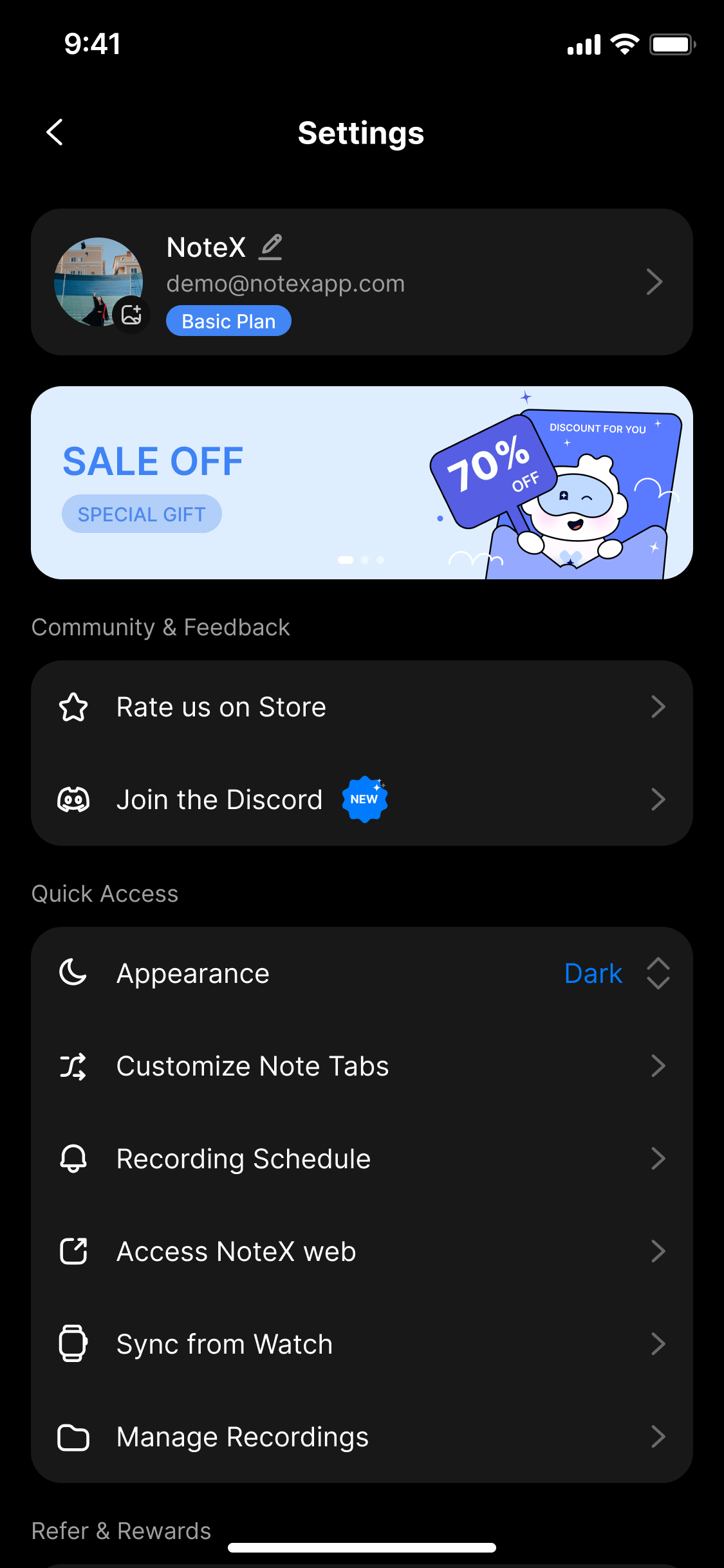
The account settings screen displays your avatar, username, email address, and current plan
Step 2: View Available Plans
- Review the plan comparison interface showing all subscription tiers
- Identify your current plan (marked “Your Plan”)
- Examine pricing, features, and billing cycle for each plan
- Compare options to determine the most suitable plan
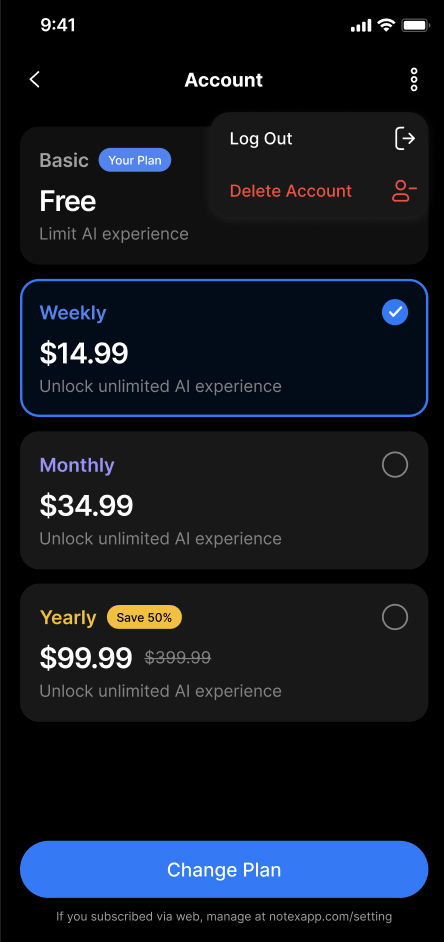
The card is highlighted with a “Your Plan” badge, indicating it as your current subscription
Step 3: Select a New Plan
- Tap the desired plan card to select it
- Verify the plan details match your requirements
- Ensure the Change Plan button becomes active
- Review any billing change notifications or warnings
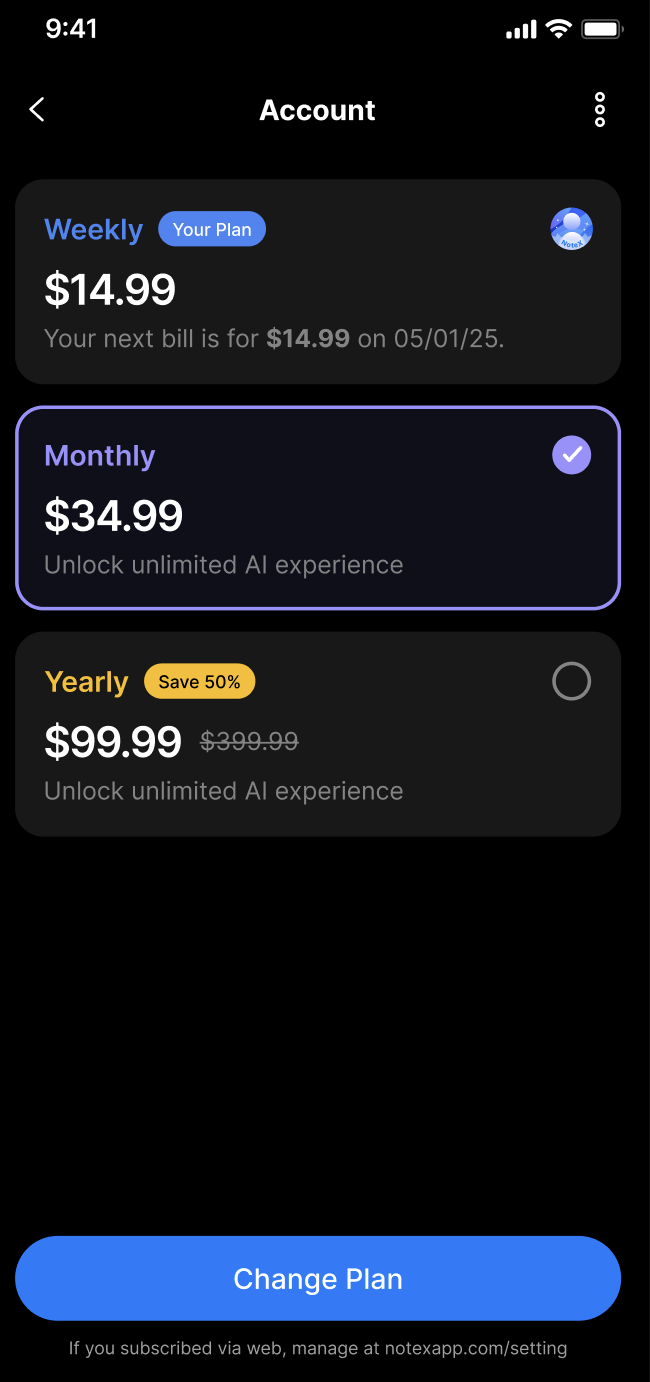
The selected card features an accent-colored border and a check icon to indicate your choice
Step 4: Confirm Plan Change
- Tap Change Plan at the bottom of the screen
- Read the confirmation dialog detailing the plan change
- Proceed through the native payment confirmation flow
- Complete any required authentication (e.g., biometrics, password)
Step 5: Verify the Change
- Wait for payment processing confirmation
- Return to the Account screen to confirm the updated plan
- Verify access to new features (for upgrades)
- Check for any billing cycle adjustment notifications

The card has a “Your Plan” badge, which displays the price and expiration date, and indicates your active Pro subscription
3. Notes & Tips
Payment Considerations
- Instant upgrades: New features and higher usage limits activate immediately upon successful payment
Optimization Strategies
- Annual savings: Yearly subscriptions typically offer 40–50% discount compared to monthly billing
- Lifetime value: A one-time purchase provides permanent access without recurring fees
- Usage monitoring: Regularly review your feature usage to choose the most cost-effective plan
Technical Requirements
- Stable internet connection throughout the change process
- Valid payment method configured on the device’s app store
- An active subscription status on your account
4. FAQ
General Questions
Will changing my plan affect my existing data or notes?**
No. All your data, notes, folders, and content remain intact. Only your plan’s features and limits are modified.
Can I change my plan multiple times?**
Yes. You can switch plans as often as needed, subject to platform billing policies and processing limits.
Are there any restrictions on which plans I can switch between?**
No. You are free to switch among any available subscription tiers.
Billing & Payment Issues
Why is my payment declined when changing plans?**
Common causes include:
- Insufficient account balance or card limit
- Expired payment method information
- Geographic restrictions on payment processing
- Platform payment system maintenance
Solution: Update your payment information in your App Store or Google Play account settings.
What happens if an upgrade payment fails?**
Your current plan remains active without interruption. After resolving the payment issue, you can retry the plan change without losing features.
How are mid-cycle plan changes billed?**
iOS (App Store Billing):
-
Upgrades:
- You're immediately charged the prorated difference for the remaining time on your current billing cycle.
- Example: Upgrading from a Weekly plan ($14.99) to a Monthly plan ($34.99) halfway through the month means you only pay the prorated difference for the remaining 15 days.
- New features unlock immediately after payment is successful.
Android (Google Play Billing):
-
Upgrades:
- Prorated billing: you pay only the difference for the remaining period.
- Your billing cycle is then adjusted to align with your original payment date.
- Premium features become available right away.
Technical Issues
Why is the Change Plan button not showing or disabled?**
Ensure that:
- You have selected a different plan than your current one
- Your internet connection is stable
- You are logged into an account with an active subscription
- The app is updated to the latest version
Solution: Restart the app and try again.
My plan changed successfully but features haven’t updated.**
Synchronization may take 2–3 minutes. Force-close the app, reopen it, wait 5 minutes, and contact support if the issue persists.
Access & Navigation Issues
I can’t find the Account section in Settings.**
- Home Screen → Tap Avatar (top-left) → Settings → Account
- Or tap the avatar from any screen header
- Ensure you’re logged into a subscription-enabled account
- Update the app if the Account section is missing
The app crashes when I attempt to change plans.**
Possible causes:
- Insufficient device memory or storage
- Outdated app version
- Conflicts with the payment system
Solution: Update the app, restart your device, and free up storage space.
Plan-Specific Questions
Besides price, what’s the difference between Quarterly and Annual plans?**
They offer identical feature sets. The differences are billing frequency (every 3 months vs. every 12 months) and total annual cost (the annual plan is more economical).
Does the Lifetime plan include future feature updates?**
Yes. It includes all future premium feature releases and app updates at no additional cost.
Can I pause my subscription instead of changing plans?**
On the App Store (iOS):
- Open Settings → tap your name → Subscriptions
- Select the subscription you want to pause → tap Cancel Subscription
Or open the App Store → tap your profile avatar → Subscriptions → select and cancel
On Google Play Store (Android):
- Open Play Store → tap your profile avatar → Payments & subscriptions → Subscriptions
- Select the subscription → tap Cancel subscription
Support & Contact
Who should I contact if I continue experiencing issues?**
- Email: hello@notexapp.com (24/7 support)
- In-app: Settings → Contact Support (includes diagnostic information)
- Live Chat: Available during business hours via our support portal
What information should I provide when reporting plan change issues?**
- Your current and desired subscription plans
- Any error messages or screenshots
- Device model and operating system version
- App version number
- Transaction ID (if a payment attempt was made)