Manage Recordings
The Manage Recordings feature provides comprehensive management capabilities for local audio recordings stored on your device. This functionality enables users to preview, organize, and manipulate saved audio files with integrated playback controls and processing options.
Key Benefits
- Local storage management: Access and organize all device-stored audio recordings in one centralized location
- Built-in audio player: Preview recordings with full playback controls including play, pause, seek, and skip functionality
- Note regeneration capability: Convert existing recordings into AI-powered notes and transcriptions
- File sharing integration: Share audio files directly with other applications and contacts
- Storage optimization: Remove unnecessary recordings to free up device storage space
- Failed upload recovery: Retry processing for recordings that failed to upload or process initially
1. UI/UX Specification
Screen Components
- Recording list view: Scrollable list displaying all local audio recordings with metadata
- Audio player interface: Inline player with progress bar, time indicators, and playback controls
- Recording cards: Individual items showing file name, creation date, file size, and status indicators
- Context menu: Three-dot menu providing access to regenerate, share, and delete actions
- Empty state display: Placeholder view when no recordings are available
User Experience Flow
- List presentation: Clean, organized view of all available recordings sorted by creation date
- Playback integration: Tap-to-play with expanding controls for active recordings
- Action accessibility: Easy access to recording management options through intuitive menu systems
- Visual status indicators: Clear indication of recording state (normal, failed, processing)
- Responsive feedback: Real-time updates for playback position and file operations
Navigation Path
Home Screen → Avatar Icon (Settings) → Manage Recordings
2. How to Use
Step 1: Access Manage Recordings
- Launch the application and navigate to the Home screen
- Tap the Avatar icon located in the top-left corner to open Settings
- Tap Manage Recordings
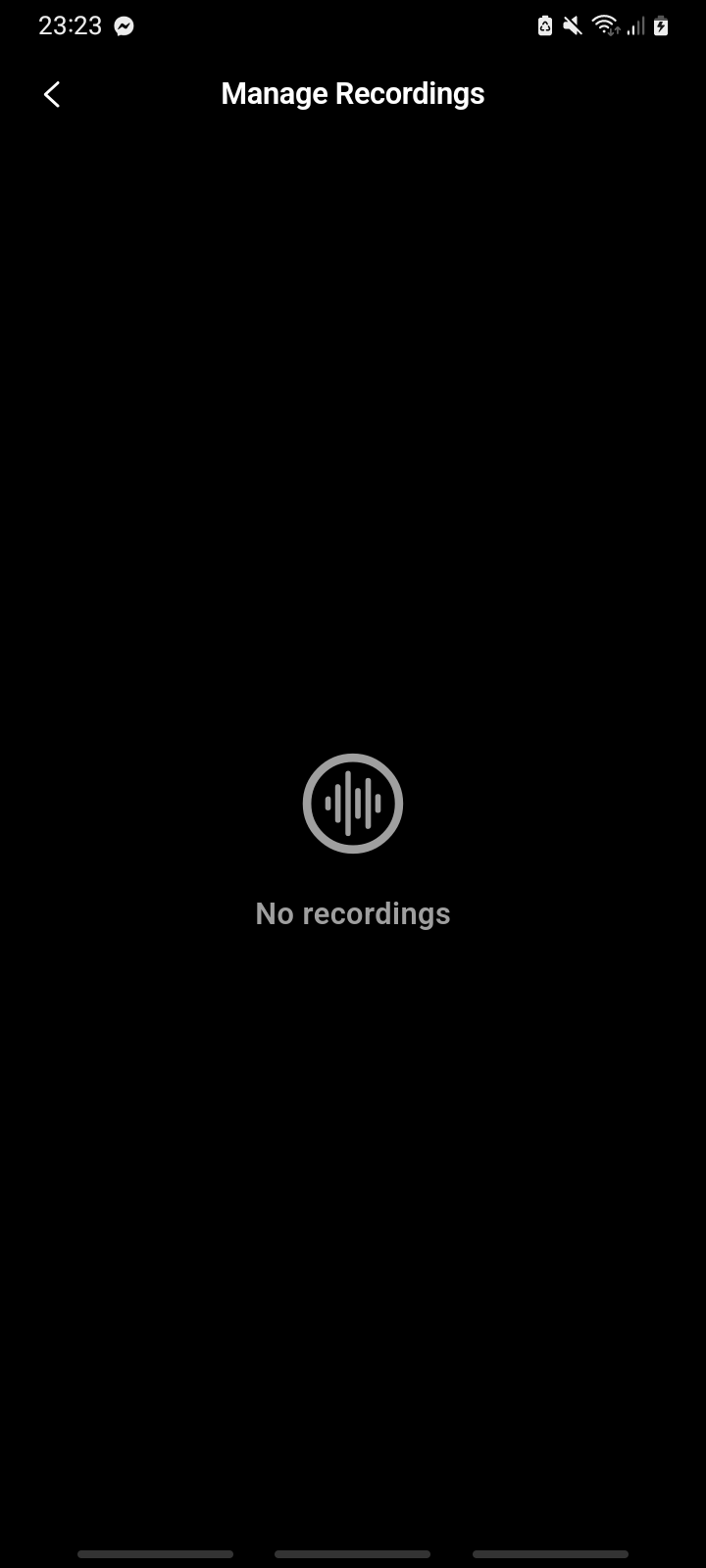
Record management shows empty status with message “No recordings”
Step 2: Browse Available Recordings
- View the complete list of local audio recordings sorted by creation date (newest first)
- Examine recording metadata including file name, creation date, and file size
- Identify different recording states through visual indicators (normal, failed processing)
Step 3: Play and Preview Recordings
- Tap any recording card to begin playback
- Observe the expanding player controls that appear below the selected recording
- Use the play/pause button to control audio playback
- Utilize the progress slider to seek to specific positions within the recording
- Employ skip backward (-5s) and forward (+5s) buttons for precise navigation
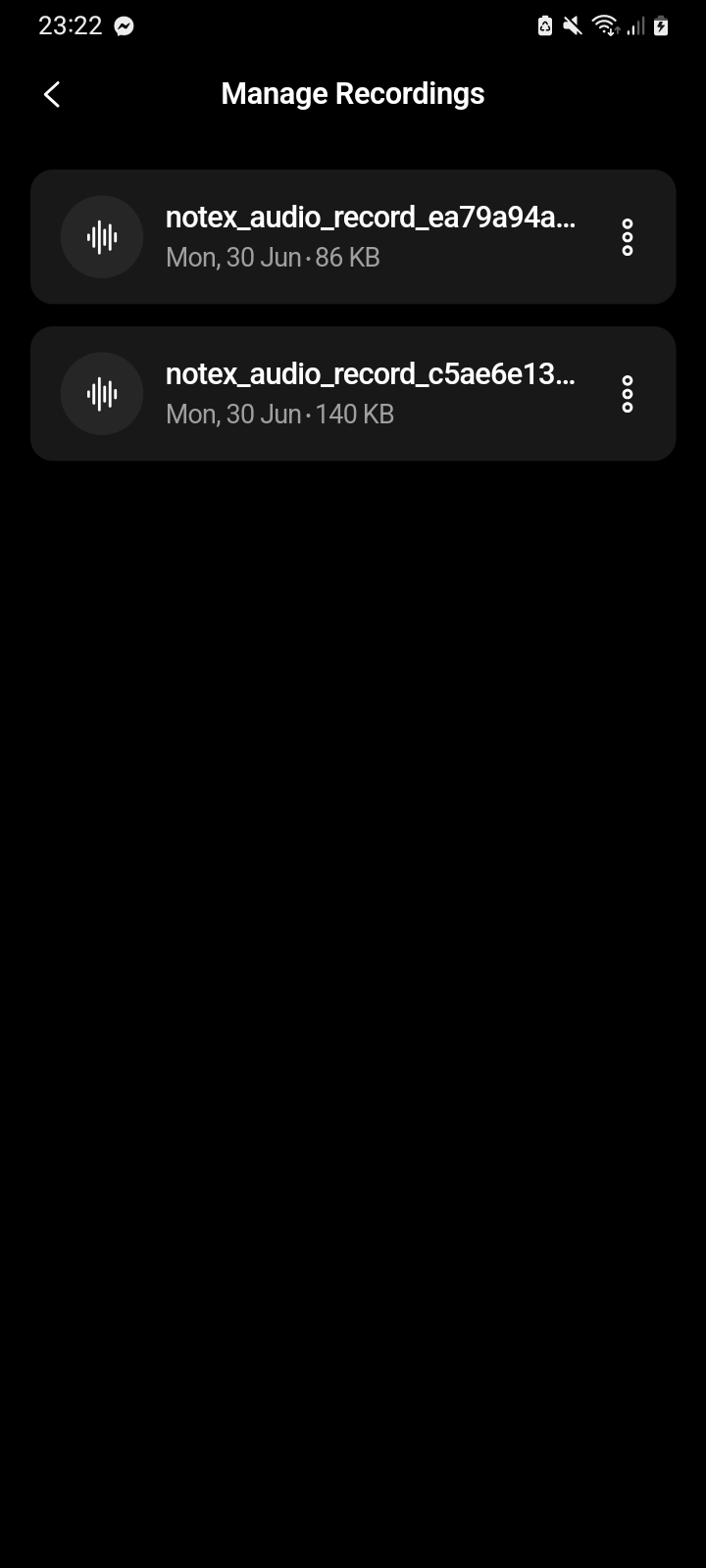
The Manage Recordings list shows each audio file as a row with its title (or date/time)
Step 4: Manage Recording Actions
- Tap the three-dot menu icon on any recording card
- Choose from available actions:
- Regenerate: Process the recording into a new AI note or retry failed processing
- Share: Send the audio file to other apps or contacts
- Delete: Permanently remove the recording from device storage
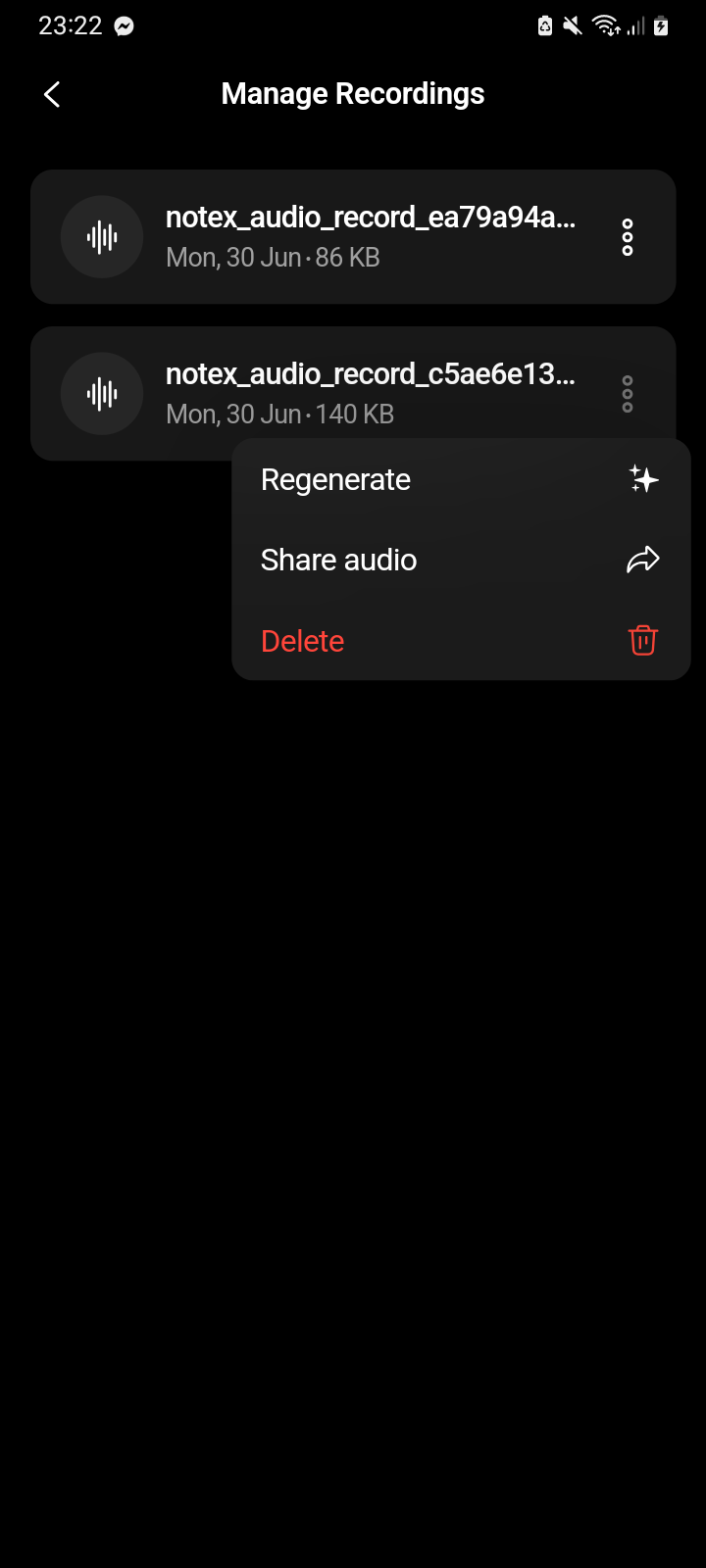
Recording options menu with Regenerate, Share audio, and Delete actions
Step 5: Handle Failed Recordings
- Identify recordings with red status indicators (failed processing)
- Tap the three-dot menu on failed recordings
- Select Regenerate to retry note creation or return to the original note
- Use alternative options like sharing or deletion as needed
3. Notes & Tips
Storage Management
- File location: Recordings are stored in the app's documents directory as .m4a files
- Automatic sorting: Files display in reverse chronological order (newest recordings first)
- File naming: Recordings use timestamp-based naming for unique identification
- Storage monitoring: Monitor device storage and delete unnecessary recordings to maintain performance
Playback Optimization
- Single-file playback: Only one recording can play at a time; starting new playback stops current audio
- Progress persistence: Playback position resets when switching between recordings
- Background behavior: Audio stops when navigating away from the Manage Recordings screen
- Quality settings: All recordings use standard AAC format with optimized compression
4. FAQ
Access & Navigation Issues
I can't find the Manage Recordings option in Settings.**
Ensure you're navigating correctly:
- Home screen → Avatar (top-left) ( Settings ) → Manage Recordings
- Verify you're using the latest app version
- Check that you have previously created recordings through the app
- Restart the app if the option doesn't appear
The Manage Recordings screen is empty but I know I have recordings.**
This can occur due to:
- Recordings stored in different app directories
- File system permissions preventing access
- Corrupted recording files not recognized by the system
- Solution: Try creating a new test recording to verify the feature is working, then restart the app
The app crashes when I open Manage Recordings.**
Common causes include:
- Insufficient device storage or memory
- Corrupted recording files in the directory
- App requiring update for compatibility
- Solution: Free up device storage, update the app, and restart your device
Playback & Audio Issues
Recordings won't play when I tap on them.**
Verify these potential issues:
- File corruption: The recording file may be damaged or incomplete
- Audio permissions: Ensure the app has audio playback permissions
- Device audio settings: Check that device volume is enabled and not muted
- Background apps: Close other audio apps that might interfere with playback
- Solution: Try playing different recordings to isolate the issue
Audio playback stops unexpectedly during recordings.**
Interruptions can be caused by:
- Incoming phone calls or notifications
- Other apps requesting audio focus
- Device power management settings
- Solution: Ensure Do Not Disturb mode during important playback sessions
The progress slider doesn't work or jumps erratically.**
Slider issues typically indicate:
- Recording file corruption or encoding problems
- App performance issues due to low memory
- Incomplete recording files from interrupted recording sessions
- Solution: Try restarting the app and test with different recordings
I can hear audio but the time indicators show incorrect durations.**
Duration calculation problems may result from:
- Recordings with variable bitrates or corrupted metadata
- Files created with different recording applications
- Solution: Duration discrepancies don't affect playback quality; metadata may simply be inaccurate
File Management & Actions
The "Regenerate" option doesn't work for my recordings.**
Regeneration failures can occur due to:
- Insufficient credits: Check your available AI processing credits
- Poor connectivity: Ensure stable internet connection for cloud processing
- File format issues: Very old recordings may not be compatible with current processing systems
- Server maintenance: Temporary service interruptions affecting AI processing
- Solution: Verify credits and connectivity, then retry after a few minutes
Sharing recordings doesn't work with certain apps.**
Sharing compatibility depends on:
- Target app's supported file formats (not all apps accept .m4a files)
- File size limitations of receiving applications
- Device sharing permissions and restrictions
- Solution: Try sharing with different apps or convert audio format if needed
Deleted recordings still appear in the list.**
Persistent recordings after deletion suggest:
- App cache not properly updated
- File system delays in removing files
- Solution: Pull down to refresh the list or restart the app to update the display
I accidentally deleted an important recording. Can I recover it?**
Recovery options are limited:
- Local backups: Check if you have device backups that include app data
- Cloud storage: If the recording was previously processed into a note, the note may still exist
- No built-in recovery: The app doesn't maintain deleted file recovery systems
- Prevention: Consider sharing important recordings to external storage before deletion
Failed Recordings & Processing
What does the red indicator on some recordings mean?**
Red indicators identify recordings with failed processing:
- Upload to server failed due to connectivity issues
- AI processing encountered errors during transcription
- Insufficient credits when attempting to create notes
- File corruption preventing successful processing
How do I fix recordings that show as failed?**
Failed recording recovery options:
- Tap the three-dot menu and select "Regenerate"
- Ensure stable internet connectivity before retrying
- Verify sufficient AI processing credits in your account
- If regeneration fails repeatedly, try sharing the file instead
Can I prevent recordings from failing in the future?**
Minimize processing failures by:
- Maintaining stable internet connectivity during recording and processing
- Monitoring available AI credits before creating new recordings
- Avoiding interruption of the upload and processing workflow
- Recording in quiet environments to improve AI transcription accuracy
Storage & Performance
How much storage space do recordings typically use?**
Storage consumption varies by:
- Recording length (approximately 1MB per minute of audio)
- Quality settings (app uses optimized compression)
- File format efficiency (M4A provides good compression)
- Management: Regularly delete unnecessary recordings to maintain available storage
Do recordings sync across multiple devices?**
Local recordings are device-specific:
- Recordings don't automatically sync between devices
- Cloud processing creates notes that sync across devices
- Cross-device access: Use the regenerate function to create synced notes from recordings
What happens to recordings when I reinstall the app?**
App reinstallation affects local recordings:
- All local recordings are permanently deleted during app removal
- Cloud-processed notes remain accessible after reinstalling
- Backup strategy: Share important recordings to external storage before reinstalling
Technical & Advanced Issues
Can I change the audio format or quality of recordings?**
Audio format specifications:
- All recordings use M4A format with AAC compression
- Quality settings are optimized for balance between file size and clarity
- Format cannot be changed within the app
- External conversion: Use third-party apps for format conversion if needed
Why do some recordings have different file sizes despite similar lengths?**
File size variations result from:
- Recording environment noise levels (more noise = larger files)
- Audio complexity and dynamic range
- Compression efficiency variations
- Normal behavior: File size differences are expected and don't indicate problems
Support & Escalation
Who should I contact if Manage Recordings issues persist?**
Contact support through:
- Email: hello@notexapp.com (24/7 response within 24 hours)
- In-app support: Settings → Contact Support (includes automatic diagnostic information)
- Live chat: Available during business hours for technical recording issues
What information should I provide when reporting Manage Recordings problems?**
Include:
- Device model and operating system version
- App version number and last update date
- Specific error messages or screenshots
- Number and approximate size of recordings affected
- Steps taken before encountering the issue
- Whether the problem affects all recordings or specific files