Edit Avatar
The Edit Avatar feature enables users to customize their profile representation by uploading personal images to replace the default avatar. This functionality enhances user identification and personalizes the application experience through visual profile customization.
Key Benefits
- Personal identity representation: Create a distinctive visual presence within the application
- Enhanced user recognition: Facilitate easier identification in collaborative features and interactions
- Increased engagement: Foster stronger connection with the application through personalized elements
- Cross-device synchronization: Maintain consistent visual identity across all logged-in devices
- Immediate visual feedback: Real-time avatar updates upon successful upload
1. UI/UX Specification
Screen Components
- Avatar display circle: Current profile image presentation in circular format
- Camera overlay icon: Small camera indicator positioned at bottom-right of avatar for edit access
- Photo library interface: Native device gallery integration for image selection
- Upload progress indicator: Visual feedback during image processing and server upload
- Success confirmation: Toast notification confirming successful avatar update
User Experience Flow
- Entry point identification: Multiple access paths through settings navigation and direct avatar interaction
- Image selection interface: Seamless integration with device photo library
- Automatic processing: Behind-the-scenes image optimization and compression
- Real-time update: Immediate visual refresh upon successful upload completion
- Synchronization feedback: Confirmation of cross-device avatar propagation
Navigation Paths
Method 1 (Direct): Home → Avatar Icon (Settings) → Camera Icon (on avatar)
Method 2 (Preview): Home → Avatar Icon (Settings) → Avatar Tap → Change Photo
2. How to Use
Step 1: Access Avatar Edit Function
- Launch the application and navigate to the Home screen
- Tap the Avatar icon located in the top-left corner to open Settings
- Choose your preferred access method:
- Direct edit: Tap the small camera icon at the bottom-right of your current avatar
- Preview mode: Tap the avatar image to open full preview, then select Change Photo
Tap "Change Photo" button to change your avatar
Step 2: Select Image Source
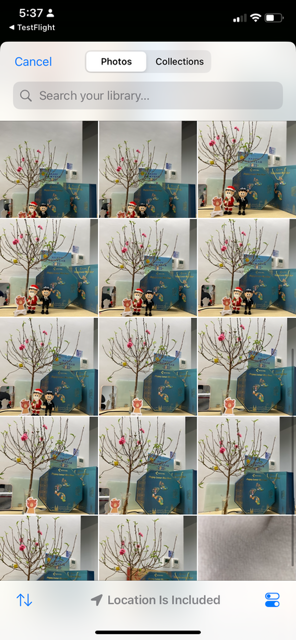
- The device photo library will automatically open
- Browse through your available images and albums
- Locate and tap your desired image for avatar use
- Confirm selection through the native photo picker interface
Step 3: Image Processing
- The application automatically initiates image processing
- Image compression and optimization occur in the background
- Monitor the upload progress indicator for completion status
- Maintain stable internet connectivity throughout the process
Step 4: Verify Update
- Observe the immediate avatar change upon successful upload
- Check for the "Avatar updated successfully" confirmation message
- Verify the new avatar appears across different app sections
- Confirm synchronization across multiple devices if applicable
3. Notes & Tips
Image Optimization Guidelines
- Resolution recommendations: Use high-quality images (minimum 512×512 pixels) for optimal display clarity
- Aspect ratio considerations: Square images (1:1 ratio) provide best results for circular avatar display
- File size management: Compress large images before upload to ensure faster processing times
- Format selection: Prefer PNG format for images with transparency or sharp edges
Technical Considerations
- Network requirements: Stable internet connection essential for successful upload completion
- Permission management: Ensure photo library access permissions are granted in device settings
- Storage impact: Original images are not stored locally; only processed versions are cached
- Backup recommendations: Keep original high-quality images separately for future use
Performance Optimization
- Upload timing: Perform avatar changes during stable connectivity periods
- Background processing: Avatar uploads continue when app is backgrounded but may pause if connection is lost
- Cache management: New avatars may take 1-2 minutes to propagate across all app sections
4. FAQ
Image Requirements & Compatibility
What image formats are supported for avatar upload?**
Supported formats include JPG, JPEG, and PNG. Other formats (GIF, WEBP, HEIC) are not currently supported and will result in upload errors.
What is the maximum file size allowed for avatar images?**
The maximum file size limit is 10 MB. Images exceeding this limit will be rejected with an error message prompting you to select a smaller file.
Why does my square image appear cropped in the avatar circle?**
The application automatically centers and crops images to fit the circular avatar format. For best results, ensure important visual elements are positioned in the center of your image.
Can I upload images with transparency backgrounds?**
Yes, PNG images with transparent backgrounds are supported. Transparent areas will display as white in the circular avatar format.
Upload & Processing Issues
Why is my avatar upload failing with "Failed to update avatar" error?**
Common causes include:
- Poor or unstable internet connectivity
- File size exceeding 10 MB limit
- Unsupported file format (only JPG, JPEG, PNG allowed)
- Temporary server processing issues
- Solution: Verify connection, check file specifications, and retry after a few minutes
My avatar appears blurry or low quality after upload.**
This typically occurs due to:
- Source image being low resolution (below 512×512 pixels)
- Excessive compression of the original image
- Non-square aspect ratio causing scaling issues
- Solution: Use higher resolution source images and prefer square-format photos
The upload is taking an unusually long time.**
Extended upload times may result from:
- Large file sizes requiring more processing time
- Slow internet connection or network congestion
- High server load during peak usage periods
- Solution: Try smaller file sizes, switch to Wi-Fi, or attempt upload during off-peak hours
My avatar updated but isn't showing in all app sections.**
Avatar synchronization across app sections may take 1-3 minutes. If issues persist:
- Force-close and restart the application
- Check internet connectivity
- Log out and log back in to refresh user data
- Contact support if avatar doesn't update after 10 minutes
Access & Permission Issues
The camera icon is not visible on my avatar.**
Verify the following:
- You are logged into a valid user account
- The app has been updated to the latest version
- Photo library permissions are granted in device settings
- You are connected to the internet
- Solution: Check app permissions in device settings and restart the application
I can't access my photo library when trying to change my avatar.**
This indicates permission restrictions:
- Go to device Settings → Apps → [App Name] → Permissions
- Enable "Photos" or "Media" access
- Restart the application and retry avatar change
- On iOS: Settings → Privacy & Security → Photos → [App Name] → Select "All Photos"
The app crashes when I try to select a photo for my avatar.**
App crashes during photo selection typically indicate:
- Insufficient device storage or memory
- Corrupted photo library database
- Large image files overwhelming device processing capability
- Solution: Free up device storage, restart device, and try with smaller image files
Synchronization & Account Issues
My avatar is different on different devices.**
Avatar synchronization requires:
- Active internet connection on all devices
- Same account logged in across devices
- Latest app version on all devices
- Solution: Log out and log back in on devices showing old avatars
Can I revert to the default avatar after uploading a custom one?**
Currently, there is no direct option to revert to the default avatar. You can only replace your current avatar with a different image. Consider saving a screenshot of the default avatar if you wish to return to it later.
Will my avatar be visible to other users?**
Avatar visibility depends on app features and sharing settings. In collaborative features, other users may see your avatar. Check privacy settings to understand avatar visibility scope.
Quality & Display Concerns
Why does my avatar look different in the app compared to the original image?**
The app applies automatic processing including:
- Compression to reduce file size (80% quality)
- Circular cropping from center of image
- Resizing to standardized dimensions (typically 256×256 pixels for display)
- Color space optimization for consistent display
Can I edit or crop my image before uploading?**
The app does not include built-in editing tools. Image cropping and adjustments occur automatically. Use external photo editing apps to prepare images before upload if specific cropping is desired.
My avatar appears pixelated on high-resolution devices.**
Upload higher resolution source images (recommended minimum 1024×1024 pixels) to ensure crisp display on all device types and screen densities.
Technical & Advanced Issues
Does changing my avatar affect app performance?**
Avatar changes have minimal performance impact. Large image uploads may temporarily increase network usage and battery consumption during processing.
Are there any restrictions on avatar content?**
While technical restrictions focus on file format and size, ensure avatar images comply with community guidelines and terms of service regarding appropriate content.
What happens to my old avatar when I upload a new one?**
Previous avatars are automatically replaced and removed from servers. The app does not maintain a history of previous avatars.
Support & Escalation
Who should I contact if avatar issues persist?**
Contact support through:
- Email: hello@notexapp.com (24/7 response within 24 hours)
- In-app support: Settings → Contact Support (includes device and app diagnostics)
- Live chat: Available during business hours for urgent issues
What information should I provide when reporting avatar upload problems?**
Include:
- Device model and operating system version
- App version number
- Specific error messages or screenshots
- Image file size and format
- Network connection type (Wi-Fi/cellular)
- Steps taken before encountering the issue