Customize Note Tabs
The Customize Note Tabs feature lets you choose which of these learning tabs you want to see inside your notes. This allows you to hide tools you don't need and focus on what's most important for your study style.
By default, every note you create will show all available tabs.
Key Benefits
- Remove distractions by hiding unused tabs
- Customize the layout to suit your workflow
- Streamline the interface for faster access to essential tools
1. UI/UX Specification
“Customize Note Tabs” option in Settings
| Component | Type | Description |
|---|---|---|
| Profile Avatar | Button/Icon | Tap in the top-left corner of the home screen to access Settings. |
| Settings Menu | List/Menu | Contains navigation items, including "Customize Note Tabs". |
| All Tabs Section | Grid/List | Shows all possible tabs (active and inactive). |
| Note Tabs Section | Reorderable List | Displays active tabs in order of appearance. |
| Save Button | Button | Saves and applies changes to your tab layout. |
| ‘x’ Icon | Icon/Button | Removes a tab from Note Tabs, sending it back to All Tabs. |
| Index Numbers | Label/Text | Indicates tab order for easier rearrangement. |
2.How to Use
Follow these steps to personalize the tab layout for all your notes:
Step 1: Access Settings
From the main screen, tap the avatar in the top left corner (where your greeting and profile picture appear).
Step 2: Find the Customization Option
In the Settings menu, tap on Customize Note Tabs.

Tap on “Customize Note Tabs” in the Settings menu
Step 3: Show or Hide Tabs
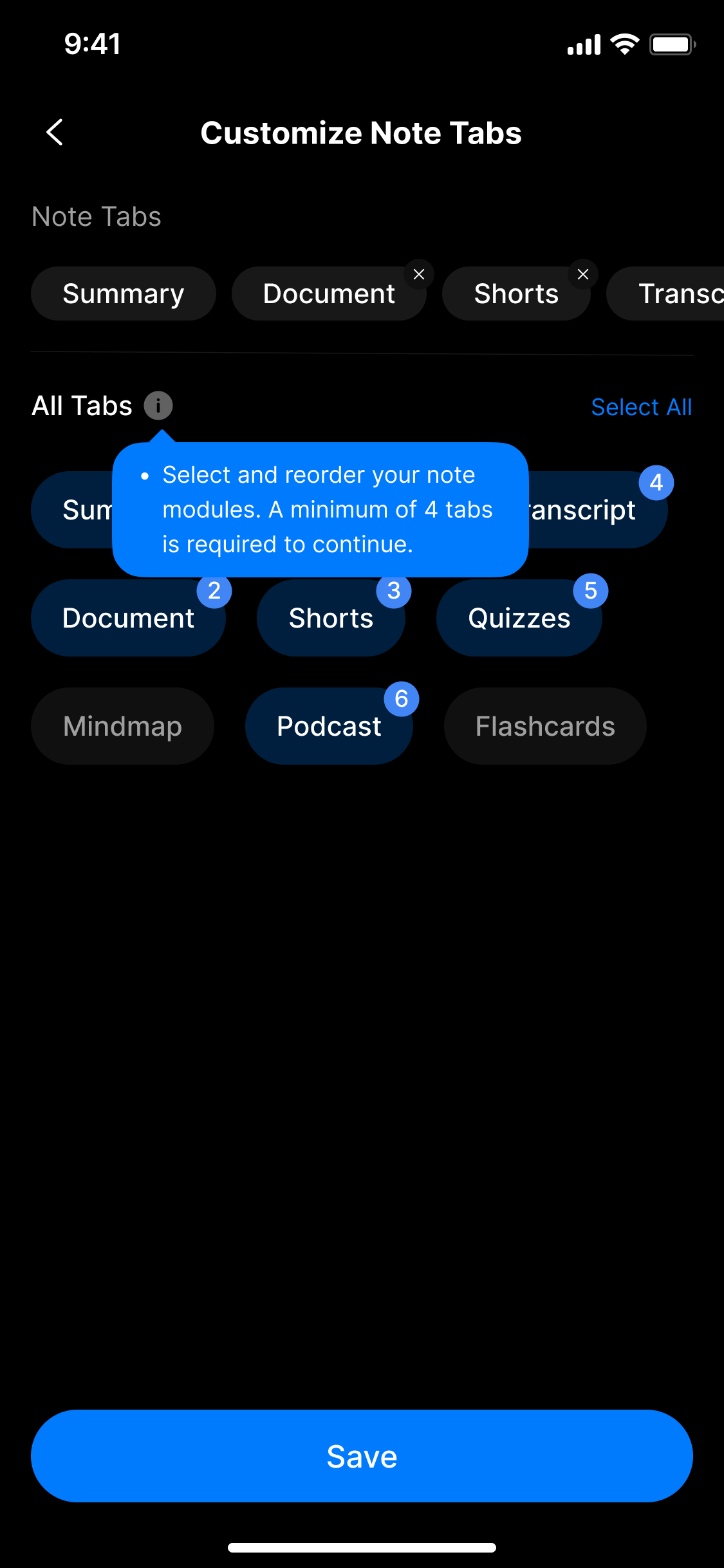
The customization screen includes two main sections: Note Tabs and All Tabs.
Select and reorder your tabs
All Tabs – Manage All Available Tabs
- This section shows all possible tab types, including active and hidden ones.
- Tabs that are currently active (already in Note Tabs) will:
- Be highlighted (not dimmed).
- Display an index number indicating their current order in Note Tabs.
- Tabs that are inactive (not in Note Tabs) will:
- Appear dimmed.
- Can be tapped to add back into Note Tabs.
You can use the index numbers shown in All Tabs to re-order your layout more easily.
Note Tabs – Your Active Layout
- This section displays the tabs that are currently shown in the Note Detail view.
- Tabs appear in the order in which they are listed here.
- To remove a tab, tap the ‘x’ icon next to it.
- The tab will move back to All Tabs and become dimmed.
- To add a tab, tap any dimmed tab from All Tabs — it will be added at the bottom of Note Tabs.
Summary Tab – Always Fixed
- The Summary tab is a default, system-required tab.
- It cannot be removed from your notes.
- It is always present in Note Tabs and cannot be deleted.
Save Your Changes
- After customizing the tab layout, tap the Save button to apply your changes.
- Your preferences will immediately take effect across all new and existing notes.
Changes are not applied until you tap Save.
3. Notes & Tips
- Drag to reorder tabs in the Note Tabs list.
- Summary is fixed and always appears at the top.
- Your layout is synced across devices if logged into the same NoteX account.
- Hiding a tab does not delete its data — it just hides the UI.
4. FAQ
What tabs can I hide?
You can hide all tabs except Summary. Hidden tabs won’t appear in your Note Details but their data is still saved in the background.
Will changes apply to old notes?
Yes. Your tab layout will apply to all existing and future notes after tapping Save.
What if I accidentally remove a tab?
Just tap the tab again in the All Tabs section — it will be re-added at the bottom of your Note Tabs list.
Can I reset to default?
Currently, there is no “reset” button. You’ll need to manually re-add the default tabs if you want to restore them.
Does this sync across devices?
Yes — if you're signed in to the same account on all devices, your layout will sync automatically.
What is the Summary tab and why can’t I remove it?
The Summary tab is a required core component of NoteX. It is always included in every note and cannot be hidden or moved.
Will hiding a tab delete its data?
No. Hidden tabs simply disappear from the UI. The data is still safely stored and will reappear if you re-enable the tab.