Change Theme
The Change Theme feature allows you to customize the app's appearance based on your personal preference or your device’s system settings.
You can choose between three modes: Light, Dark, or System, for a more comfortable viewing experience in different lighting environments.
Benefits of Changing Theme
- Improve readability in various lighting conditions
- Match the app’s appearance with your device's system theme
- Reduce eye strain when using the app at night or in low-light environments
1. UI/UX Specification
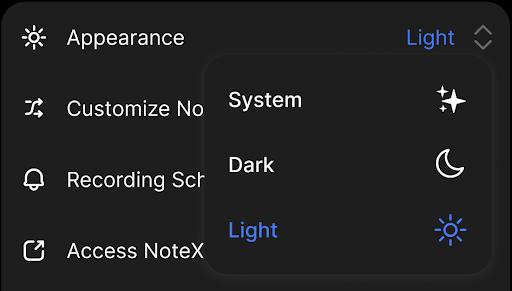
Theme selection screen in Settings
| Component | Type | Description |
|---|---|---|
| Profile Avatar | Button/Icon | Located in the top-left corner of the home screen to access the Settings. |
| Settings Menu | List/Menu | Contains various app configuration options including "Appearance". |
| Appearance Option | Menu Item | Tap to open the theme customization screen. |
| Theme Options | Radio Group | Options include "System", "Light", and "Dark" modes. |
| Theme Preview | Auto-Render | Instantly applies the selected theme throughout the app interface. |
2. How to Use
Step 1: Open Settings
From the main screen, tap on your profile avatar in the top left corner, where your greeting and profile picture appear.
Step 2: Select the Appearance Option
In the Settings menu, scroll and tap on Appearance.
Step 3: Choose Your Preferred Theme
You will see a list of available themes:
- System
- Dark
- Light
Tap on your desired option, and the app's appearance will update /instantly.
Theme Options Explained
| Theme | Description |
|---|---|
| Light | Bright background with dark text. Ideal for well-lit environments. |
| Dark | Dark background with light text. Helps reduce eye strain in dark settings and may save battery on OLED screens. |
| System | Automatically syncs with your device’s current theme setting. If your device is in Dark Mode, the app will also be dark, and vice versa. |
3. Notes & Tips
- System mode is recommended if you want the app to follow your device’s theme settings.
- This feature only works on devices that support system-wide theme switching (e.g., iOS 13+, Android 10+).
- Your selected theme will be saved automatically and applied the next time you open the app.
4. FAQ
What if I don’t see the “System” theme option?
Your device may not support system-wide themes. Please ensure your device is running iOS 13+ or Android 10+.
Can I switch back to the default theme after changing it?
Yes. Simply go to Settings > Appearance and select the theme you want to return to.
Will the theme apply to all screens in the app?
Yes. Once selected, the theme is applied consistently across all screens and components.
Will my theme preference be saved after reinstalling the app?
No. Theme settings are stored locally. If you reinstall the app, the theme will reset unless you're signed in to a synced NoteX account.